
Set Up Firefox (Auto-Clearing Browser)
Required for order-placing roles. Firefox is used ONLY for placing customer orders, and must clear all data when closed. Chrome stays your primary browser.
-
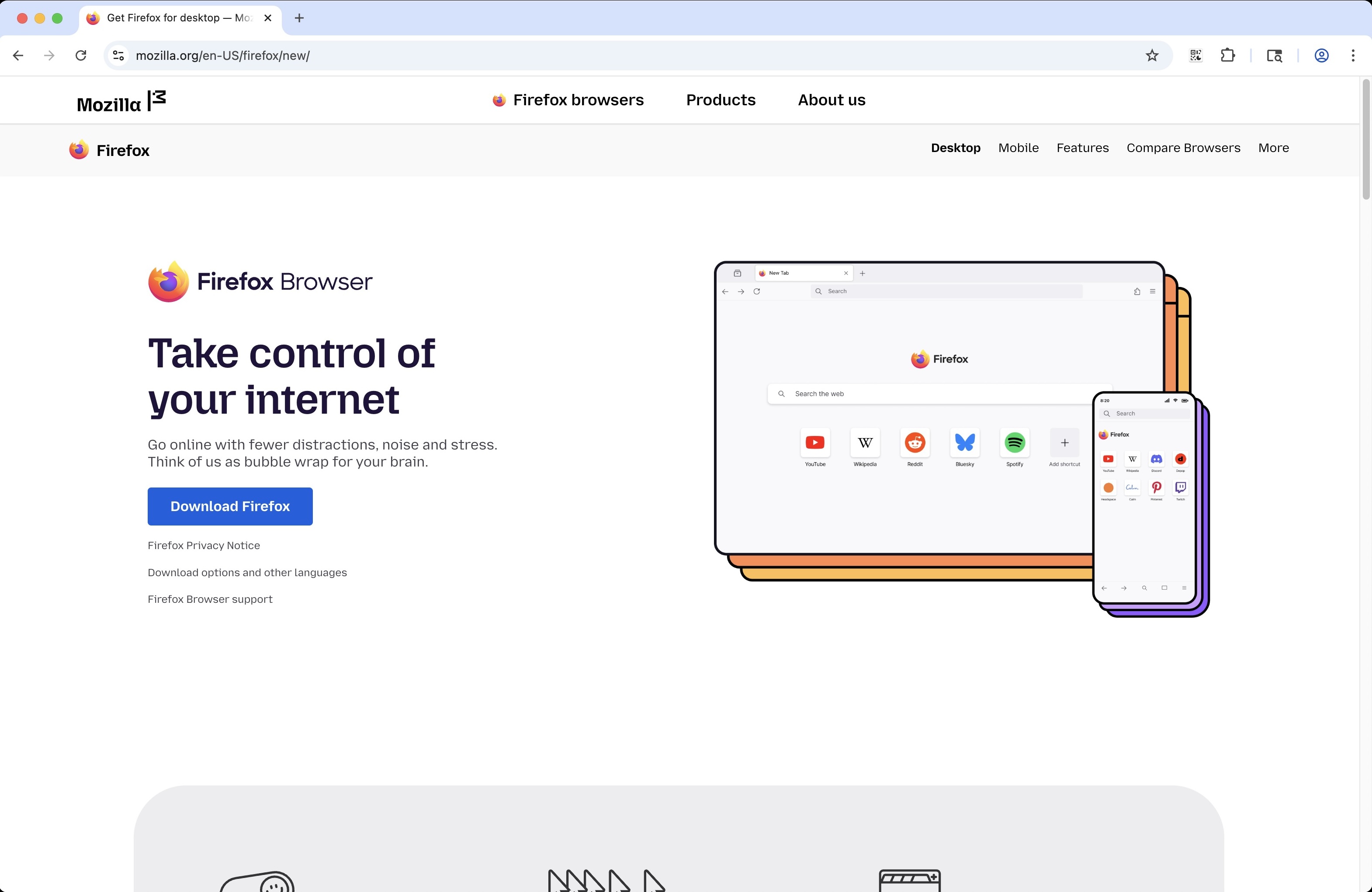
1Go to https://www.mozilla.org/en-US/firefox/new/ and download and install Firefox.
 📷 Screenshot unavailable
 -
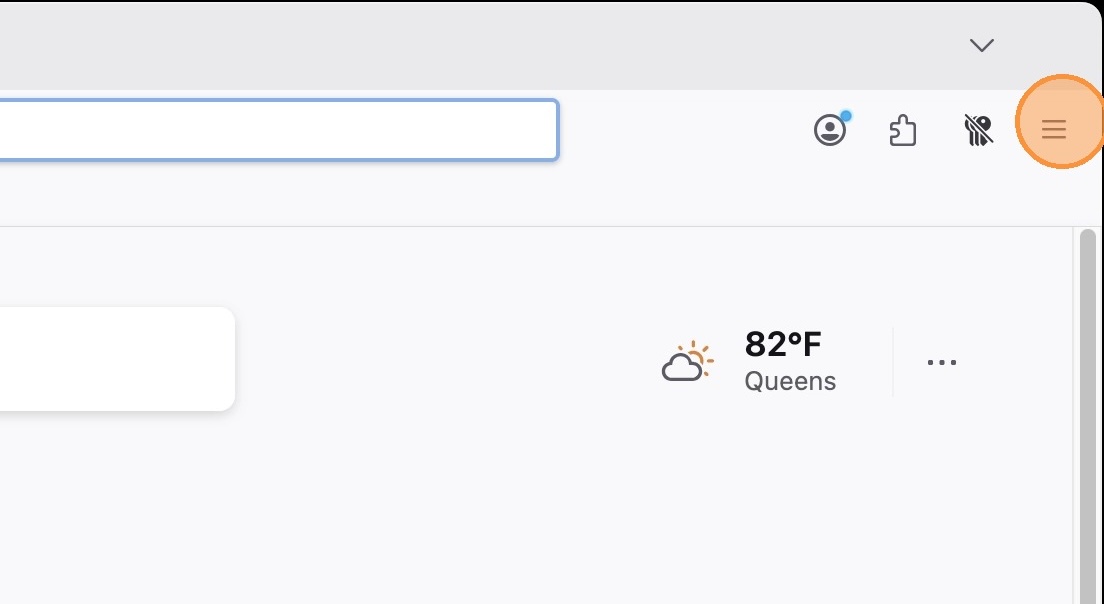
2Open Firefox and click the menu icon (three horizontal lines) in the top right.
 📷 Screenshot unavailable
 -
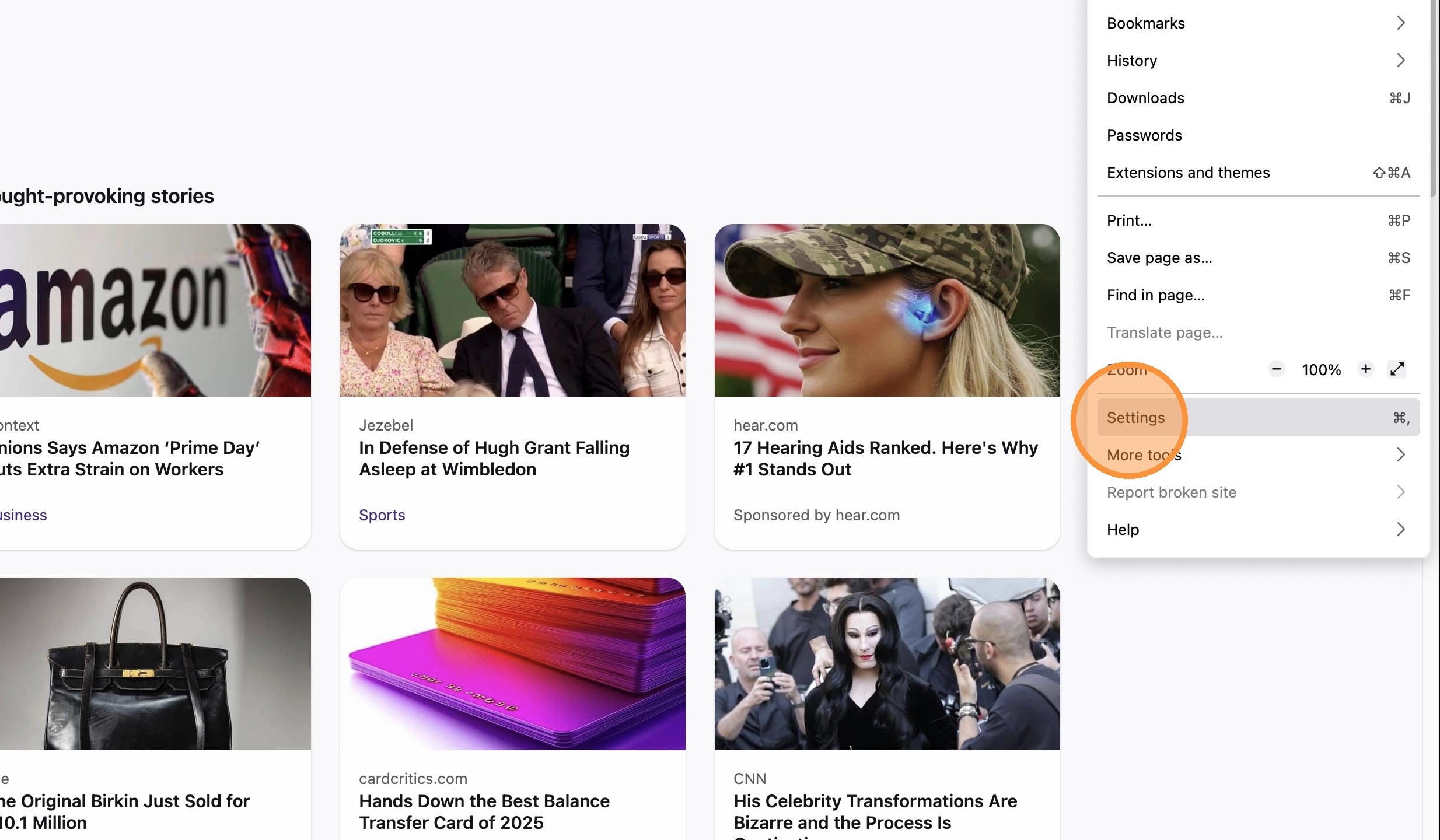
3Click Settings.
 📷 Screenshot unavailable
 -
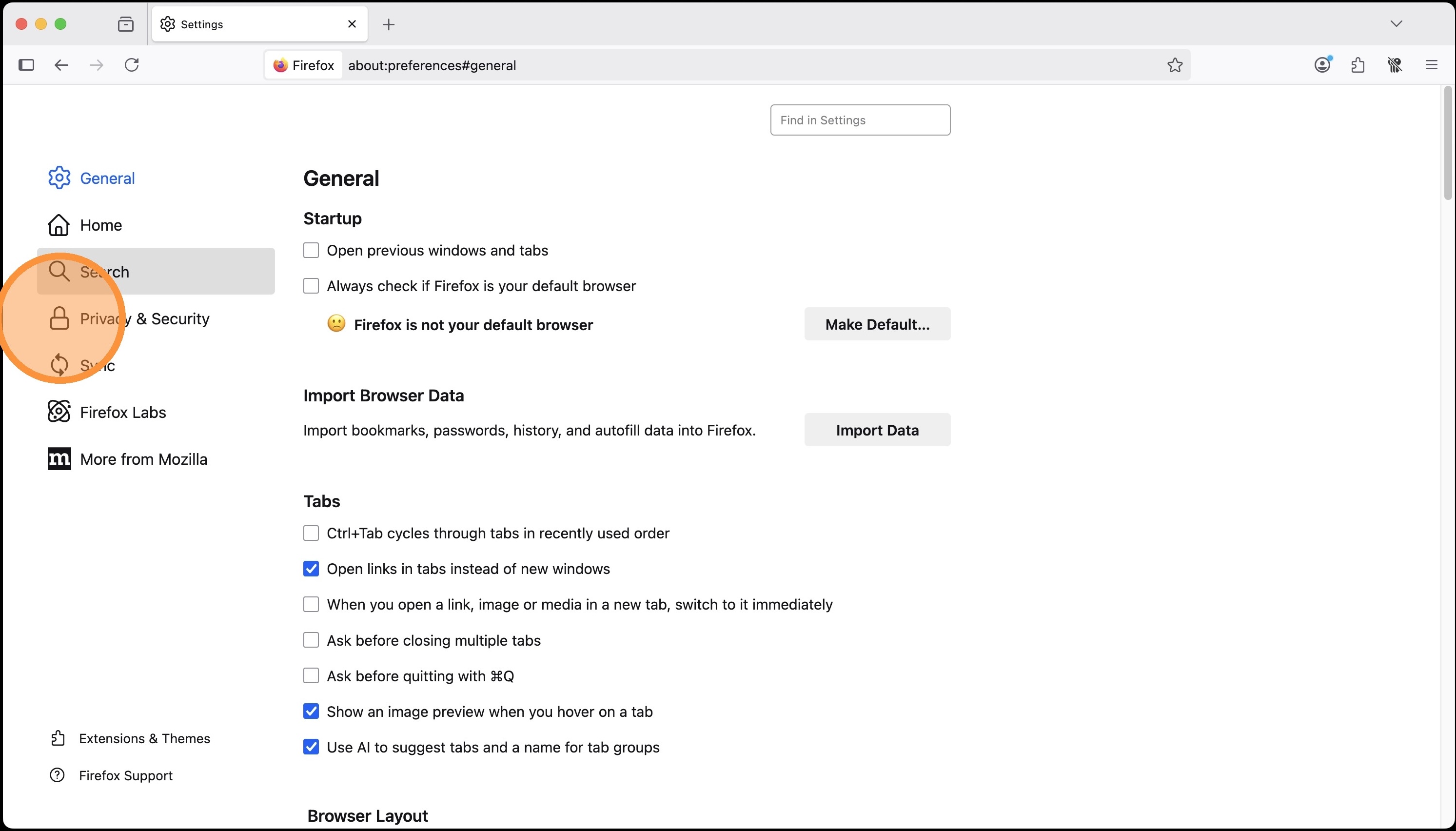
4Select Privacy & Security from the left menu.
 📷 Screenshot unavailable
 -
5Check the box "Delete cookies and site data when Firefox is closed".
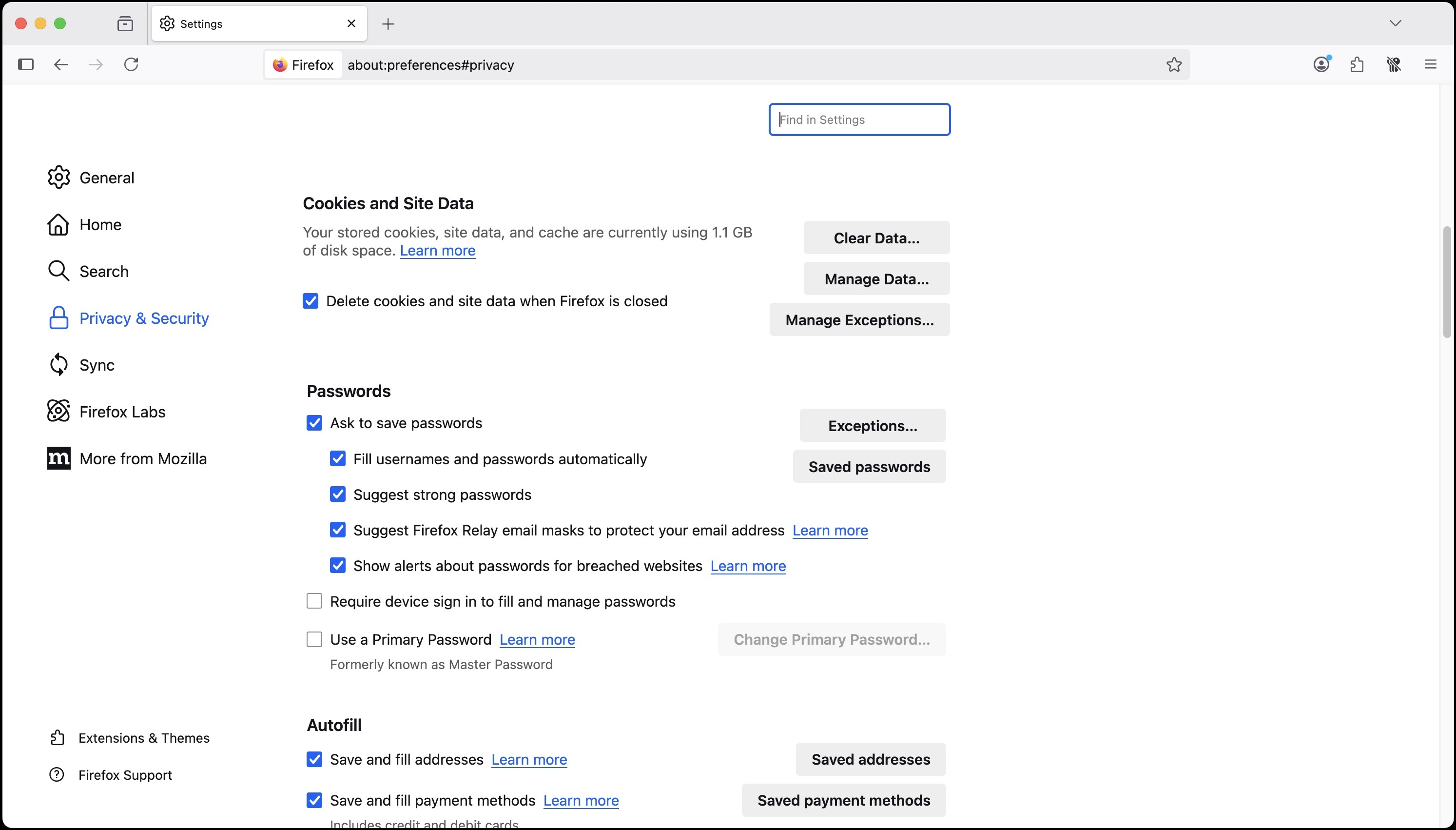 📷 Screenshot unavailable
 -
6When placing orders: open Firefox, complete the order, then fully close Firefox when finished. Closing the browser is what triggers the automatic data clearing.