🛠️
Troubleshooting Five9
Common Five9 issues and step-by-step fixes: password resets, browser resets, plugin reinstallation, and full system driver removal when necessary.
If you forgot your password, you can reset it yourself.
1
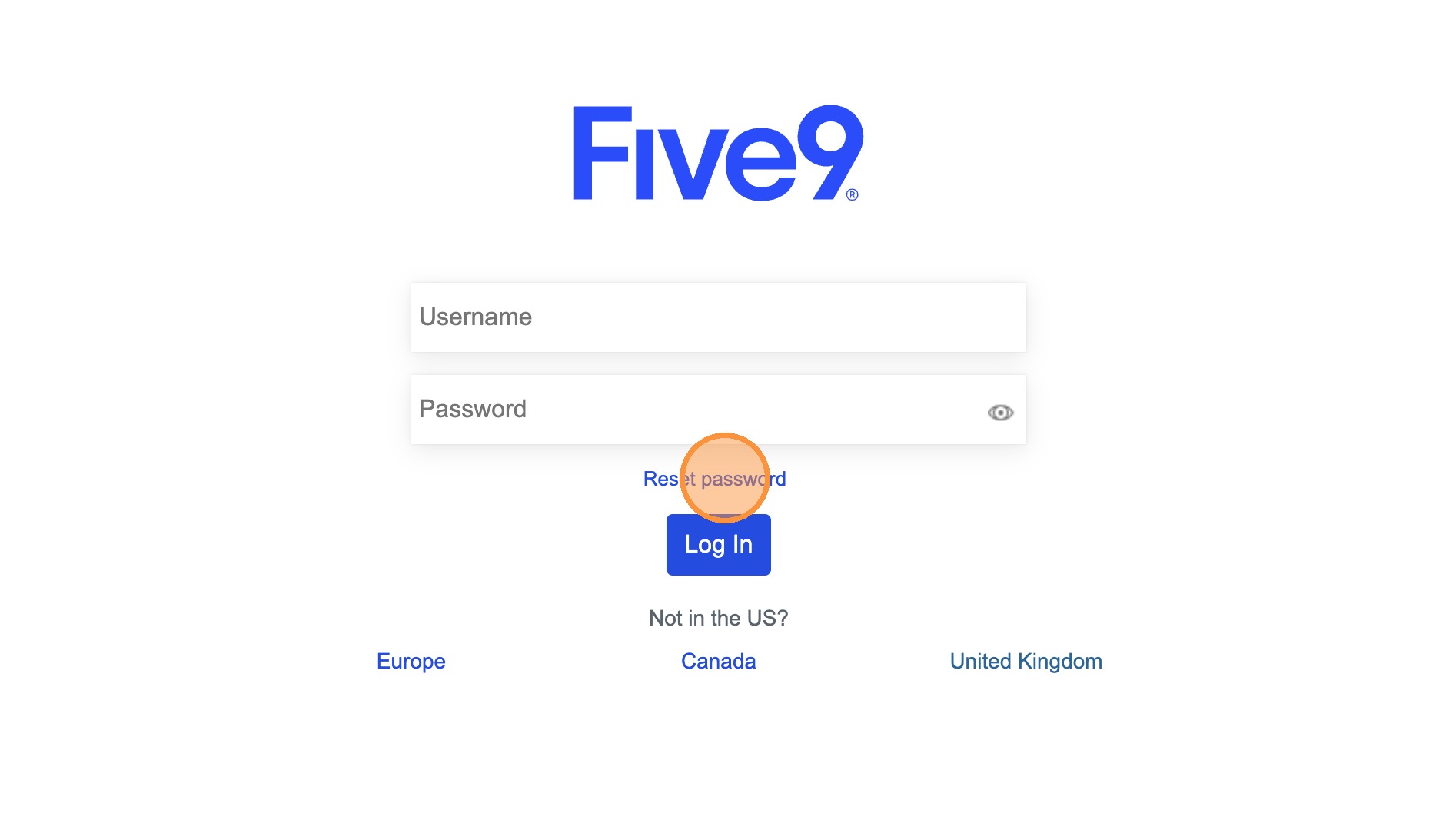
Navigate to login.five9.com and click the Reset password link above the Log In button.
📷 Screenshot unavailable
2
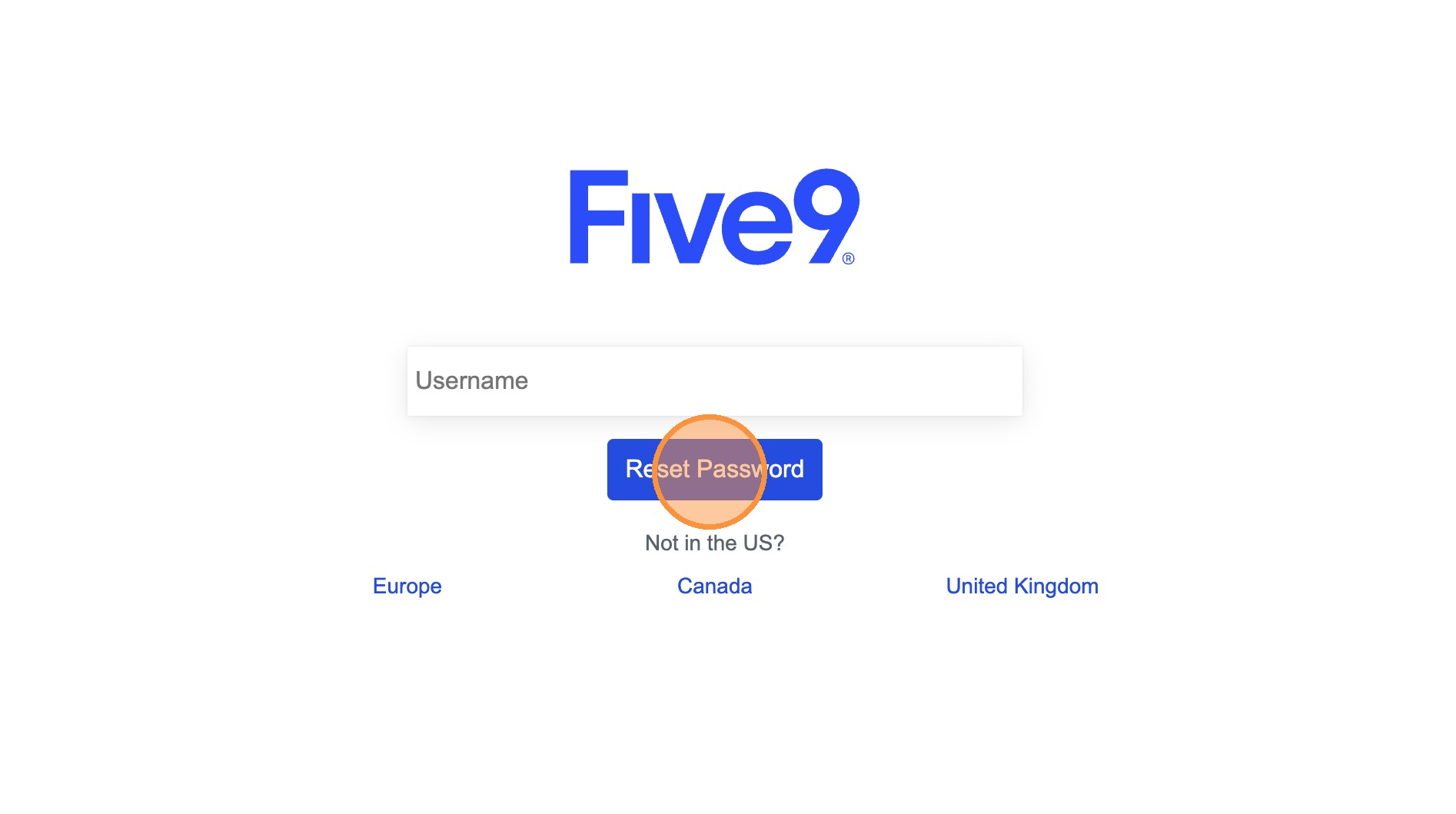
Enter your Five9 username and click Reset Password.
📷 Screenshot unavailable
3
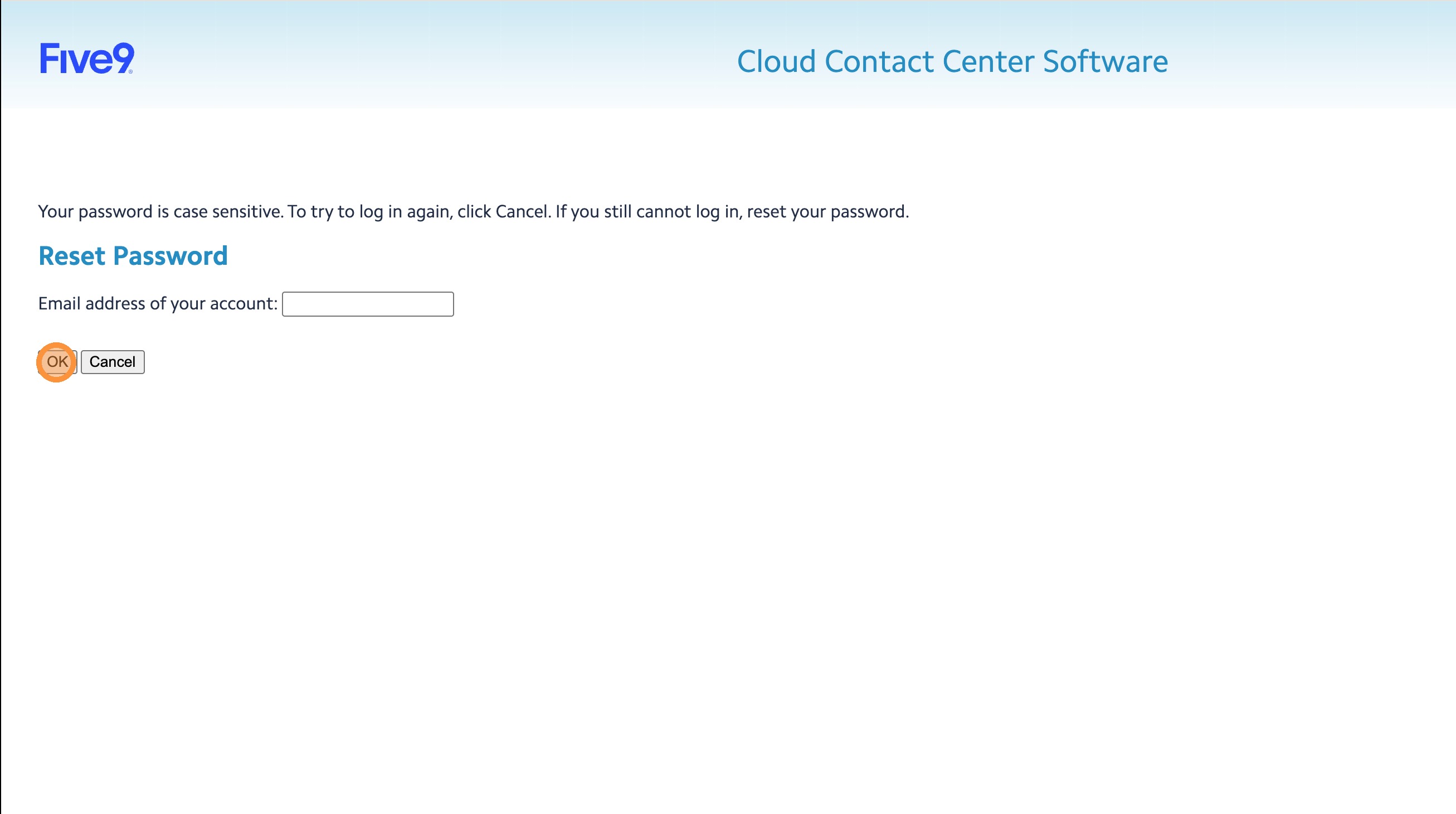
Confirm your email address when prompted.
📷 Screenshot unavailable
4
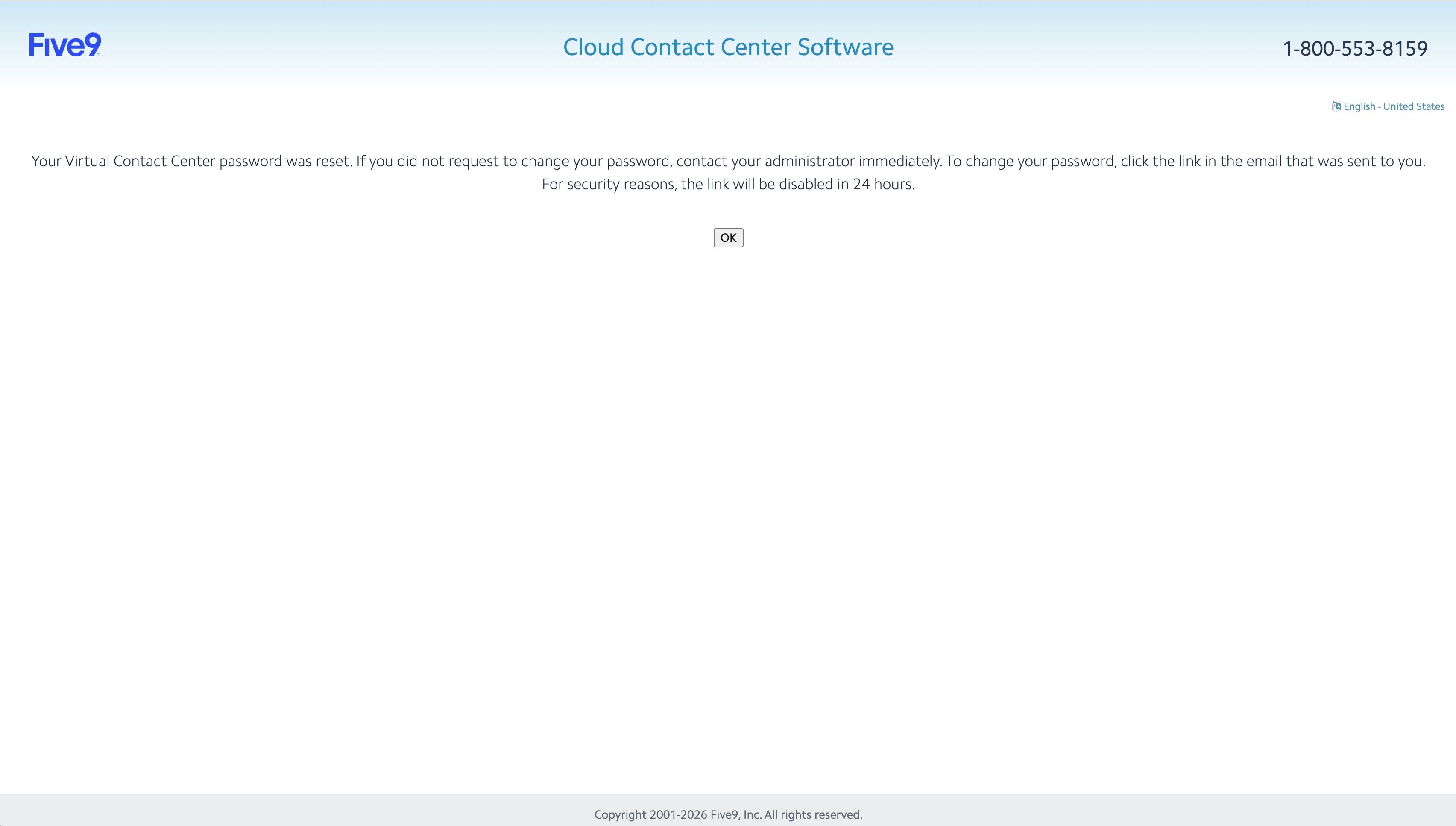
You should see a page confirming your password reset request.
📷 Screenshot unavailable
5
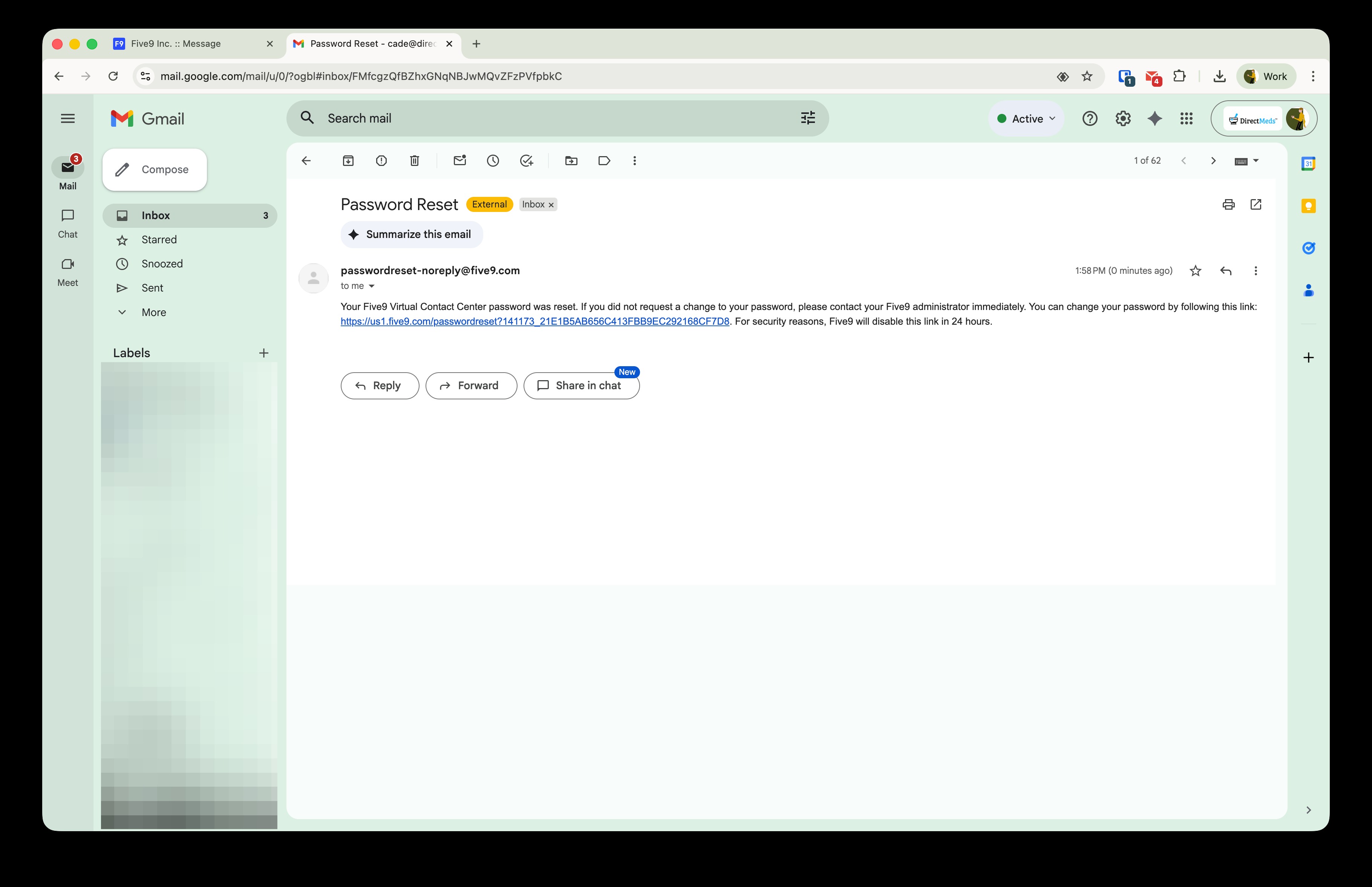
Check your inbox for an email titled "Password Reset" from Five9 and click the reset link.
📷 Screenshot unavailable
6
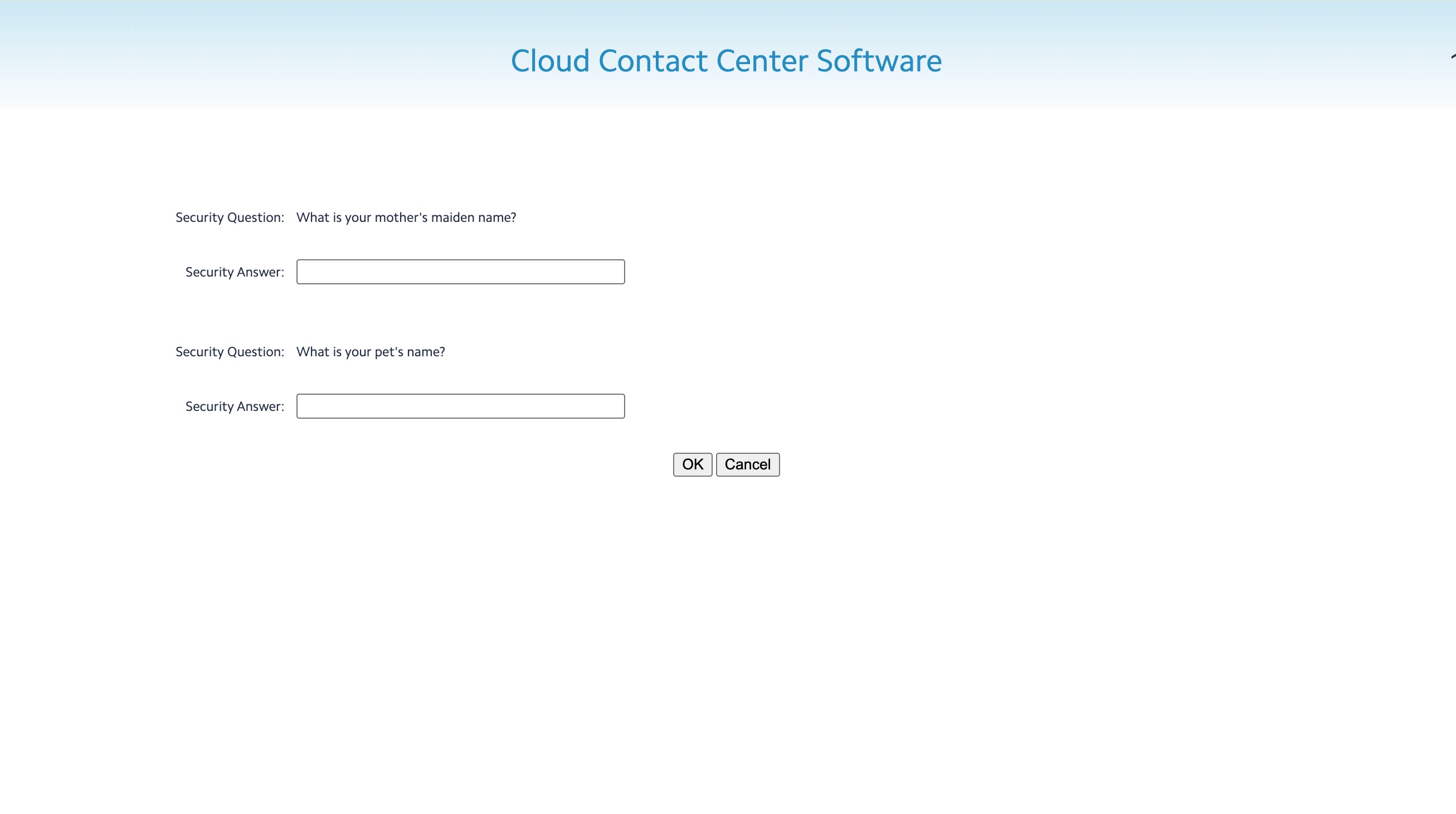
Answer your security questions. If you cannot answer them you will not be able to continue — contact your supervisor or Operations.
📷 Screenshot unavailable
7
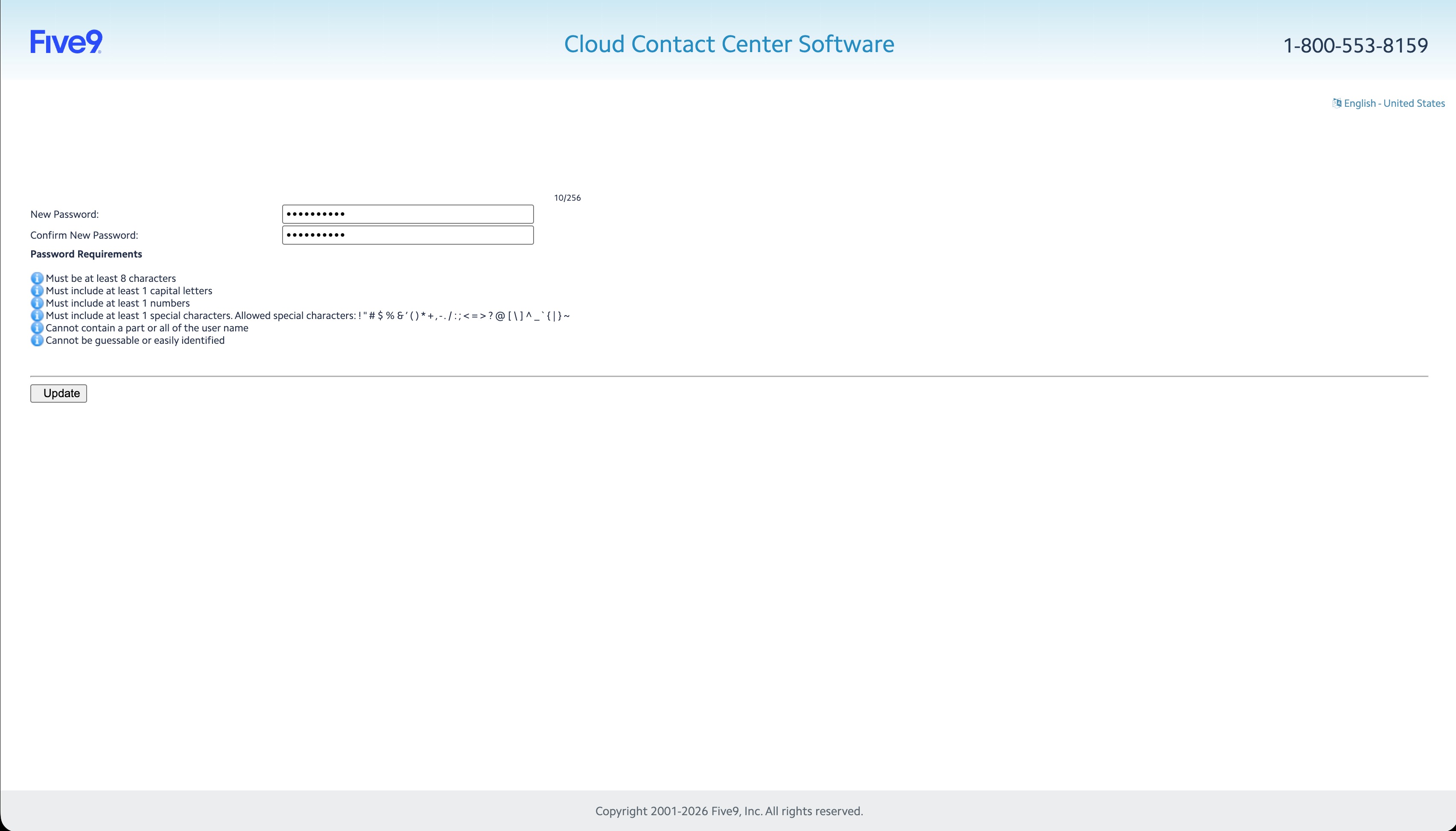
Enter and confirm your new password, then click Update. Your password reset is complete.
📷 Screenshot unavailable
Security questions are required for password resets. If your answers have changed or you forgot them, update them immediately.
8
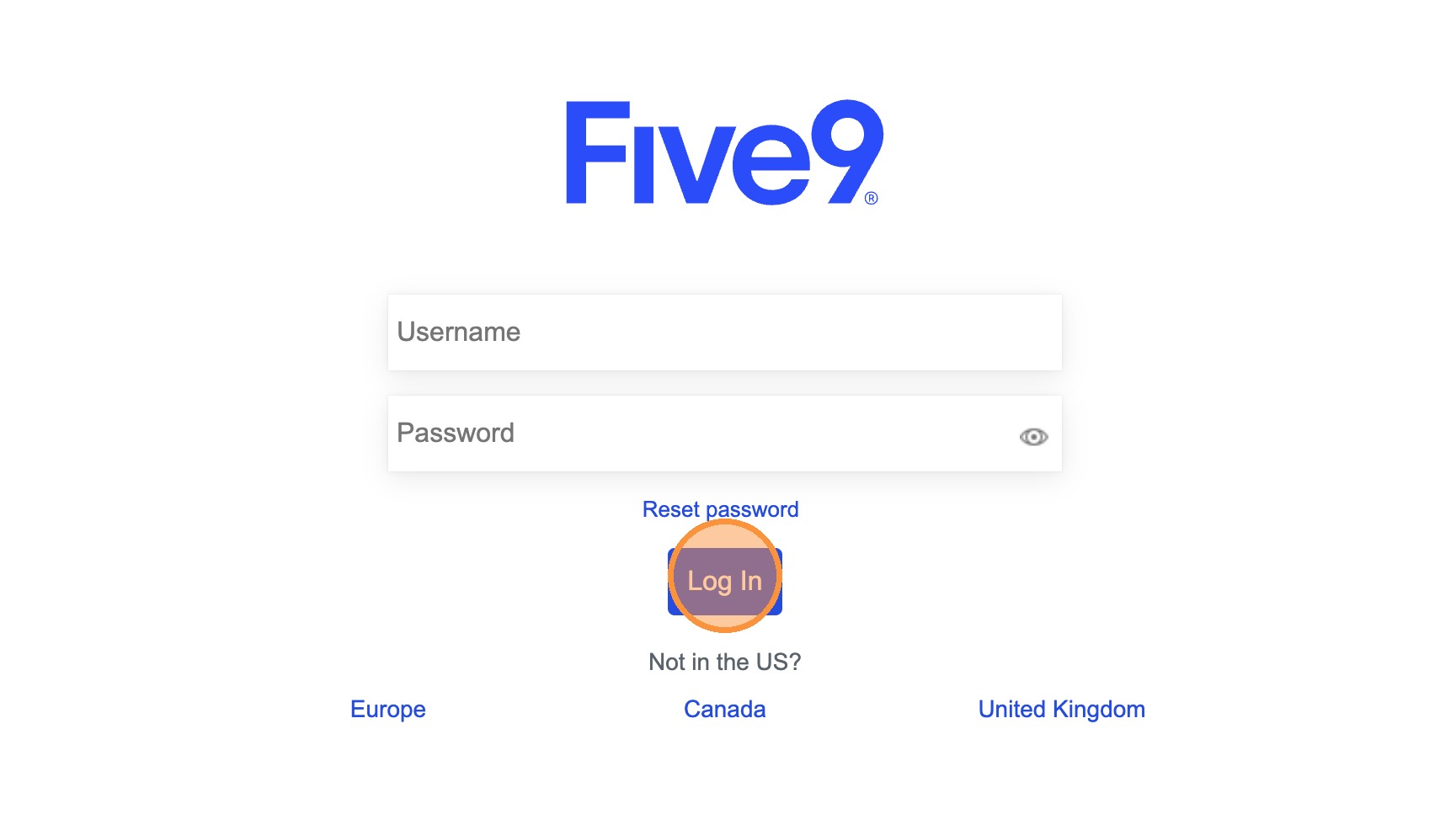
Sign in at login.five9.com.
📷 Screenshot unavailable
9
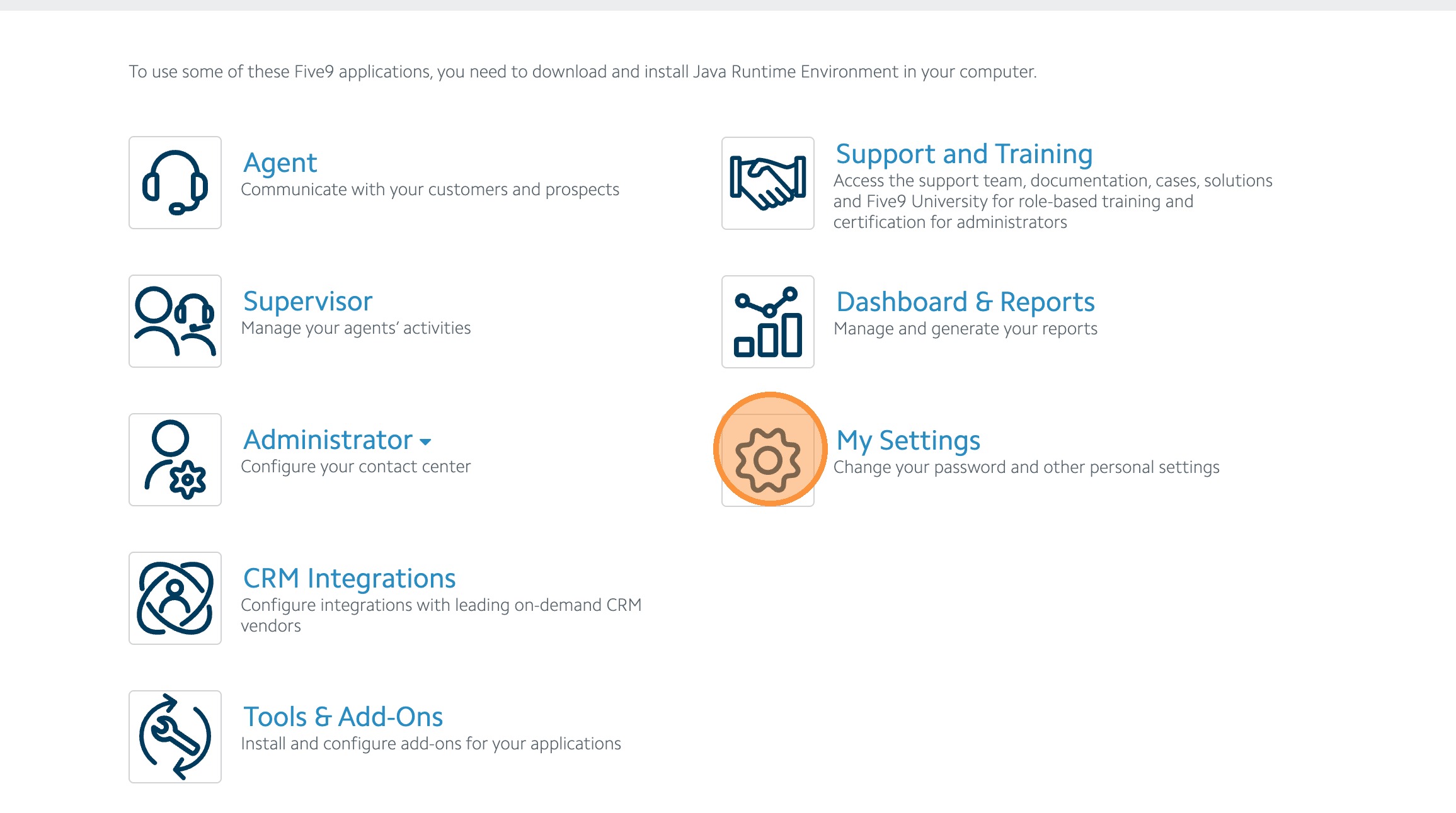
Click My Settings.
📷 Screenshot unavailable
10
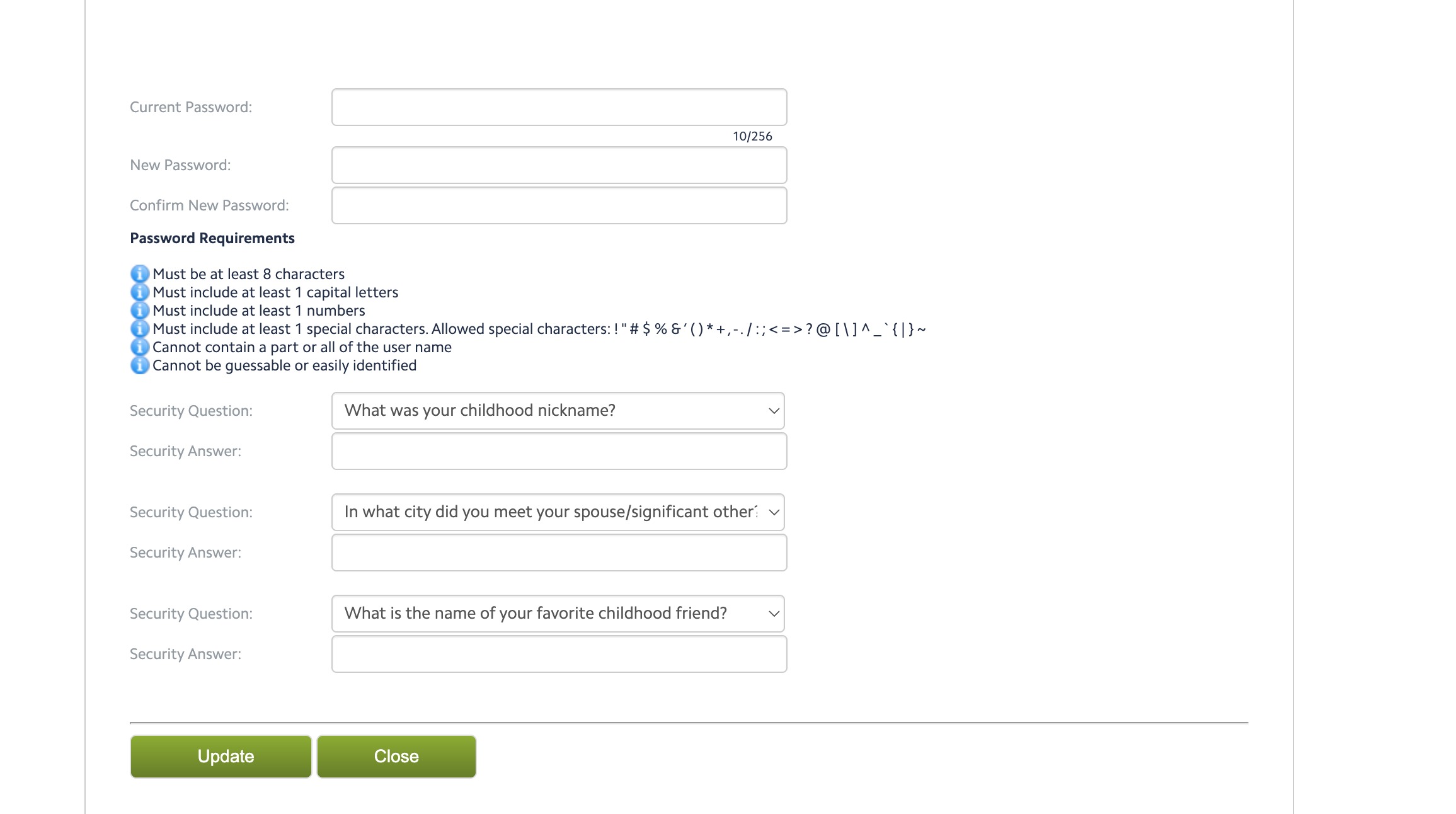
Enter your current password, update your security questions and answers, then click Update.
📷 Screenshot unavailable
These steps help resolve freezing, delays, audio issues, dialer glitches, and login loops. Follow the sections below in order.
🎥 Video guide for this section: https://docs.google.com/videos/d/1WawjvlinwHAQjf_2sFSQxDQ8-jp7jr4hb4MOnIxnBVM/edit?usp=sharing
11
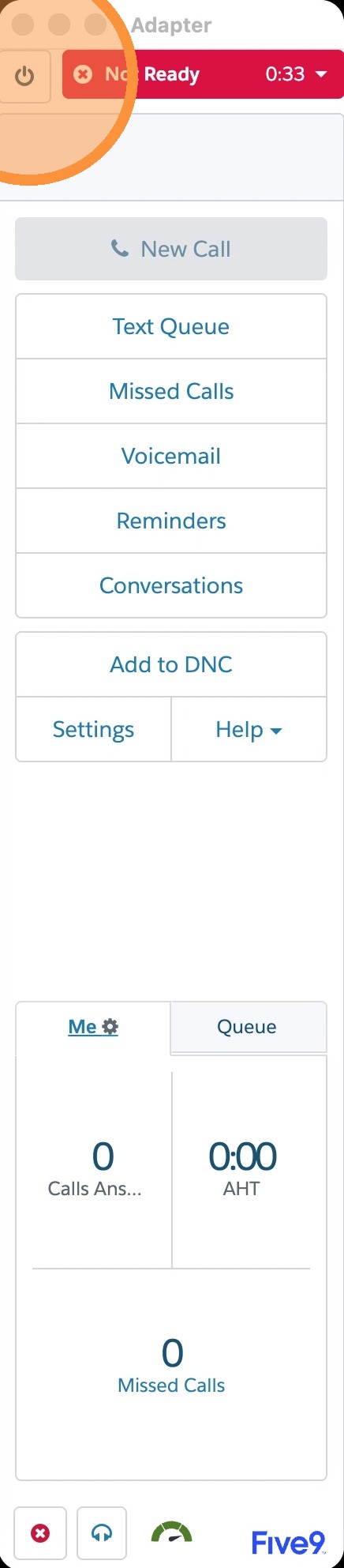
Click the power button in the top-left corner.
📷 Screenshot unavailable
12
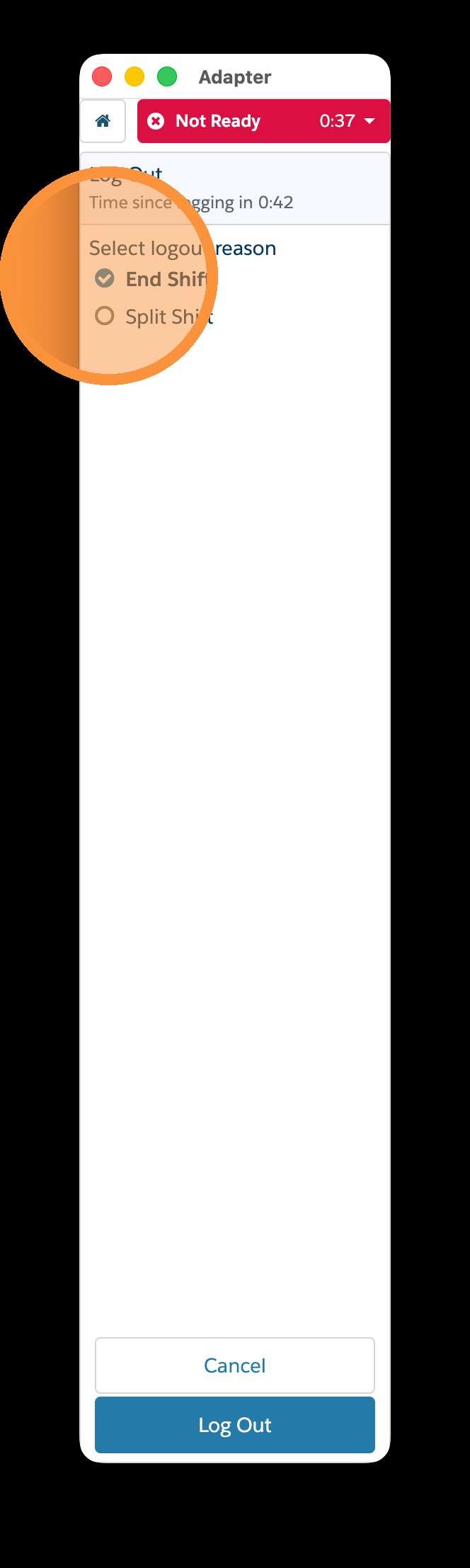
Select End Shift, then click Log Out.
📷 Screenshot unavailable
13
Clear cache and cookies — follow the next section for the steps.
🎥 Video guide for this section: https://docs.google.com/videos/d/18G76ajh5ehvT0STXWdFO4u3ABWlc_68G7UTyXtrEdrM/edit?usp=sharing
14
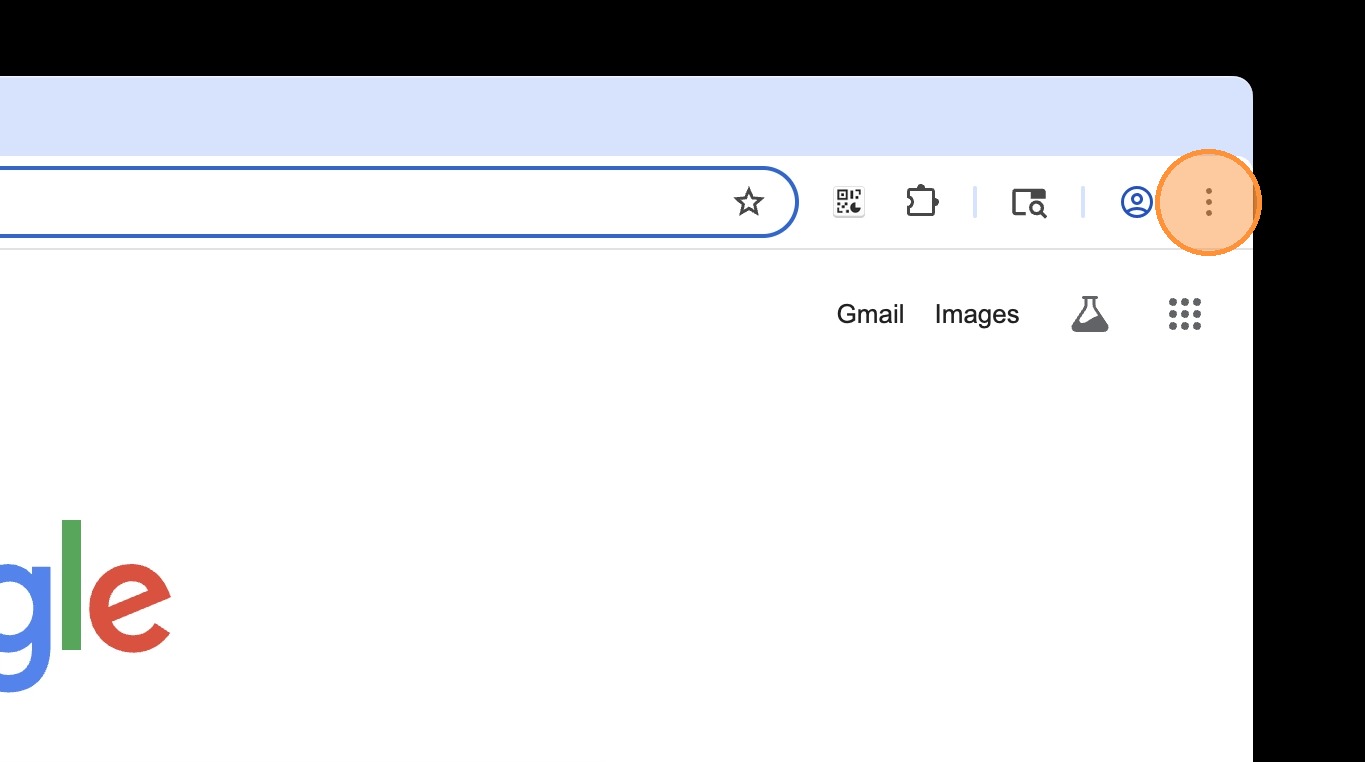
In Google Chrome, click the kebab menu (three dots) in the top-right corner.
📷 Screenshot unavailable
15
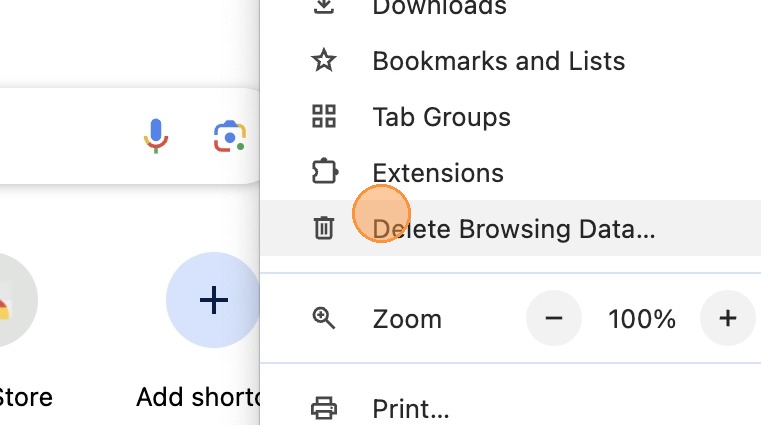
Select Delete Browsing Data in the popup menu.
📷 Screenshot unavailable
16
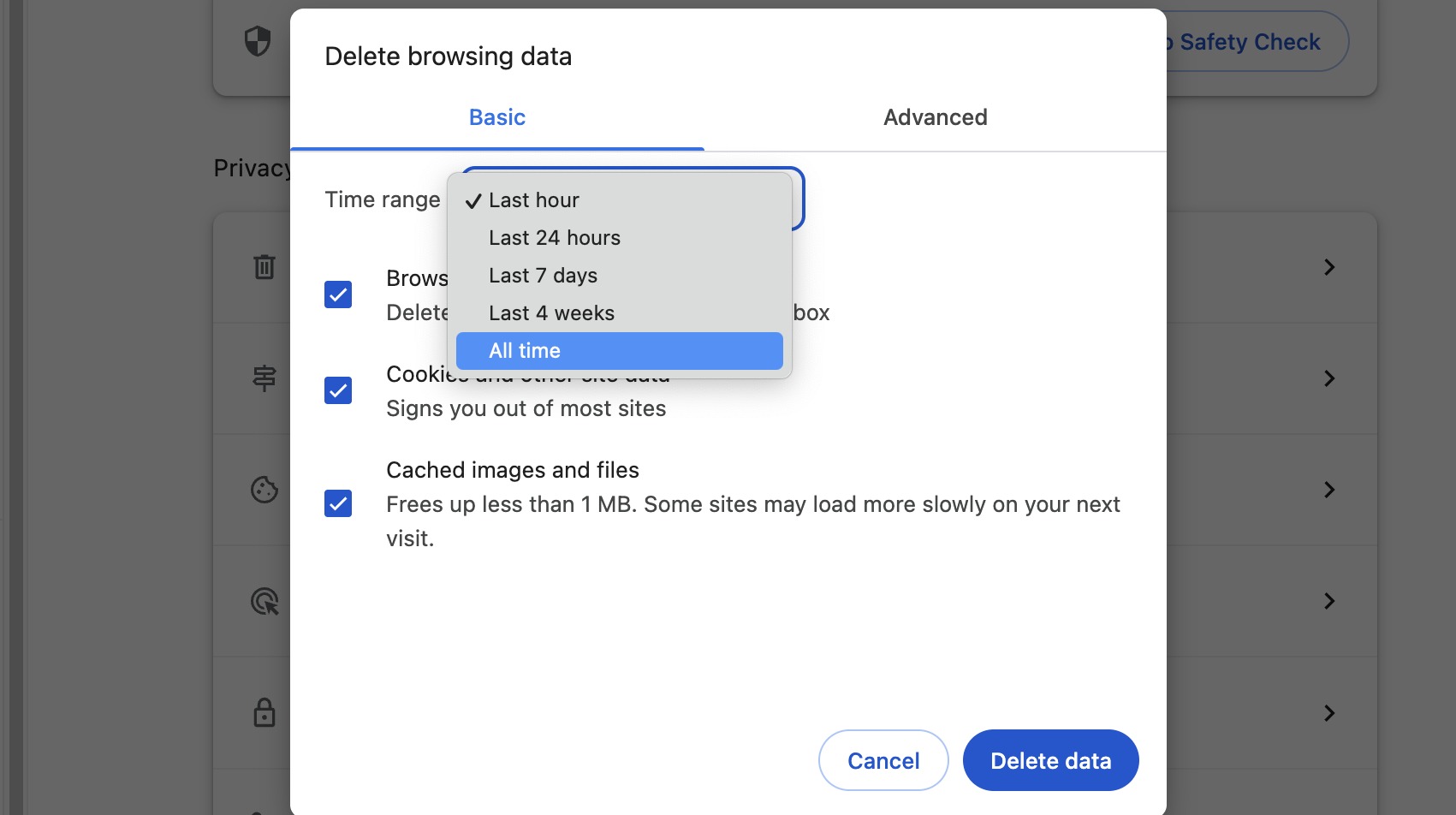
Switch Time range to All time.
📷 Screenshot unavailable
17
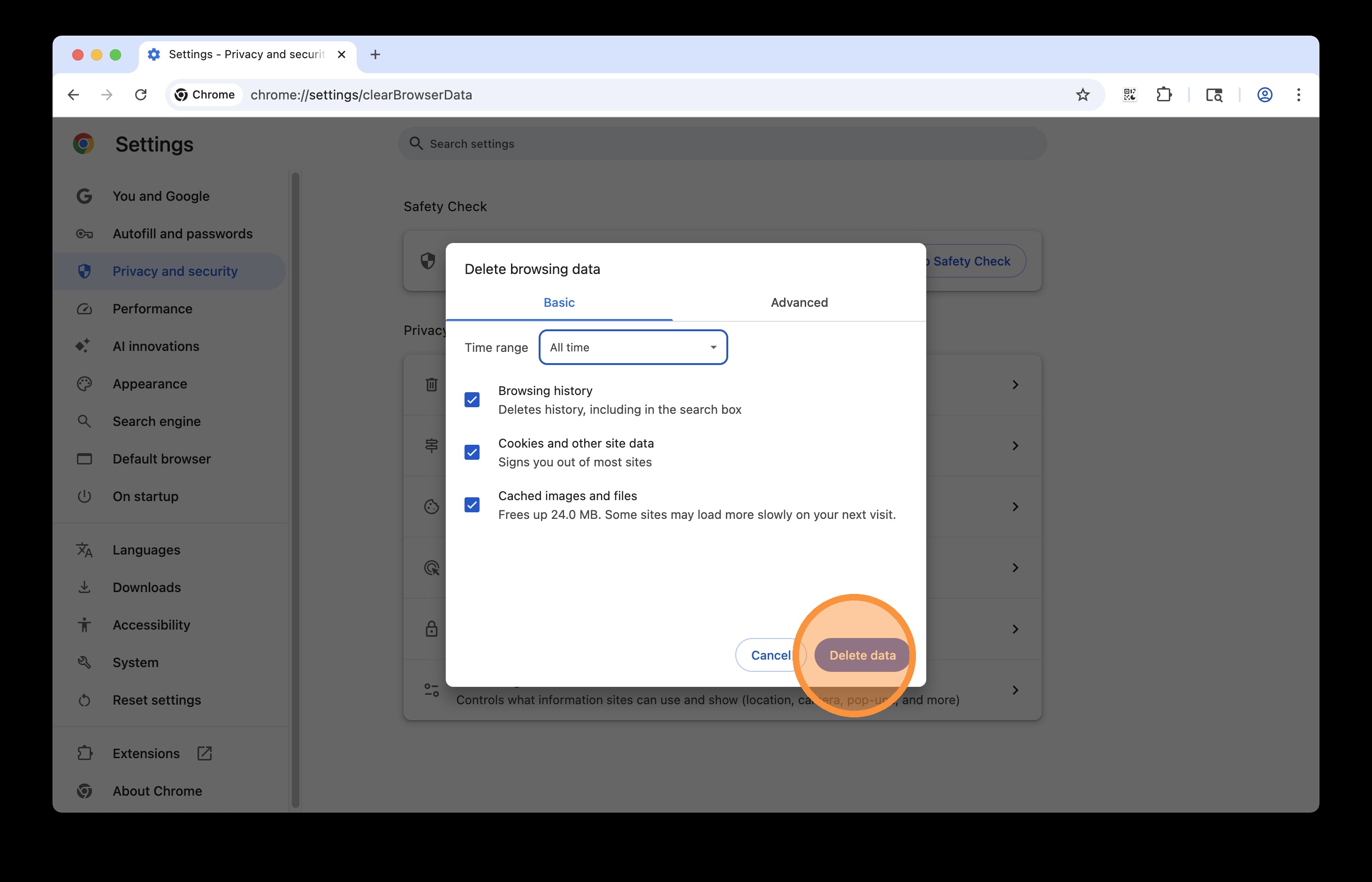
Select all options for deletion, then click Delete data.
📷 Screenshot unavailable
18
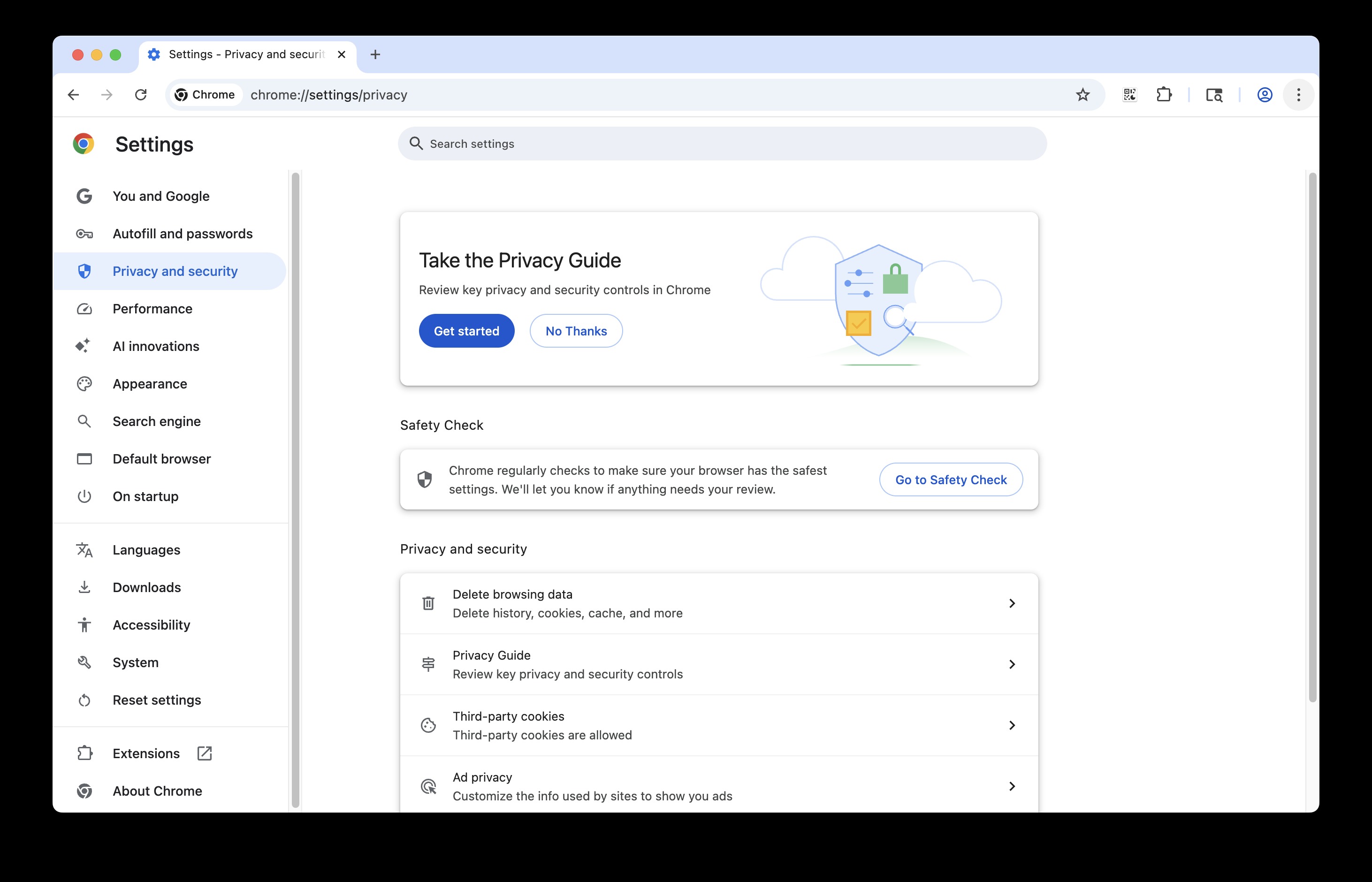
After clearing all data, fully close Google Chrome and reopen it, then check if the issue persists. (Mac: hold Command ⌘ + Q to quit. PC: hold Alt + F4 to quit.)
📷 Screenshot unavailable
If the issue persists after clearing browser data and reopening Chrome, briefly restart your computer to wipe any lingering memory.
🎥 Video guide for this section: https://docs.google.com/videos/d/1oC76xxn-tzHdZEOIR8FhV9DKejRmc-EYArRmQyaxYm8/edit?usp=sharing
19
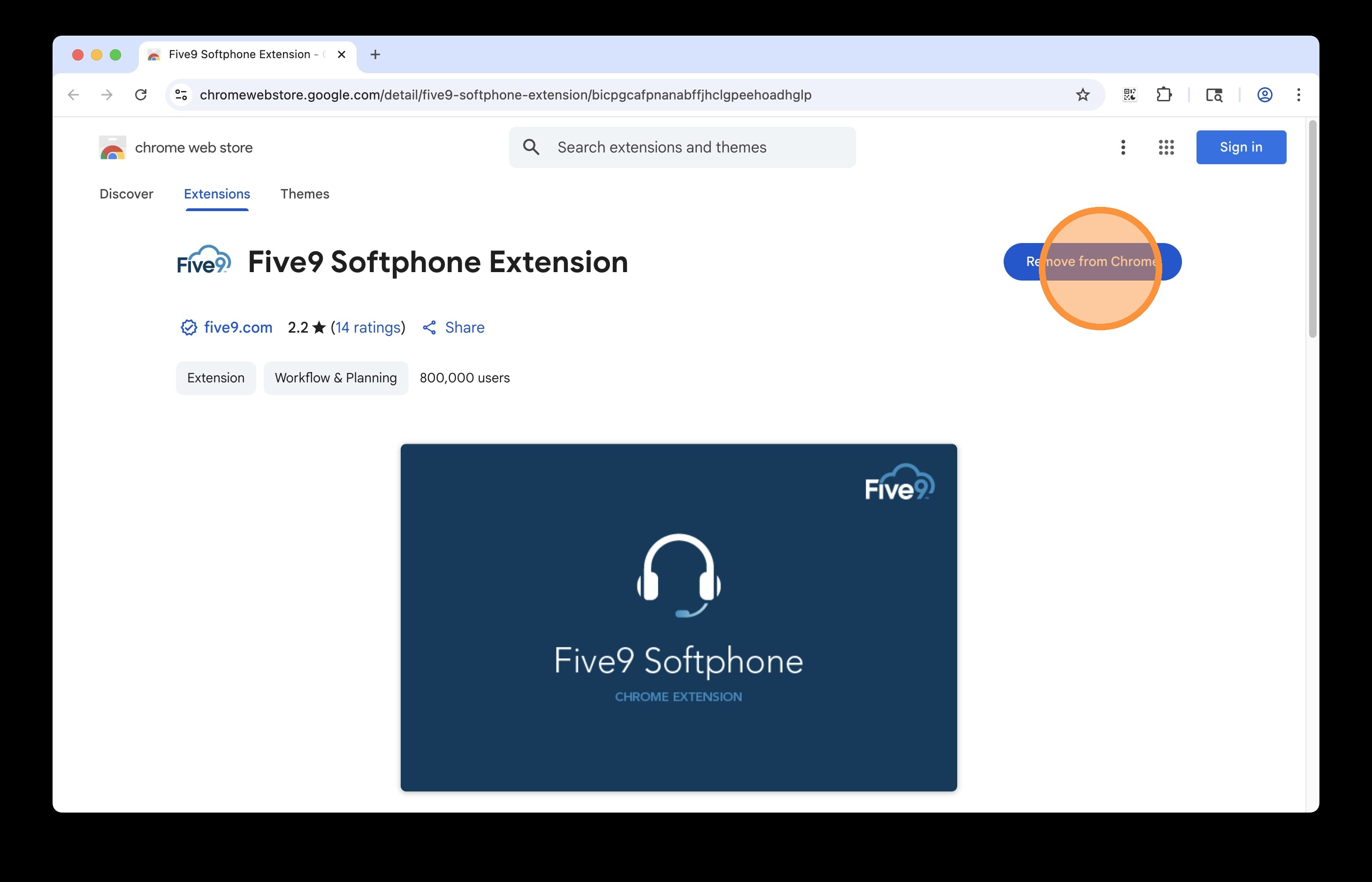
Go to the Five9 Softphone Extension page (https://chromewebstore.google.com/detail/five9-softphone-extension/bicpgcafpnanabffjhclgpeehoadhglp) and click Remove from Chrome.
📷 Screenshot unavailable
20
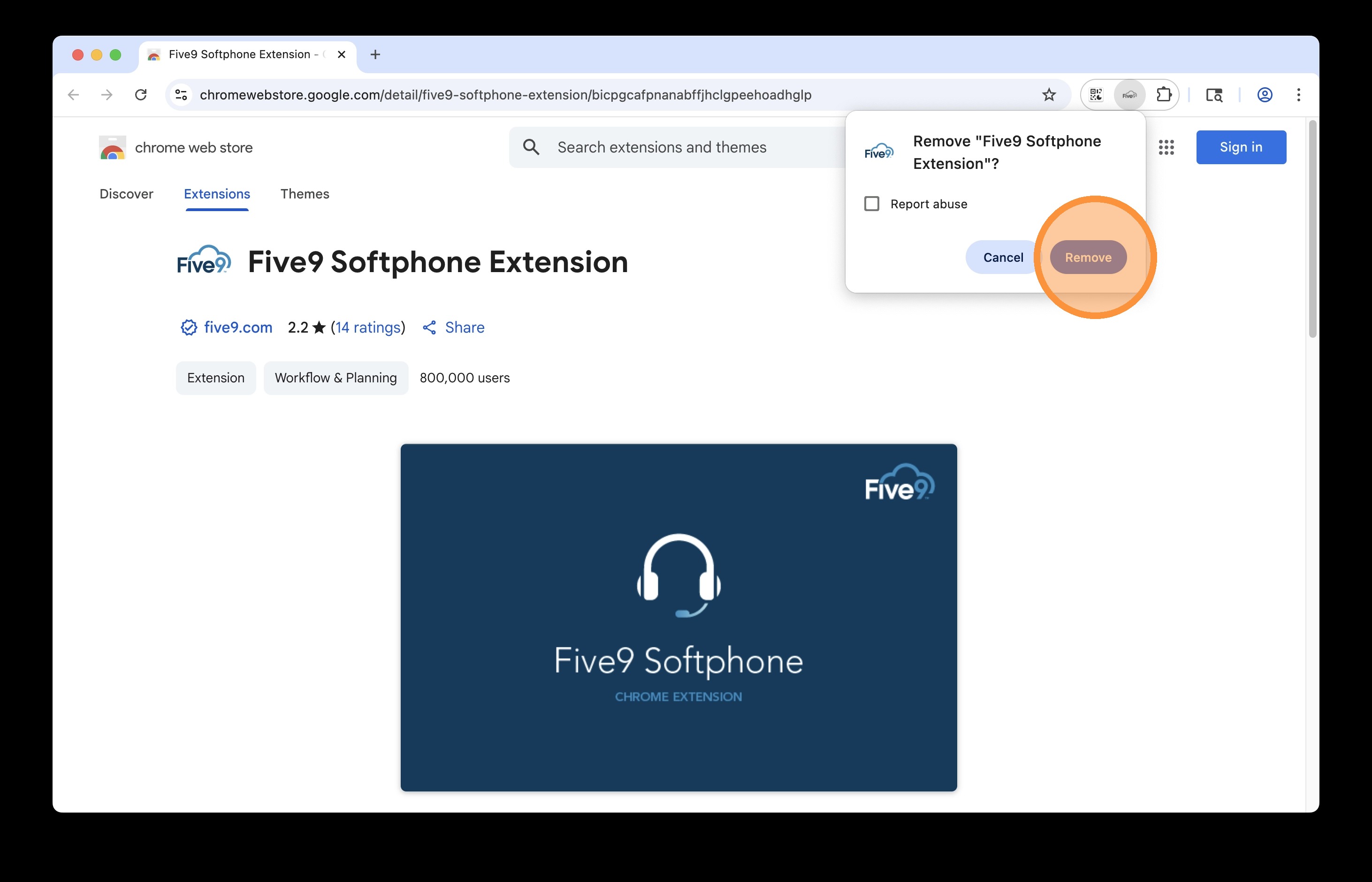
Click Remove to confirm.
📷 Screenshot unavailable
21
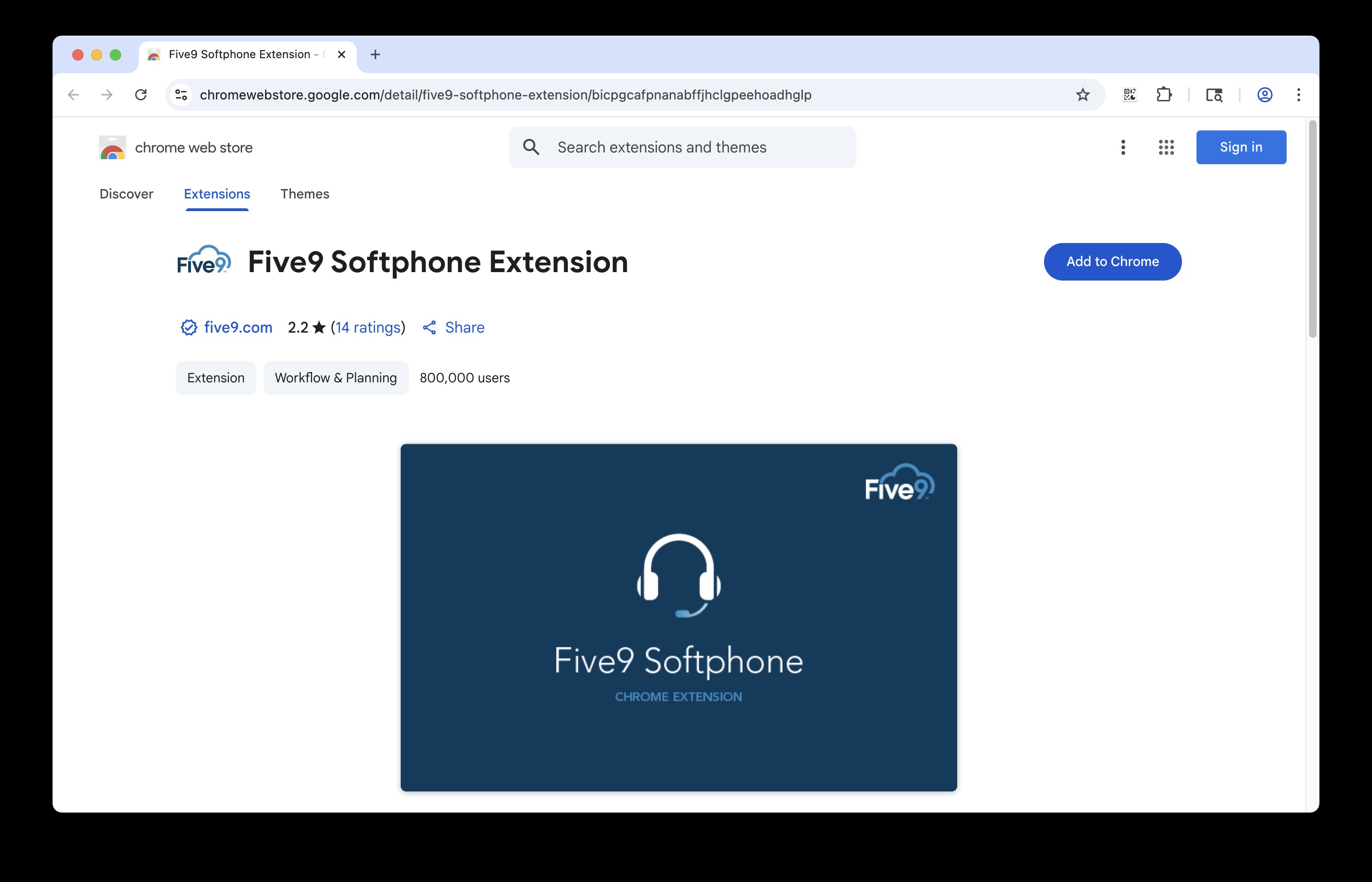
Click Add to Chrome to reinstall the extension. You may need to refresh the page or quit your browser.
📷 Screenshot unavailable
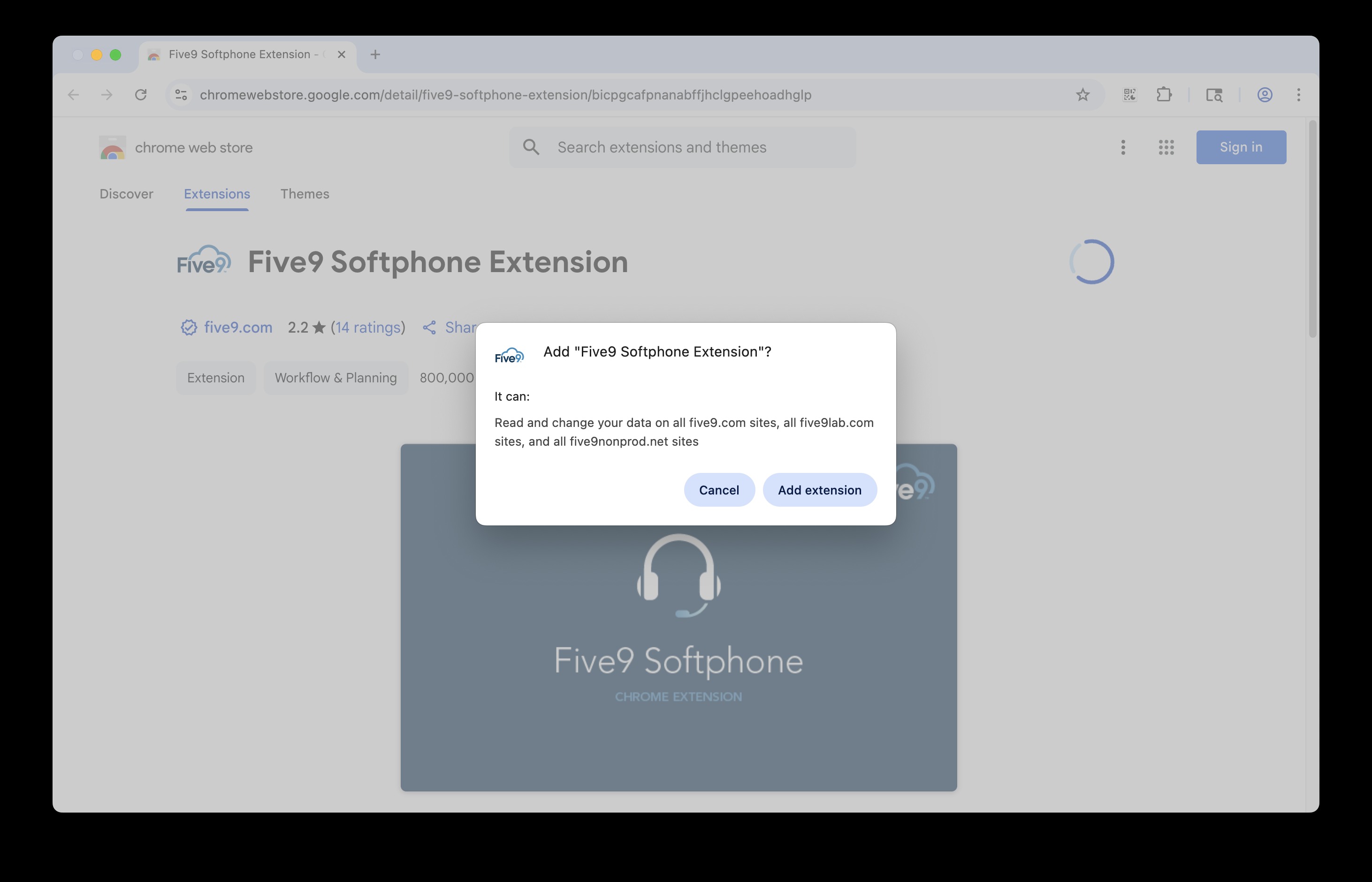
22
Click Add extension to confirm the install.
📷 Screenshot unavailable
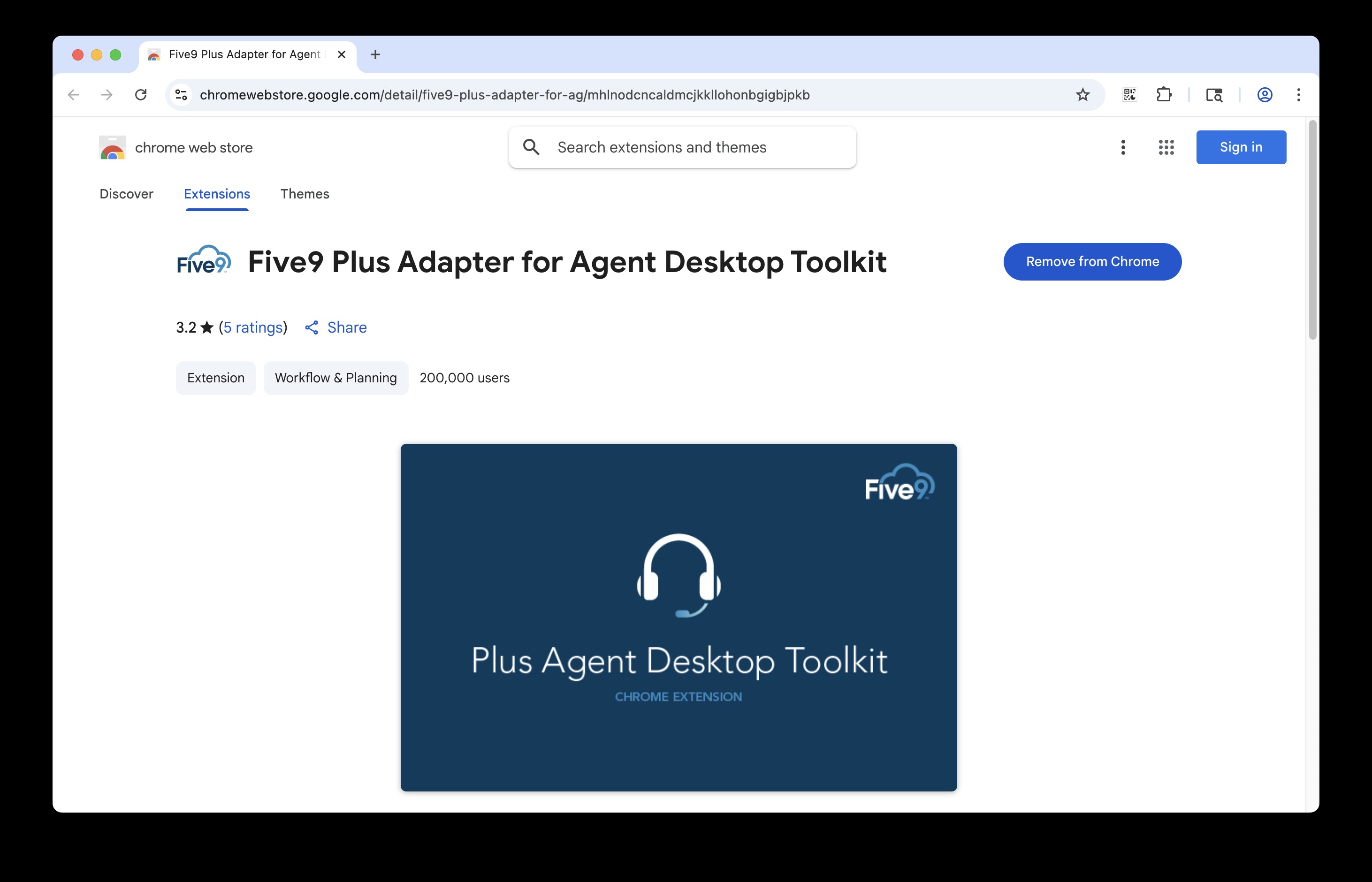
23
Repeat the same removal-and-reinstall process for the second plugin: https://chromewebstore.google.com/detail/five9-plus-adapter-for-ag/mhlnodcncaldmcjkkllohonbgigbjpkb
📷 Screenshot unavailable
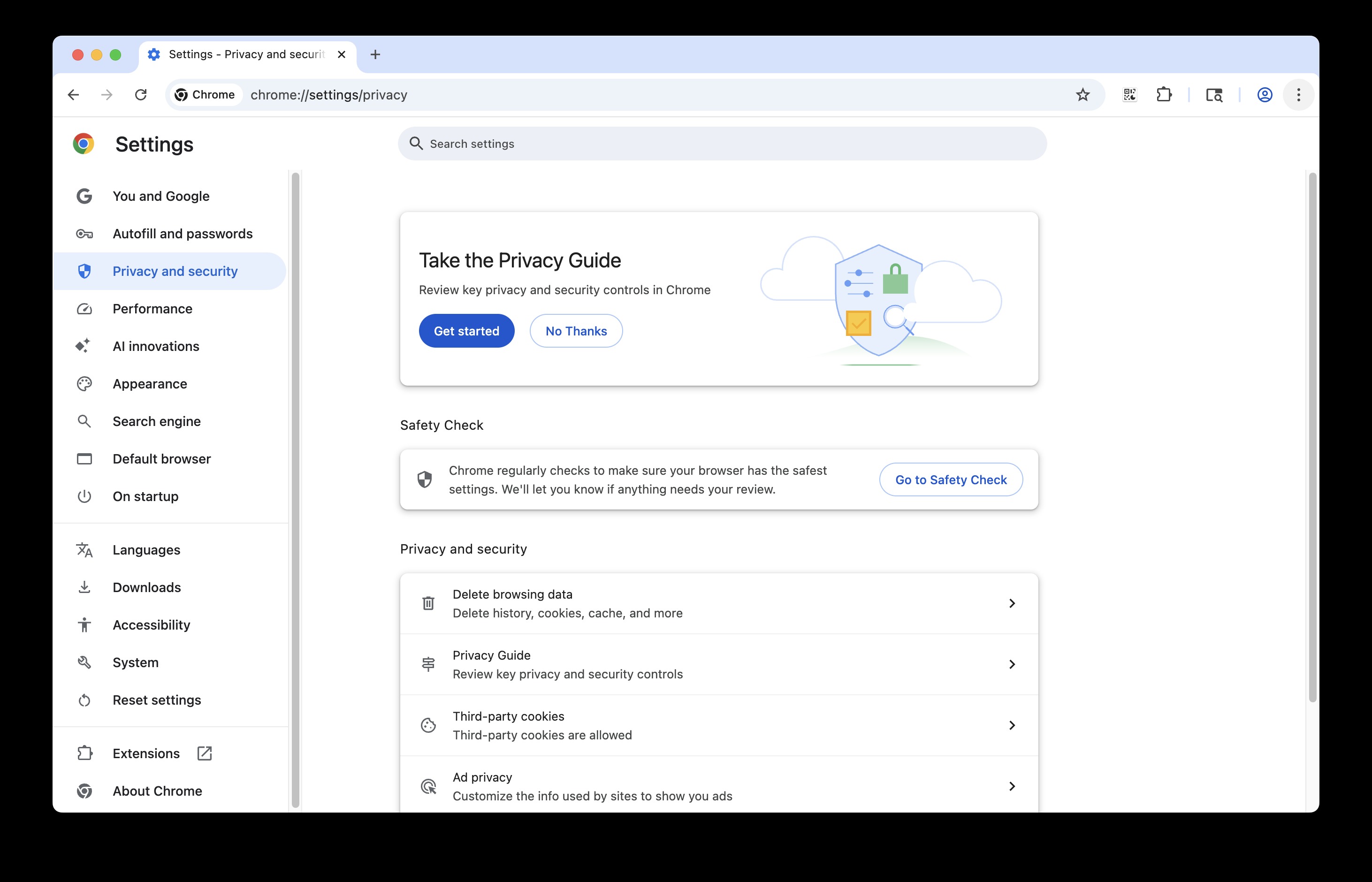
24
After reinstalling both plugins, fully close Google Chrome and reopen it, then check if the issue persists. (Mac: Command ⌘ + Q. PC: Alt + F4.)
📷 Screenshot unavailable
If you only have the two Chrome plugins and use Five9 in webRTC mode, you do NOT need to follow these steps.
25
Open Finder, then select the top menu option labeled Go.

📷 Screenshot unavailable
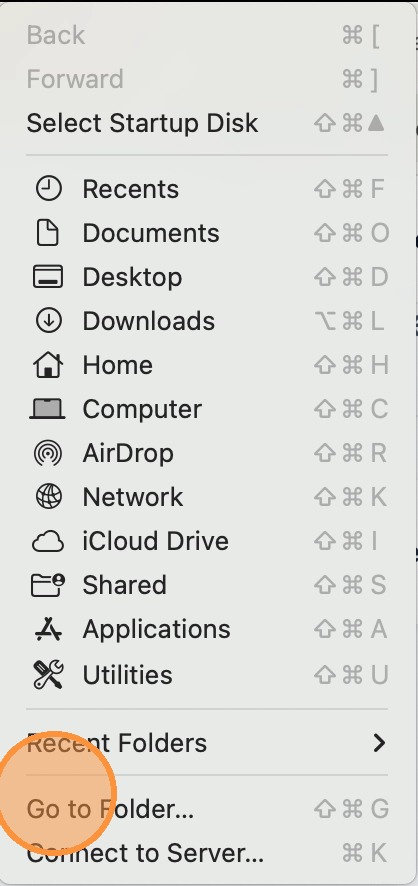
26
In the dropdown menu, select Go to Folder.
📷 Screenshot unavailable
27
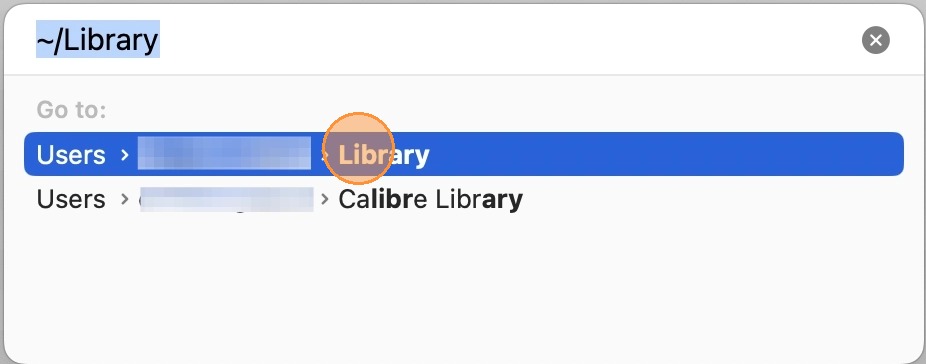
In the search bar, type ~/Library and select the option matching Users > [your username] > Library.
📷 Screenshot unavailable
28
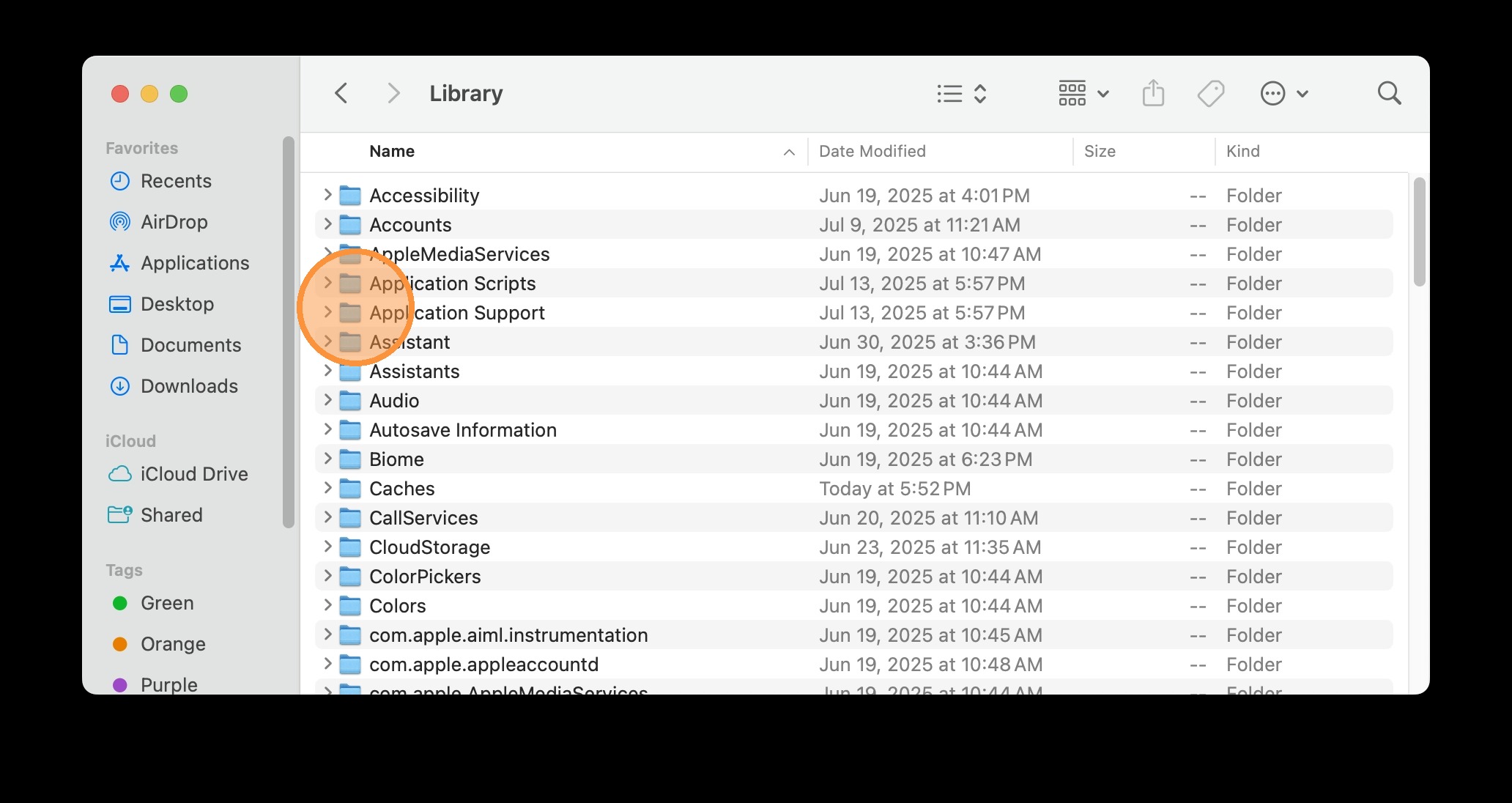
In the Finder window, find and open the folder named Application Support.
📷 Screenshot unavailable
29
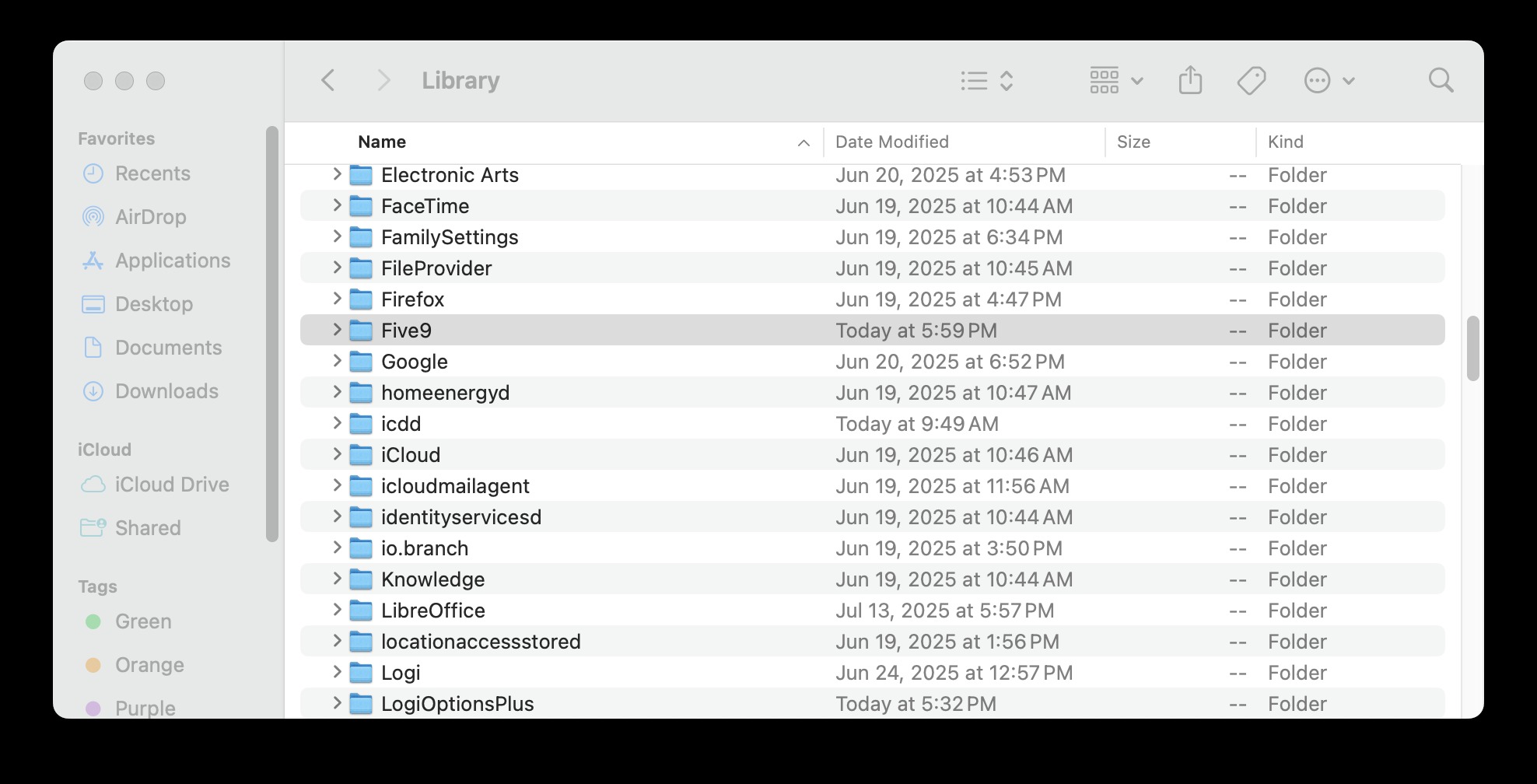
Find the folder named Five9 and drag the whole folder into the Trash.
📷 Screenshot unavailable
30
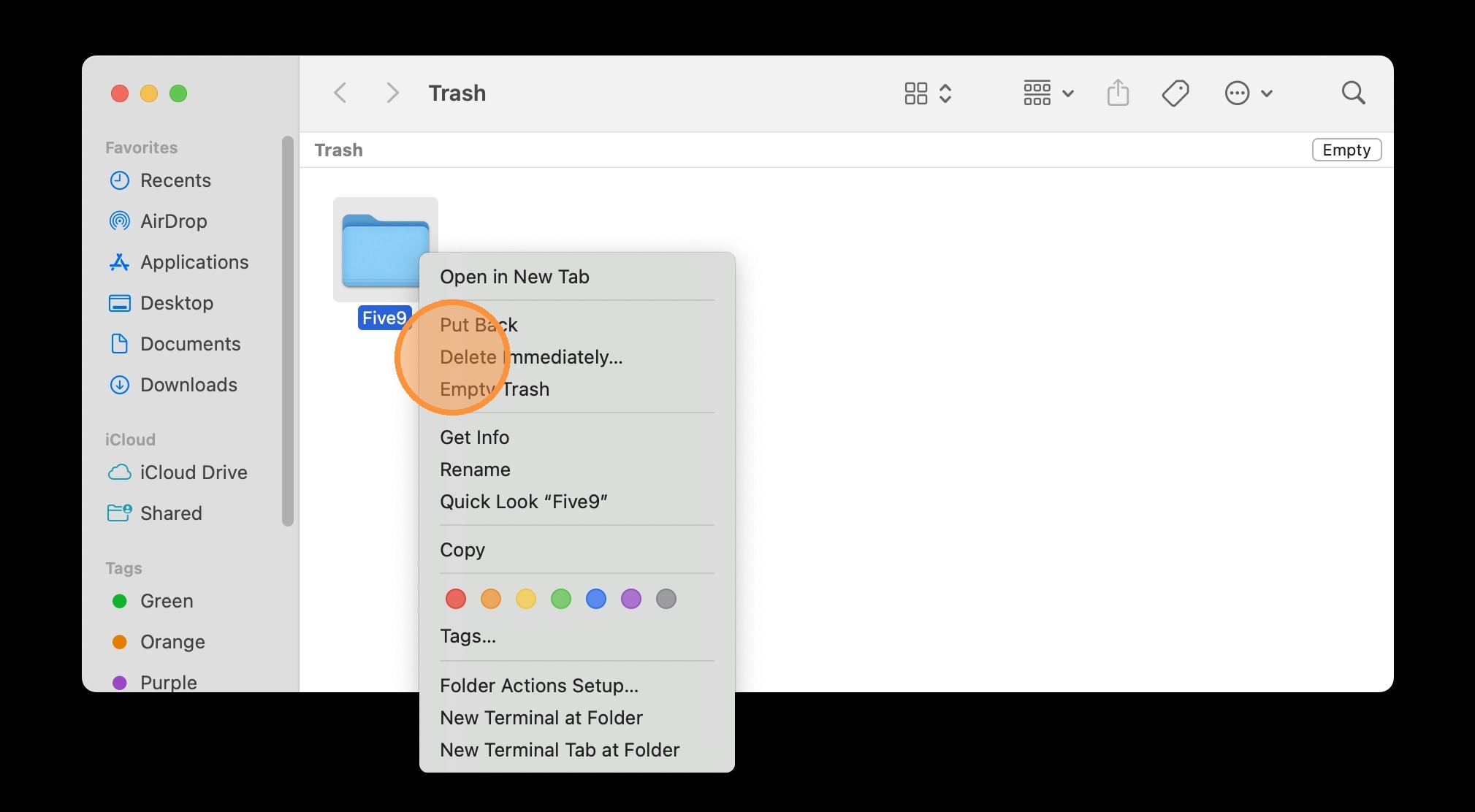
Open the Trash, right-click the folder you just deleted, and select Delete Immediately.
📷 Screenshot unavailable
If you only have the two Chrome plugins and use Five9 in webRTC mode, you do NOT need to follow these steps.
🎥 Video guide for this section: https://docs.google.com/videos/d/1eaPs0JQeeerS2KPlgw-Z_T4it8Ixu_z0aVA53C2zzXc/edit?usp=sharing
31
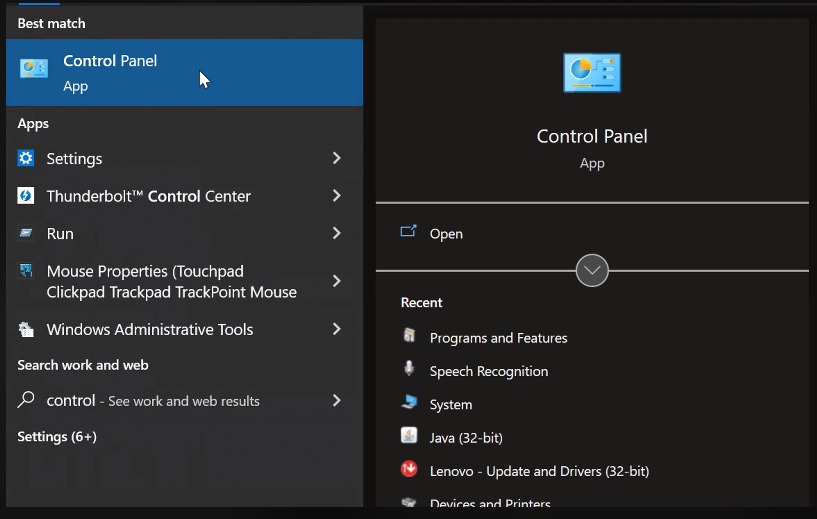
Go to your computer's Control Panel.
📷 Screenshot unavailable
32
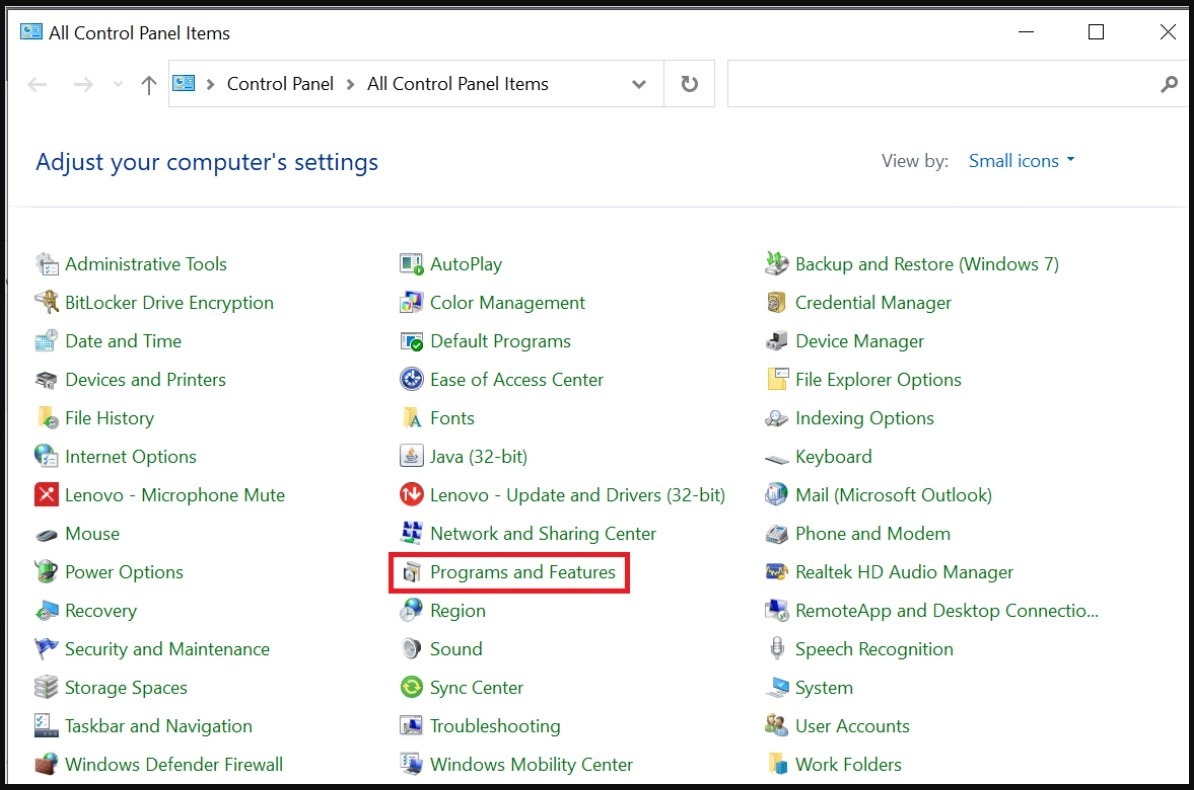
Open Programs and Features.
📷 Screenshot unavailable
33
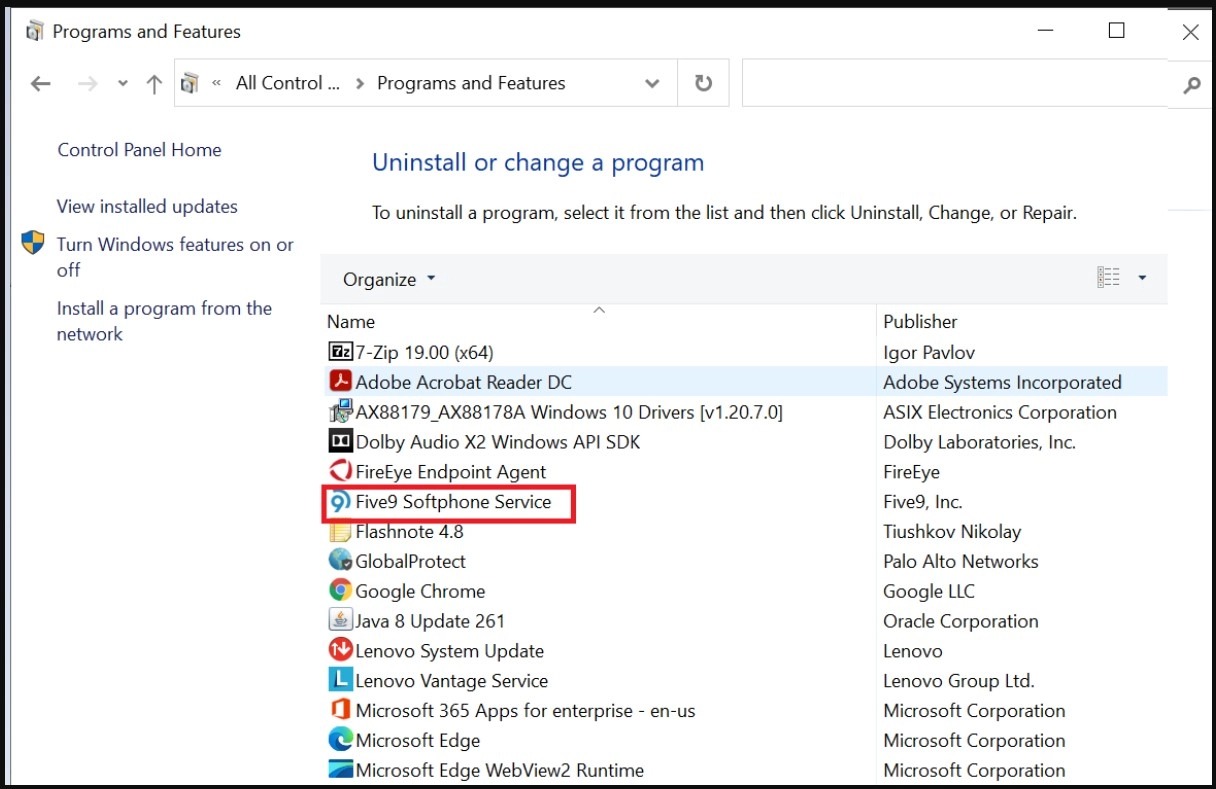
Look for Five9 Softphone Service.
📷 Screenshot unavailable
34
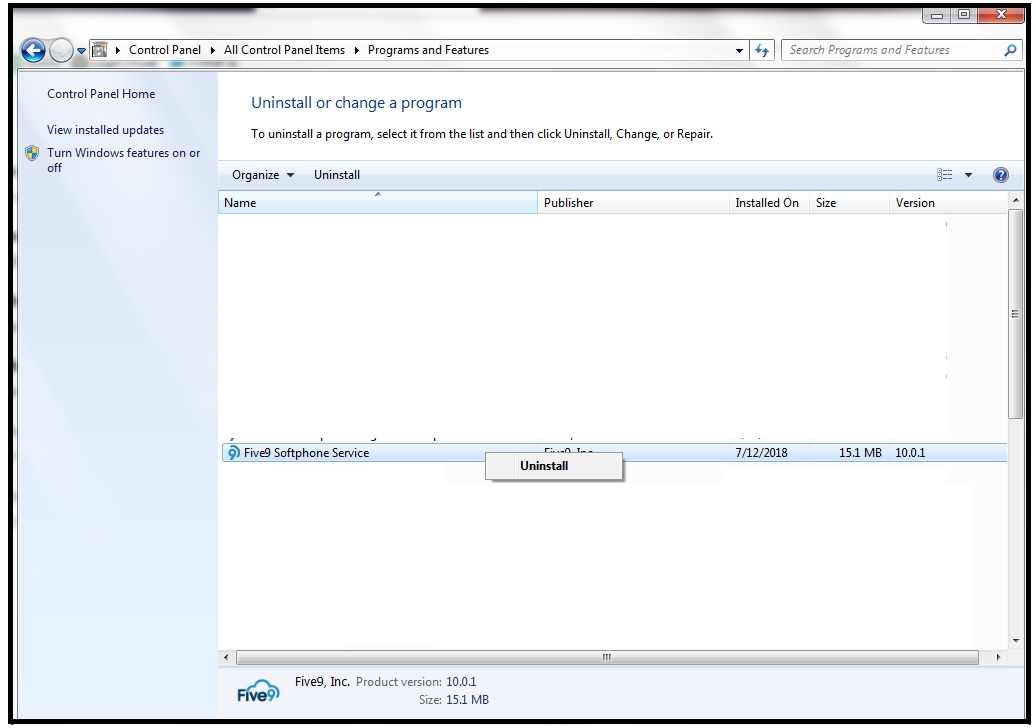
Right-click Five9 Softphone Service and select Uninstall.
📷 Screenshot unavailable
35
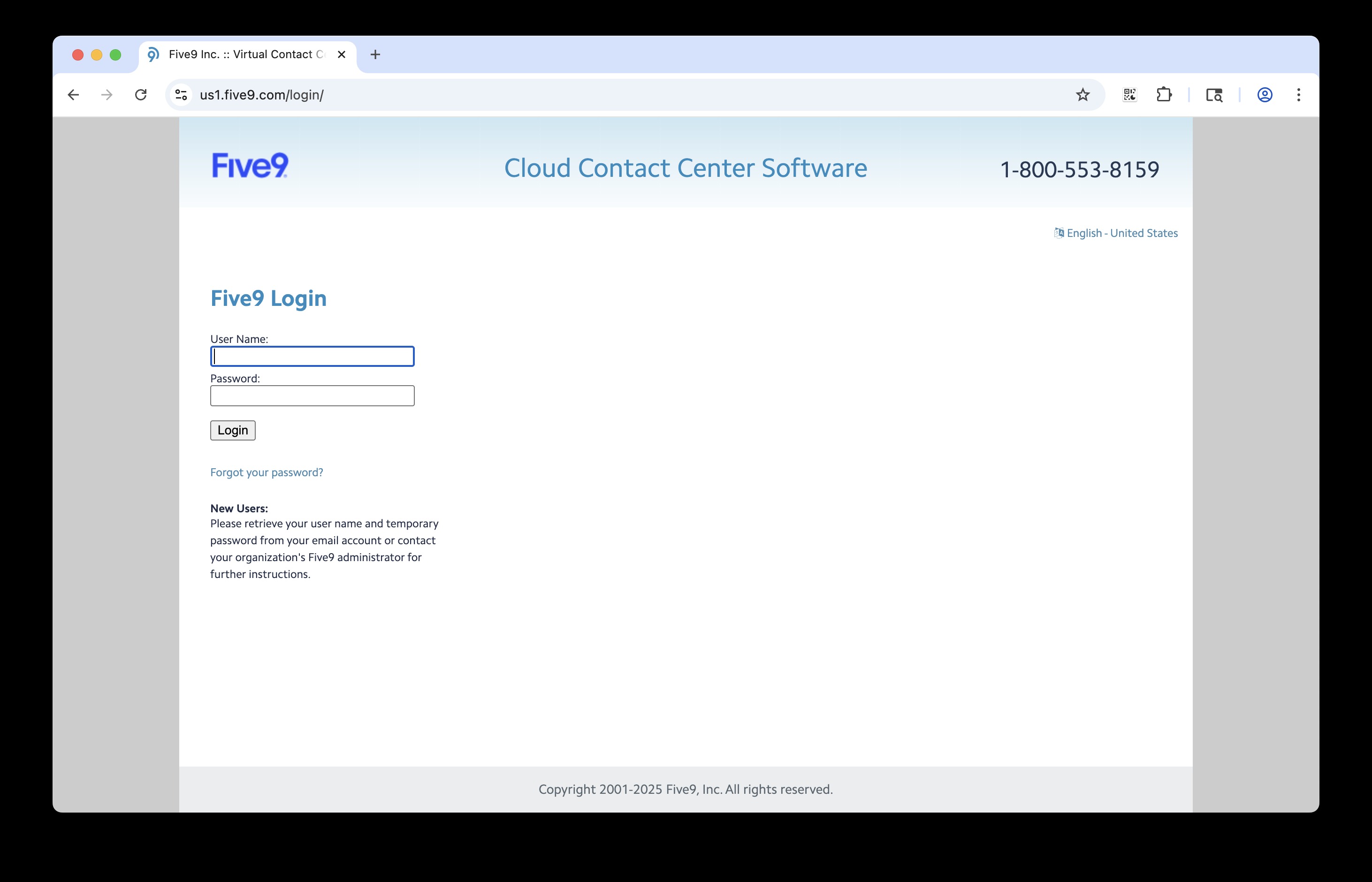
In Google Chrome, navigate to login.five9.com and sign in.
📷 Screenshot unavailable
36
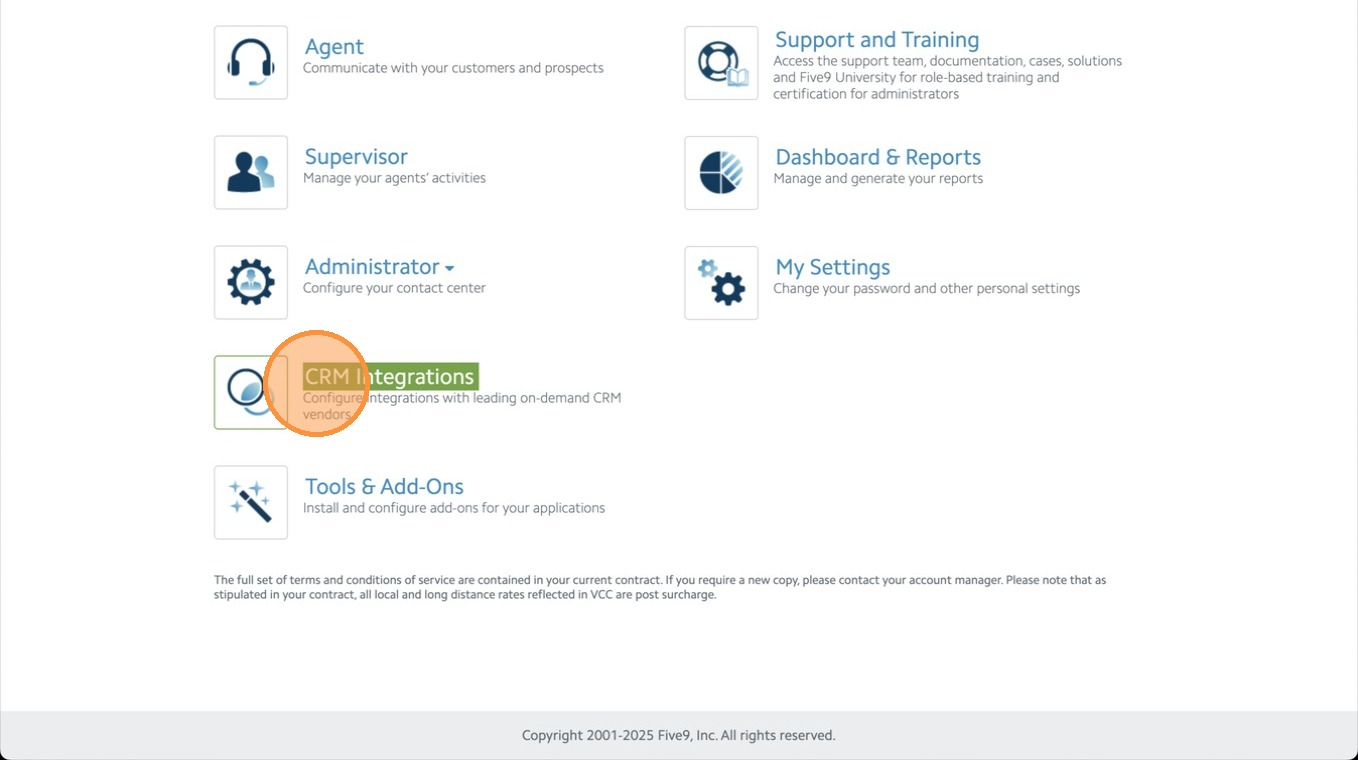
On the main page, click CRM Integrations.
📷 Screenshot unavailable
37
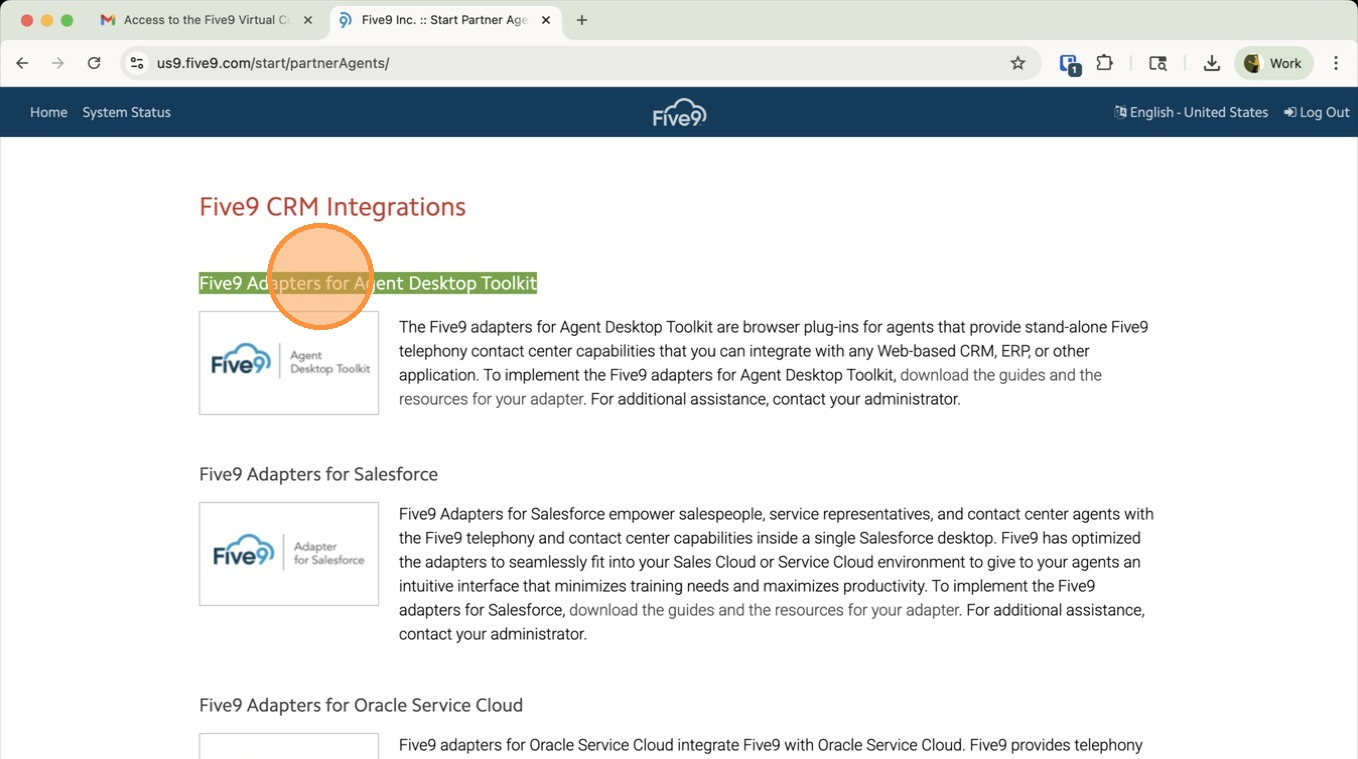
Select Five9 Adapters for Agent Desktop Toolkit.
📷 Screenshot unavailable
38
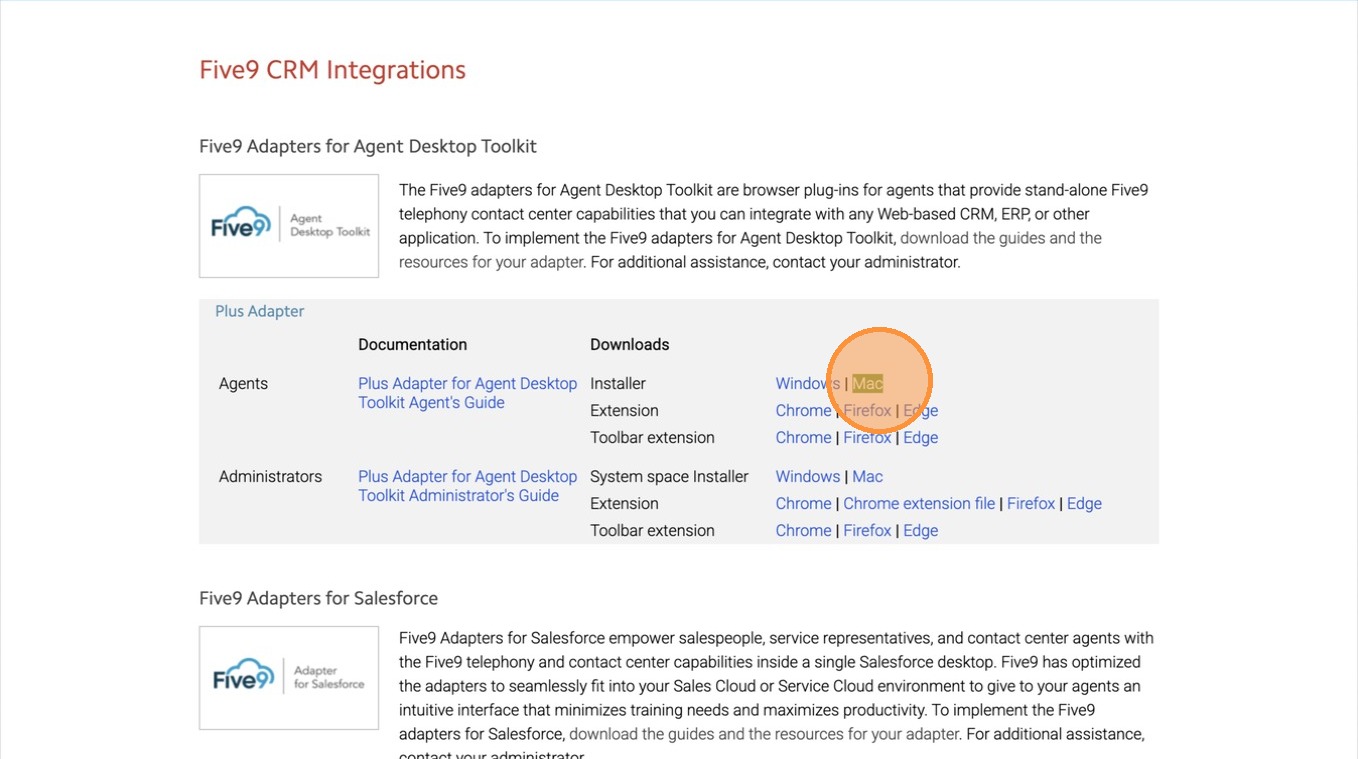
Download the installer for your machine (Mac or Windows).
📷 Screenshot unavailable
39
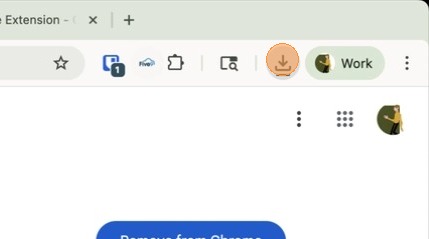
Click Downloads.
📷 Screenshot unavailable
40
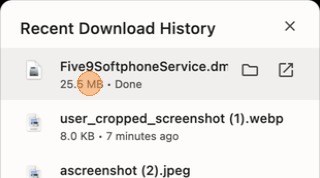
Run the installer and follow the on-screen prompts. Note: this installs a background driver — it will not create a desktop icon.
📷 Screenshot unavailable
Mac users: if you see a message stating the app was blocked, click Done.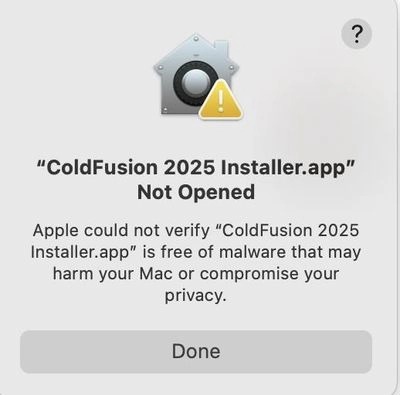
📷 Screenshot unavailable
Then, on Mac: 1) Go to System Settings → Security & Privacy. 2) Under Security, click Open Anyway. 3) Re-run the installer.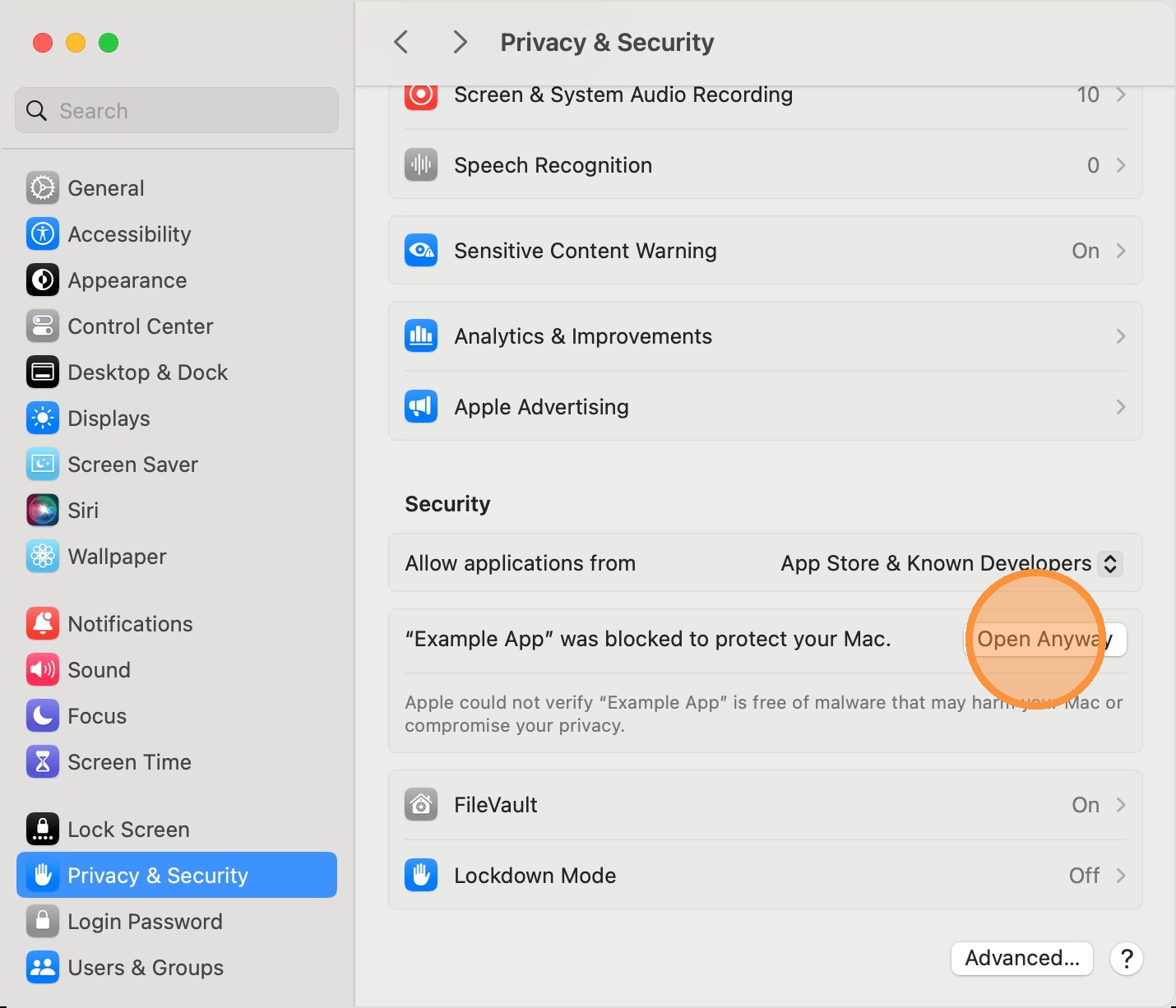
📷 Screenshot unavailable
Find support articles and open a ticket via chatbot at https://community.five9.com/. Logged-in users can submit a ticket at https://community.five9.com/s/contactsupport. You can also call Five9 support at 1-800-553-8159, 1-866-553-1459, or 1-925-218-2325.
📷 Screenshot unavailable
Having difficulty? Include a screenshot of the error and a brief description of what you were doing, then contact System Operations:
systemoperations@directmeds.com · Telegram
systemoperations@directmeds.com · Telegram