Install the Five9 Softphone
Installs the Chrome extensions and the desktop adapter you need to take calls.
-
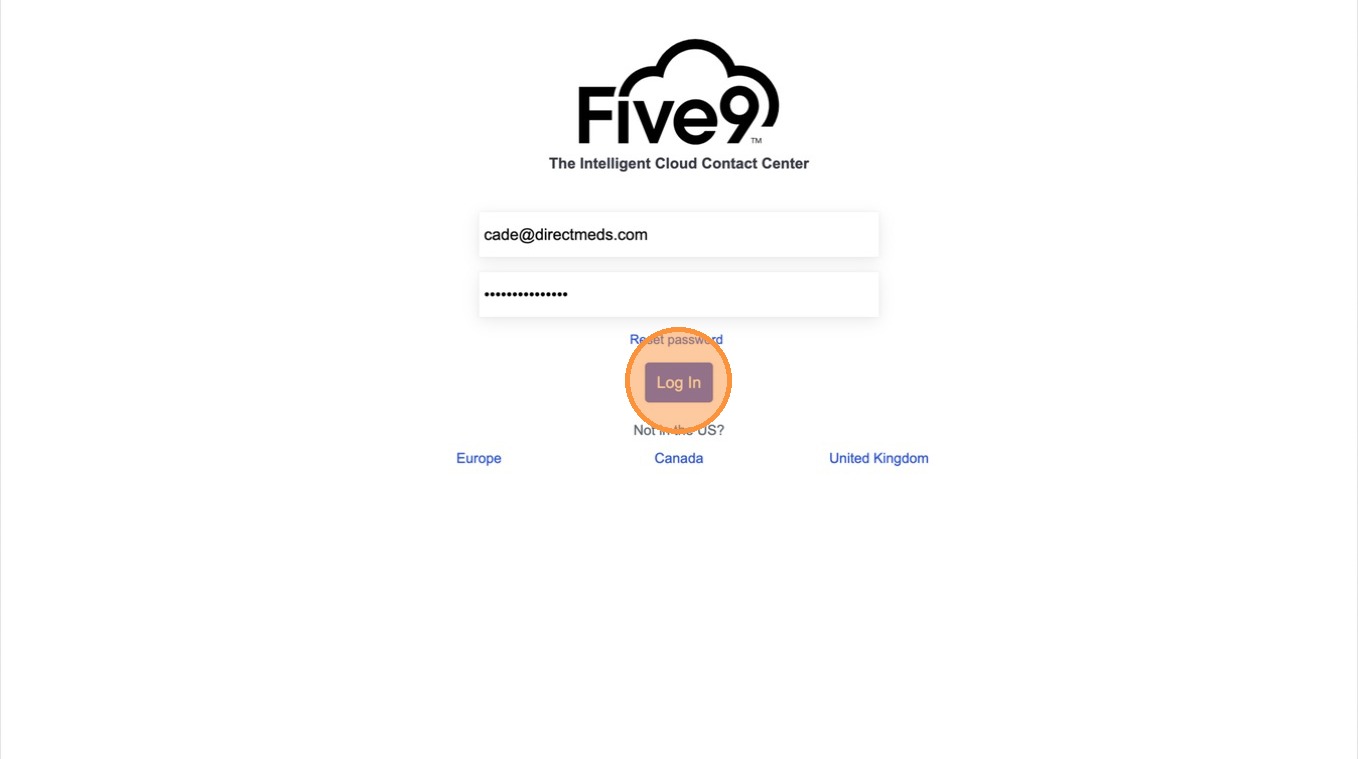
1Go to login.five9.com and sign in.
 📷 Screenshot unavailable
 -
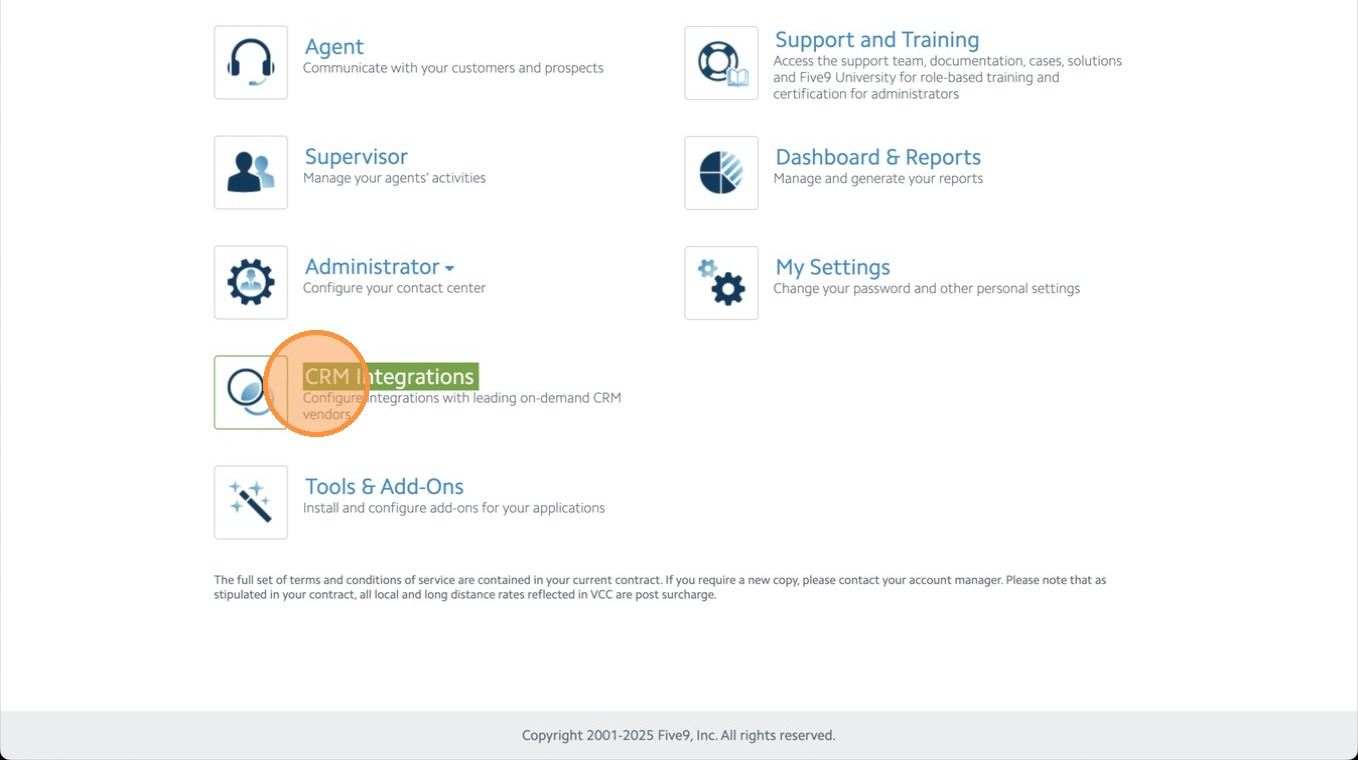
2From the dashboard, click CRM Integrations.
 📷 Screenshot unavailable
 -
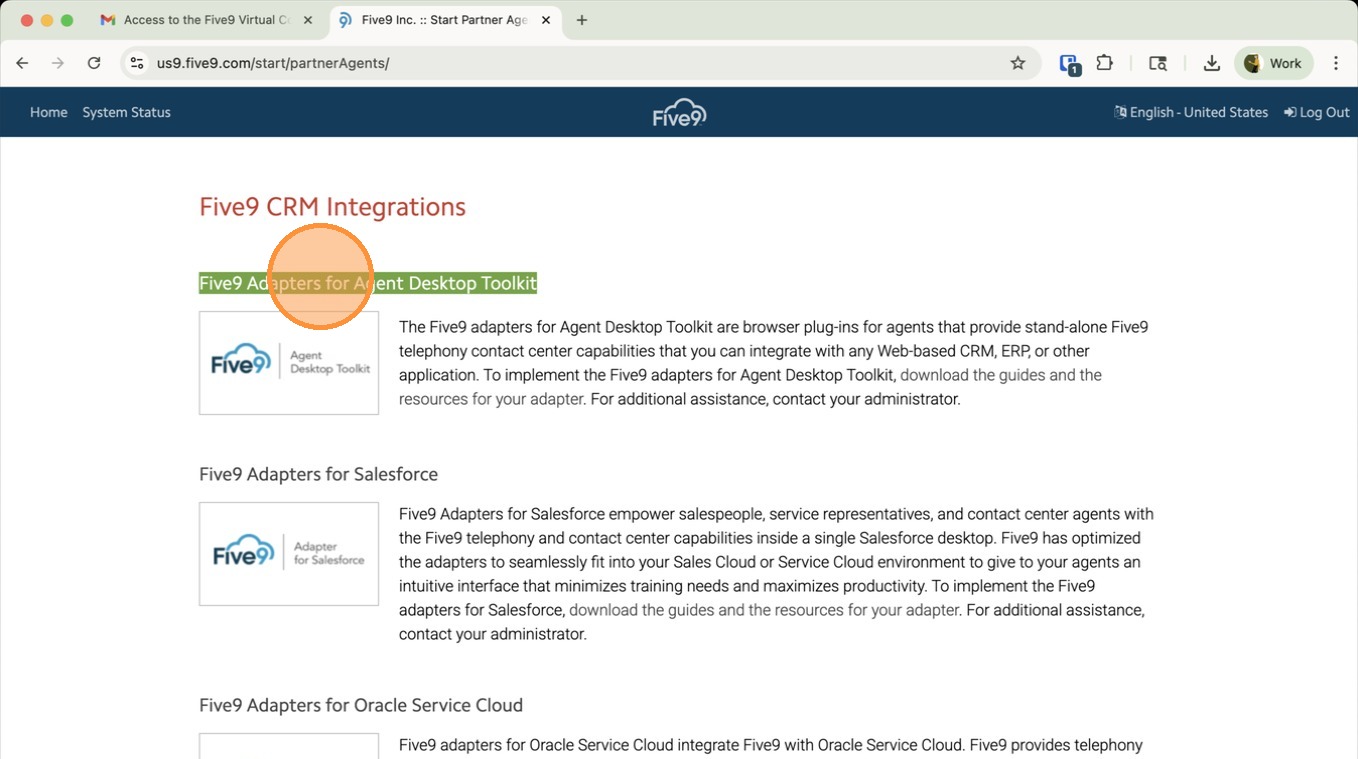
3Select Five9 Adapters for Agent Desktop Toolkit.
 📷 Screenshot unavailable
 -
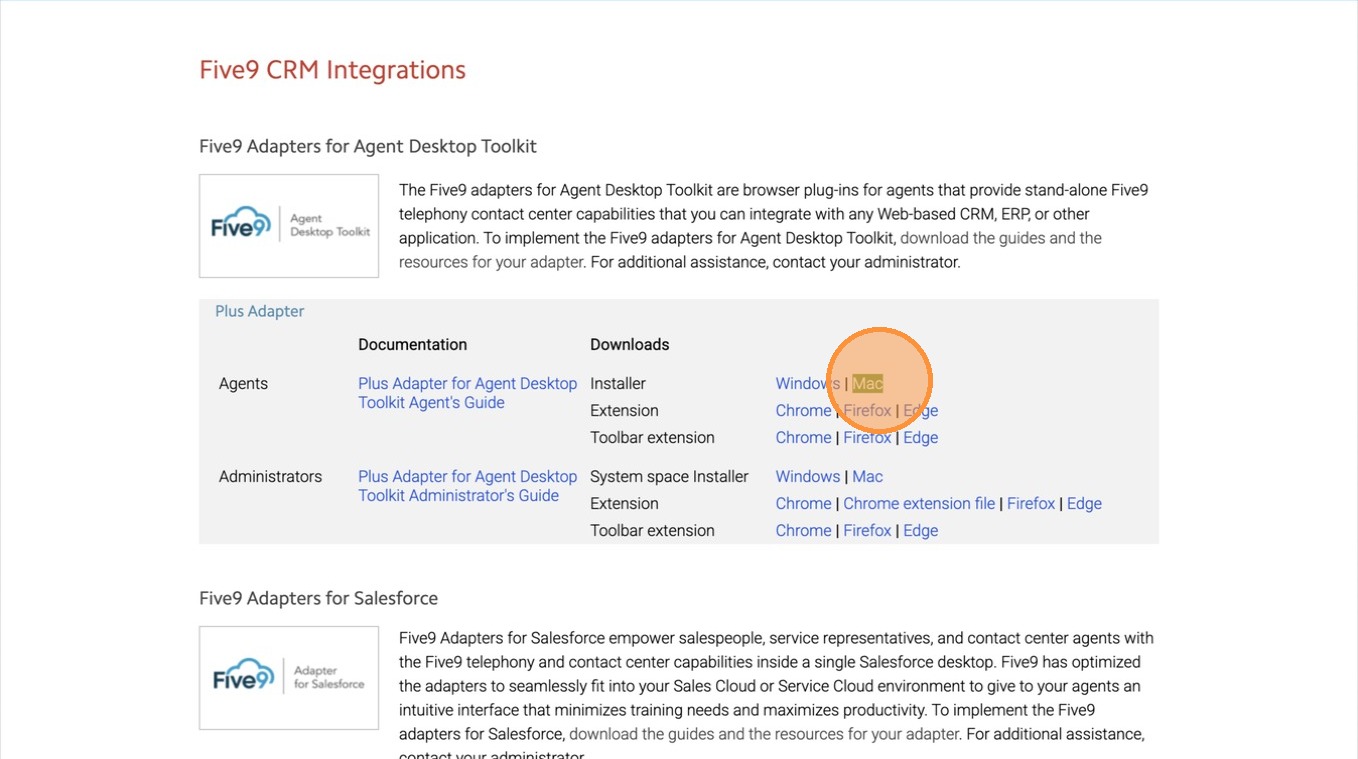
4Download the installer for your operating system (Windows or Mac).
 📷 Screenshot unavailable
 -
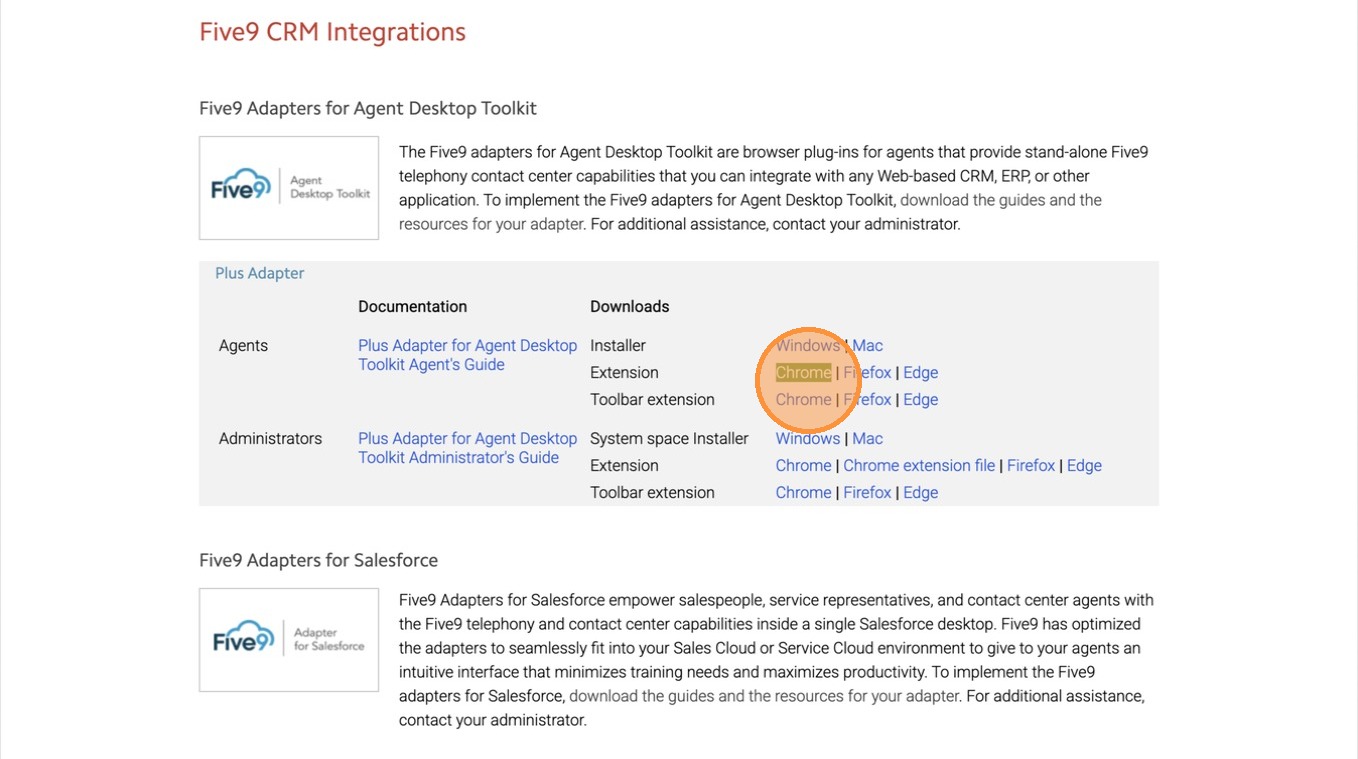
5Click the first Chrome Extension link.
 📷 Screenshot unavailable
 -
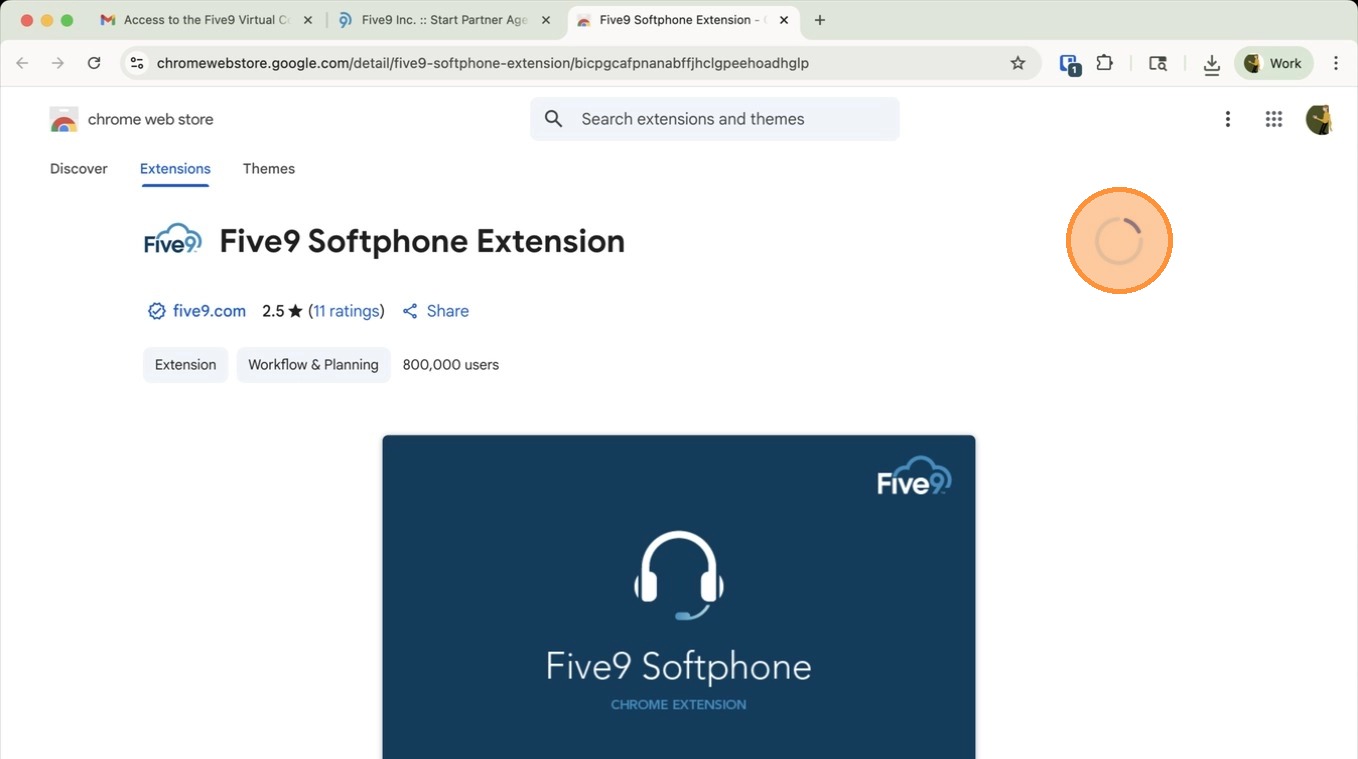
6Select Add to Chrome.
 📷 Screenshot unavailable
 -
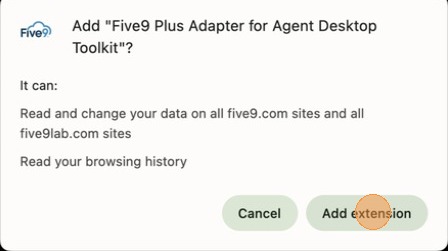
7Confirm by clicking Add Extension.
 📷 Screenshot unavailable
 -
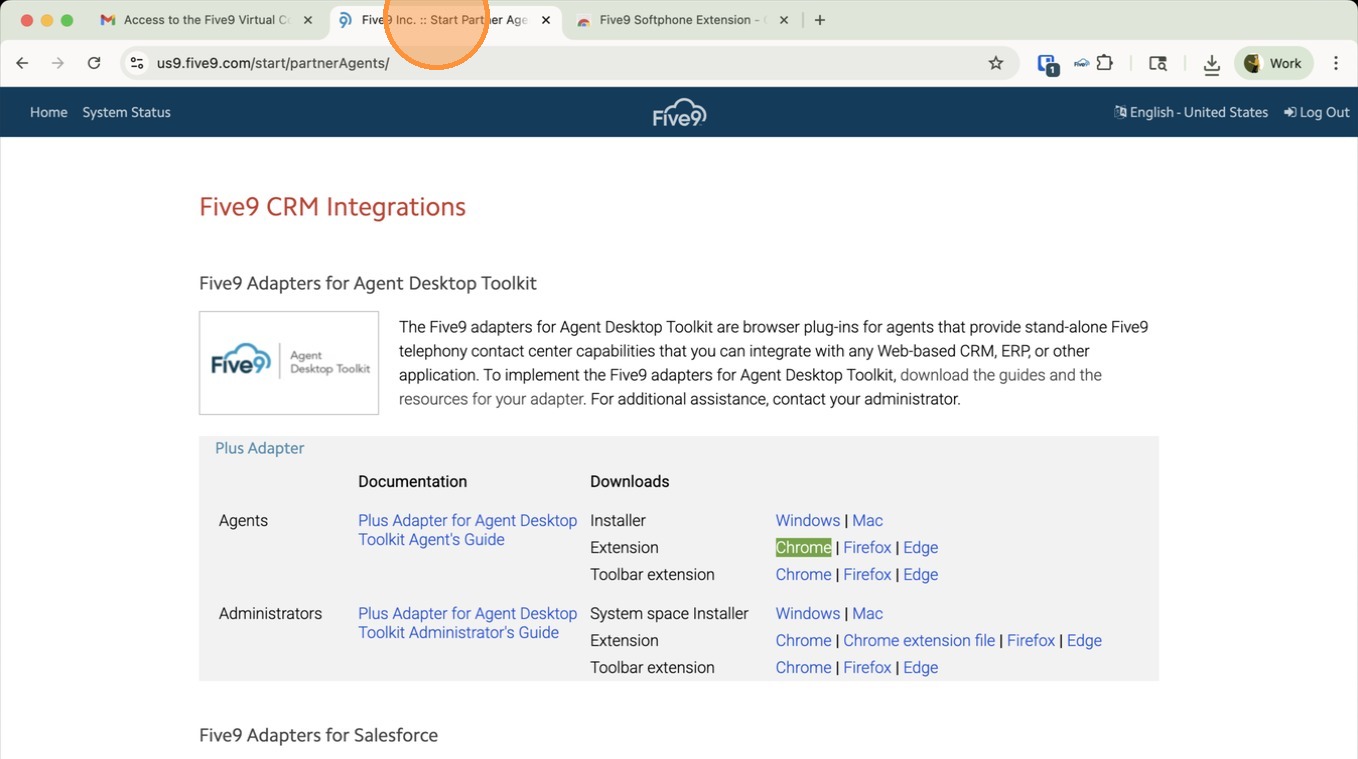
8Return to the Five9 tab.
 📷 Screenshot unavailable
 -
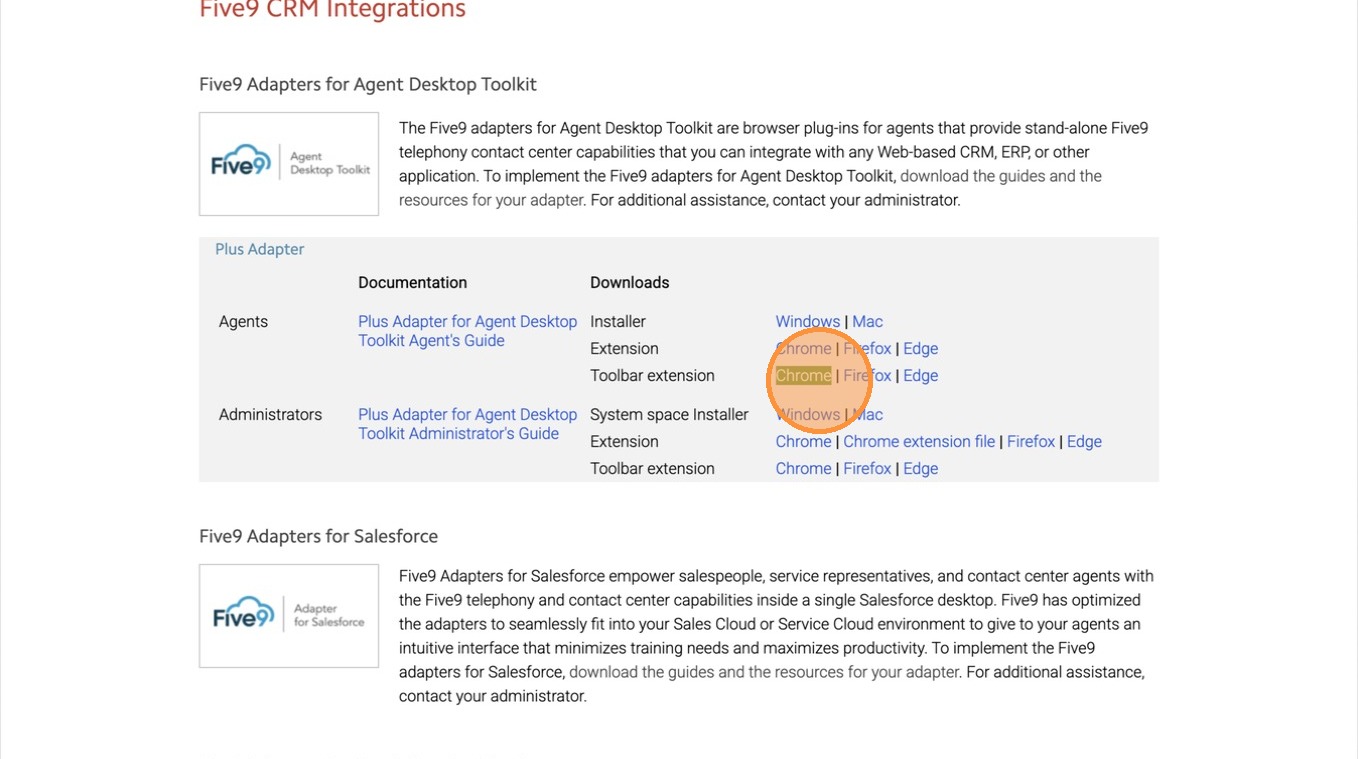
9Click the second Chrome Extension link.
 📷 Screenshot unavailable
 -
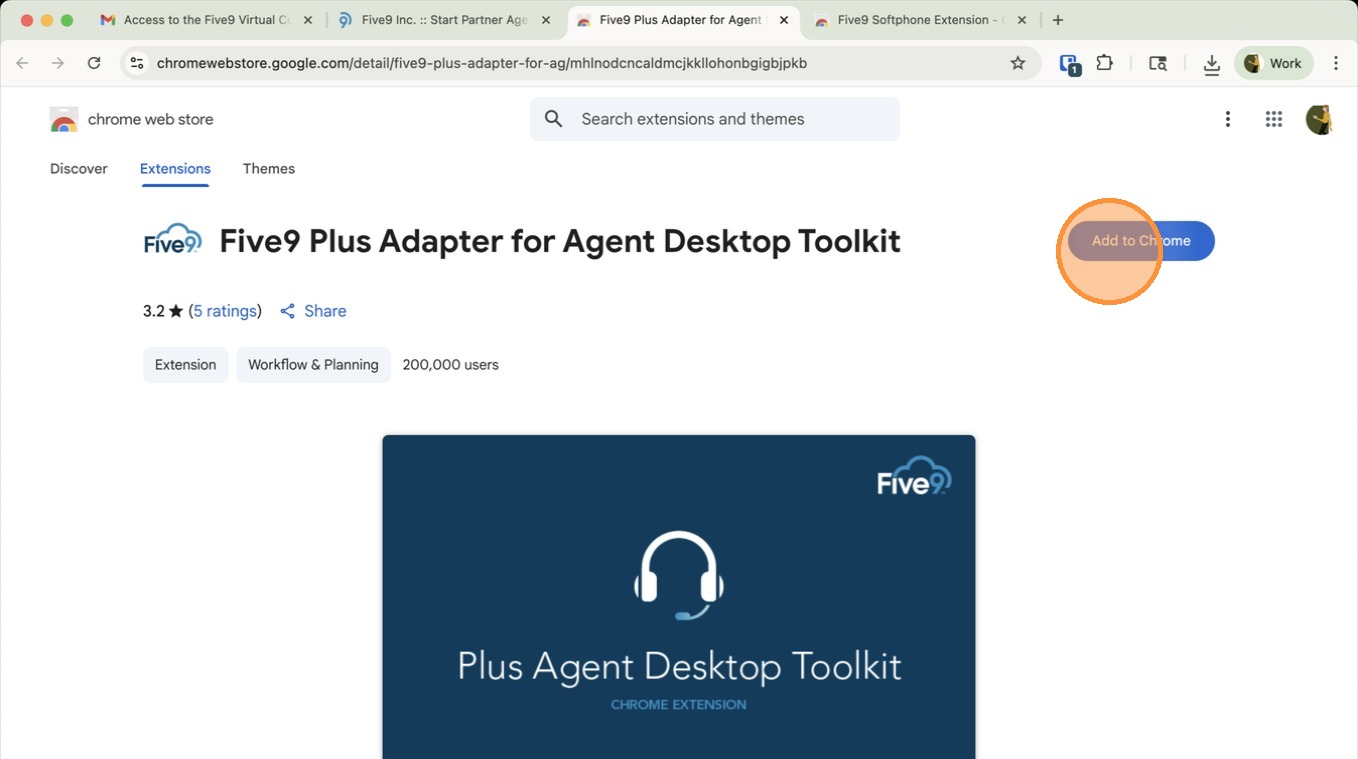
10Select Add to Chrome.
 📷 Screenshot unavailable
 -
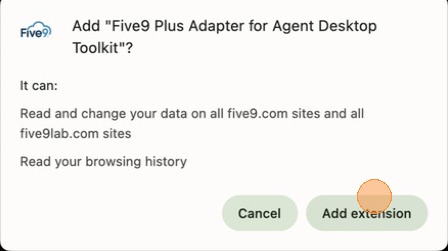
11Confirm by clicking Add Extension.
 📷 Screenshot unavailable
 -
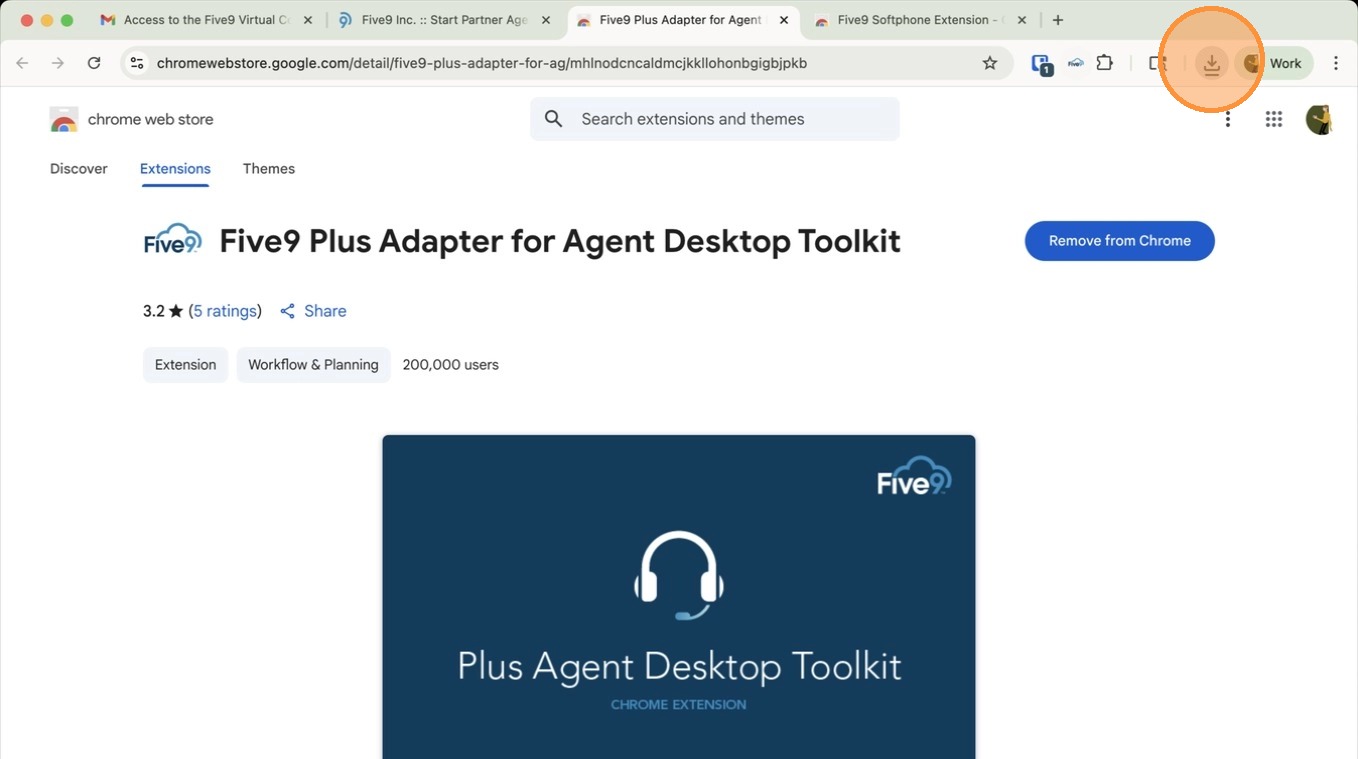
12Click the Downloads icon.
 📷 Screenshot unavailable
 -
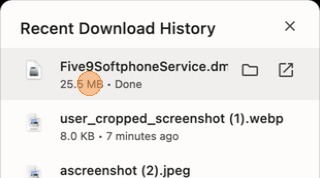
13Run the installer and follow the prompts. This installs a background driver — it will not create a desktop icon. (Mac: if blocked, go to System Settings → Security & Privacy → Open Anyway, then re-run.)
 📷 Screenshot unavailable
 -
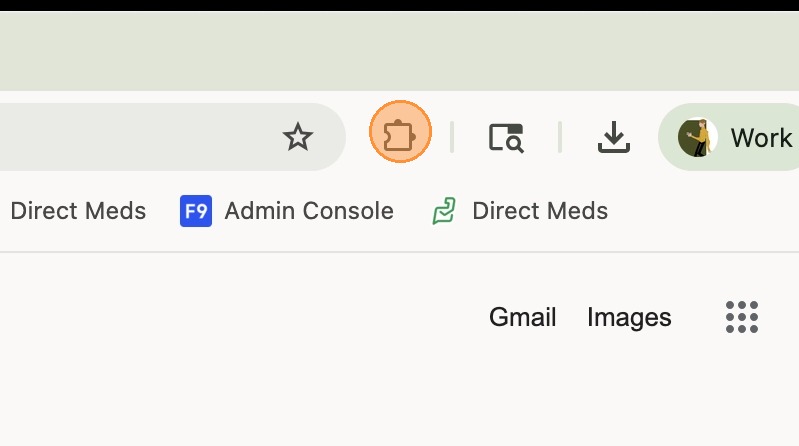
14Back in Chrome, click the puzzle icon to open the Extensions menu.
 📷 Screenshot unavailable
 -
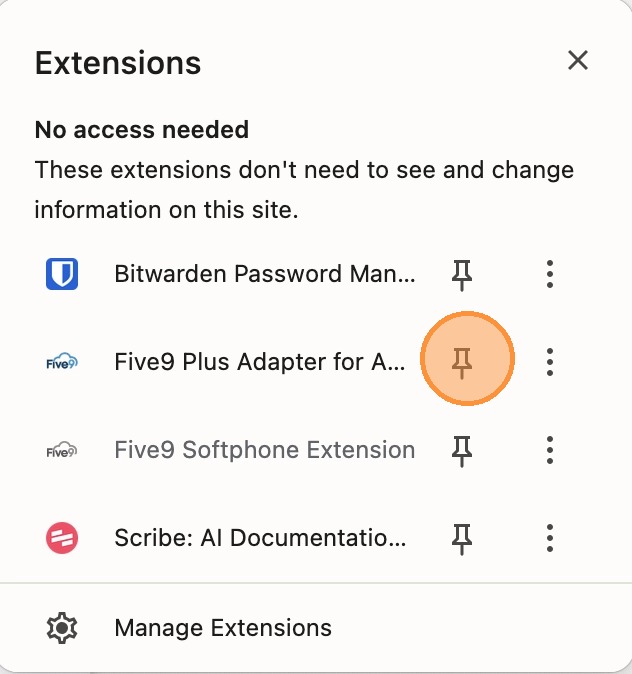
15Find the Five9 Adapter and click the pin icon to add it to your toolbar.
 📷 Screenshot unavailable
 -
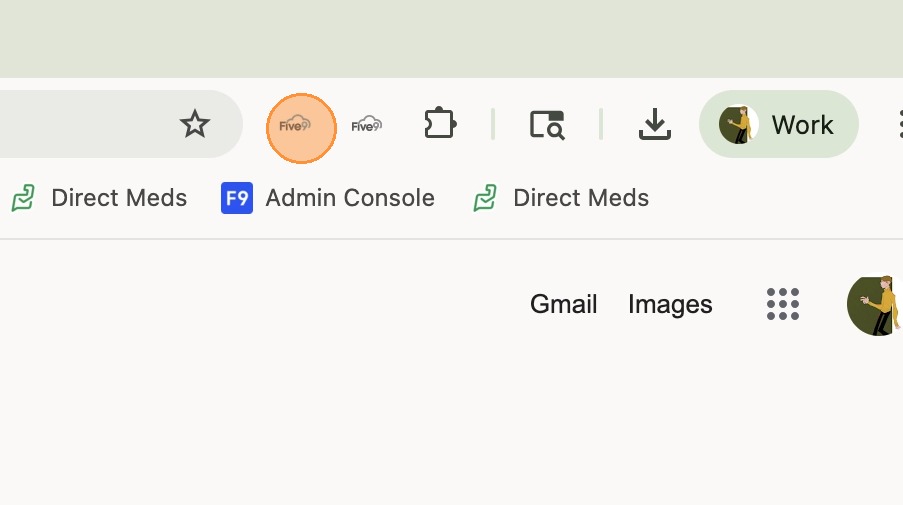
16Click the pinned Five9 icon in your toolbar — a smaller Five9 window opens.
 📷 Screenshot unavailable
 -
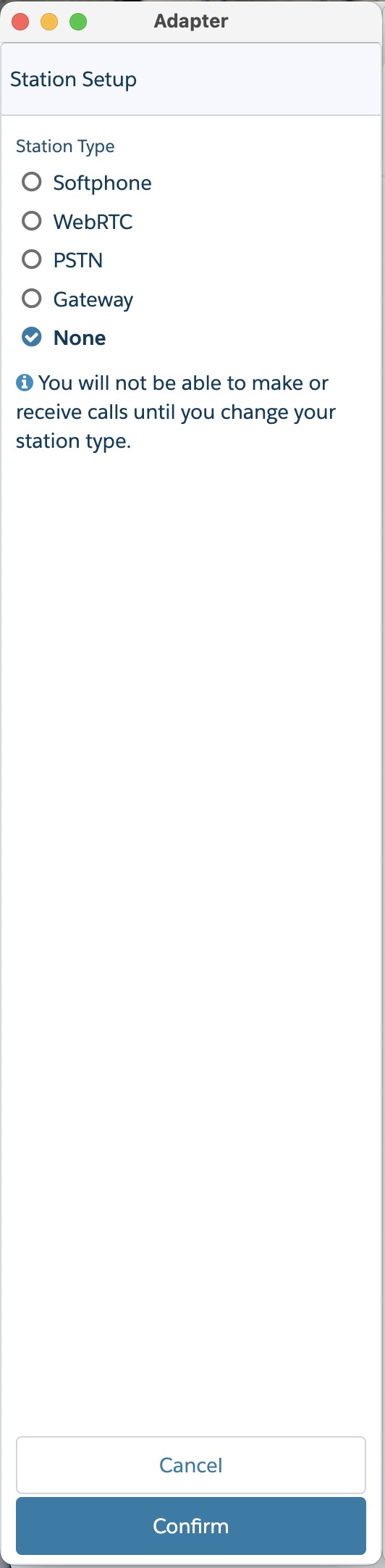
17On startup, select Softphone and click Continue. You are now connected to the Five9 dialer — installation is complete.
 📷 Screenshot unavailable