Install Google Chrome
Required for all employees. Chrome is your primary browser for every internal system.
-
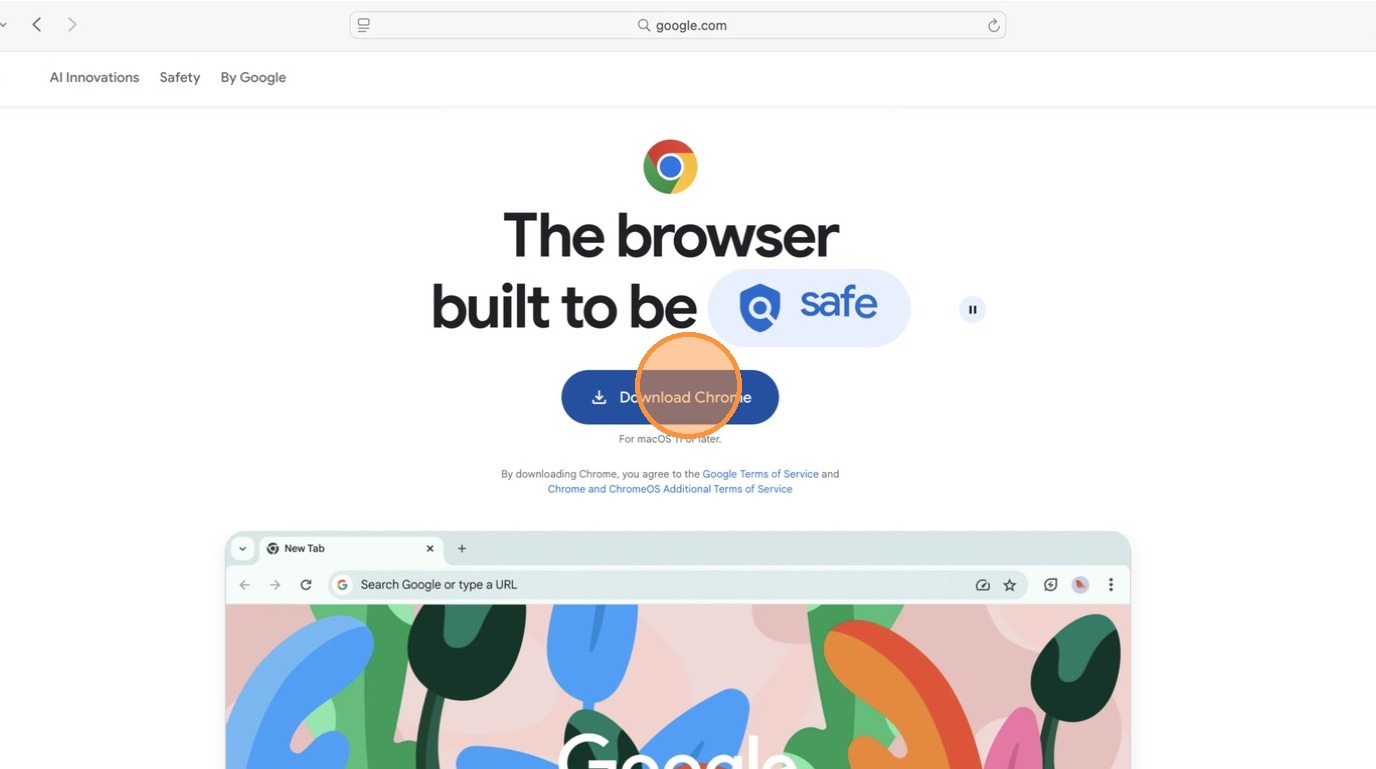
1Go to https://www.google.com/chrome/ and click Download Chrome.
 📷 Screenshot unavailable
 -
2Open the installer and follow the on-screen instructions to finish installing.
-
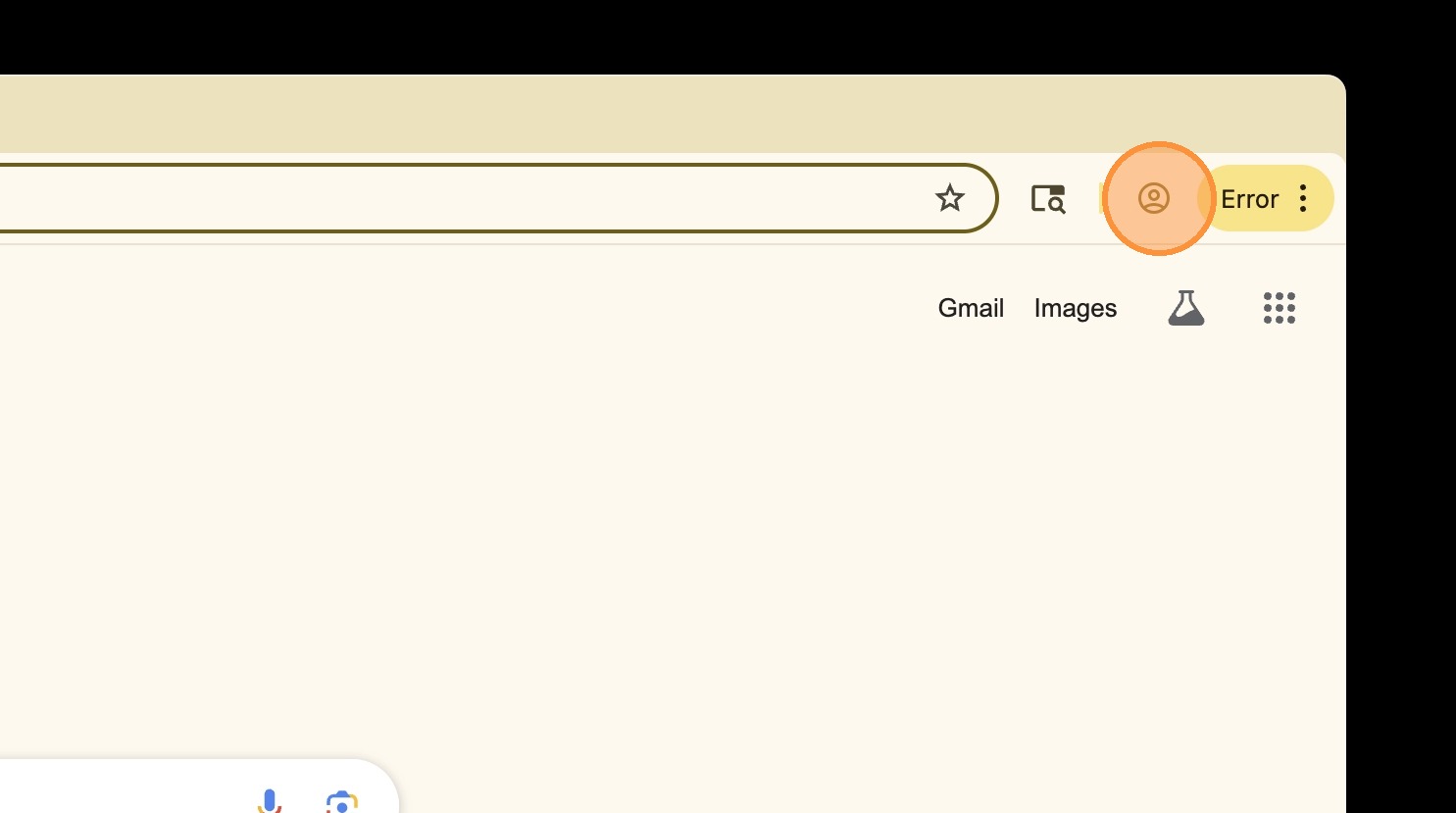
3(Recommended) Open Chrome and click the profile icon in the top-right corner.
 📷 Screenshot unavailable
 -
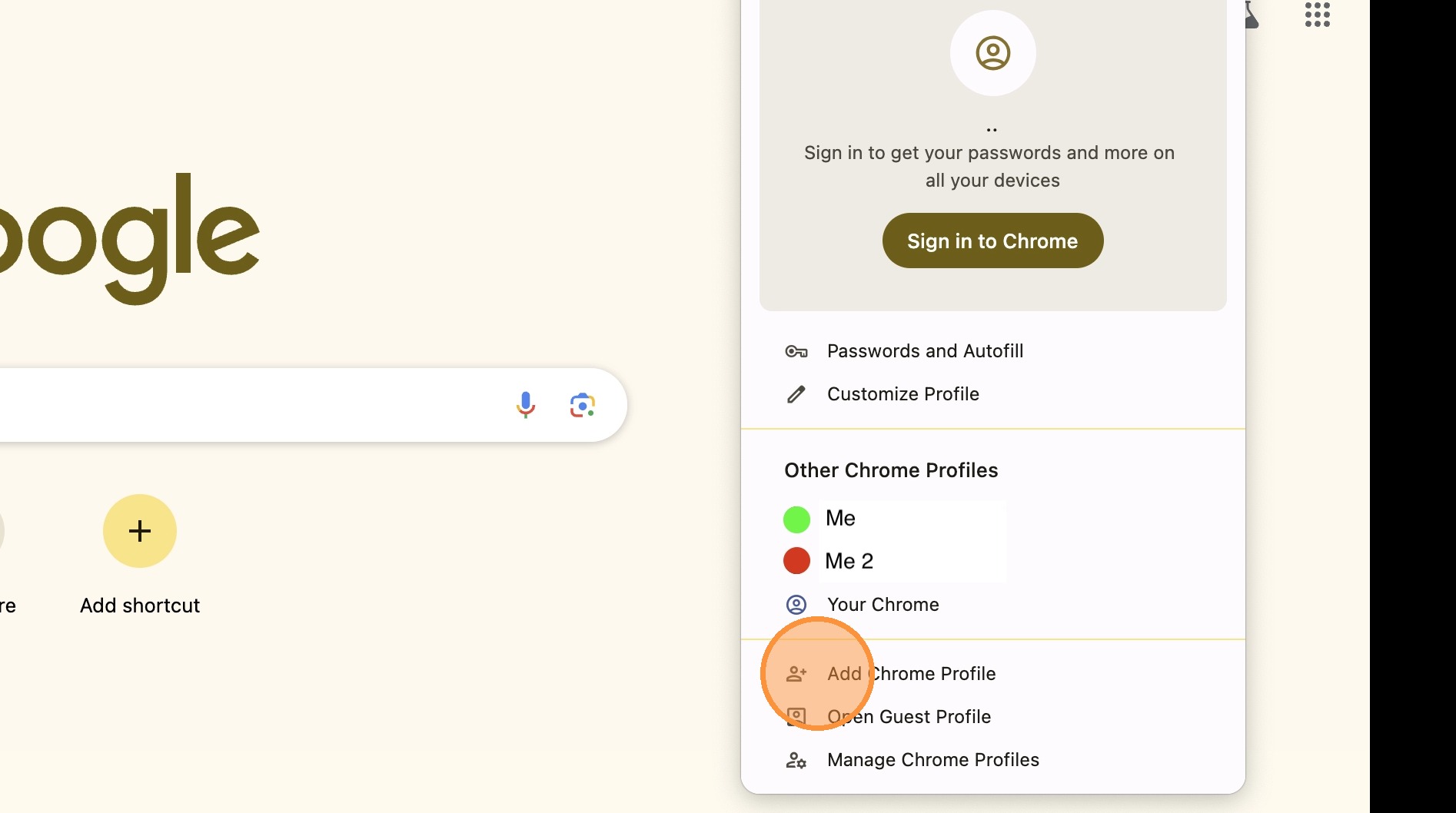
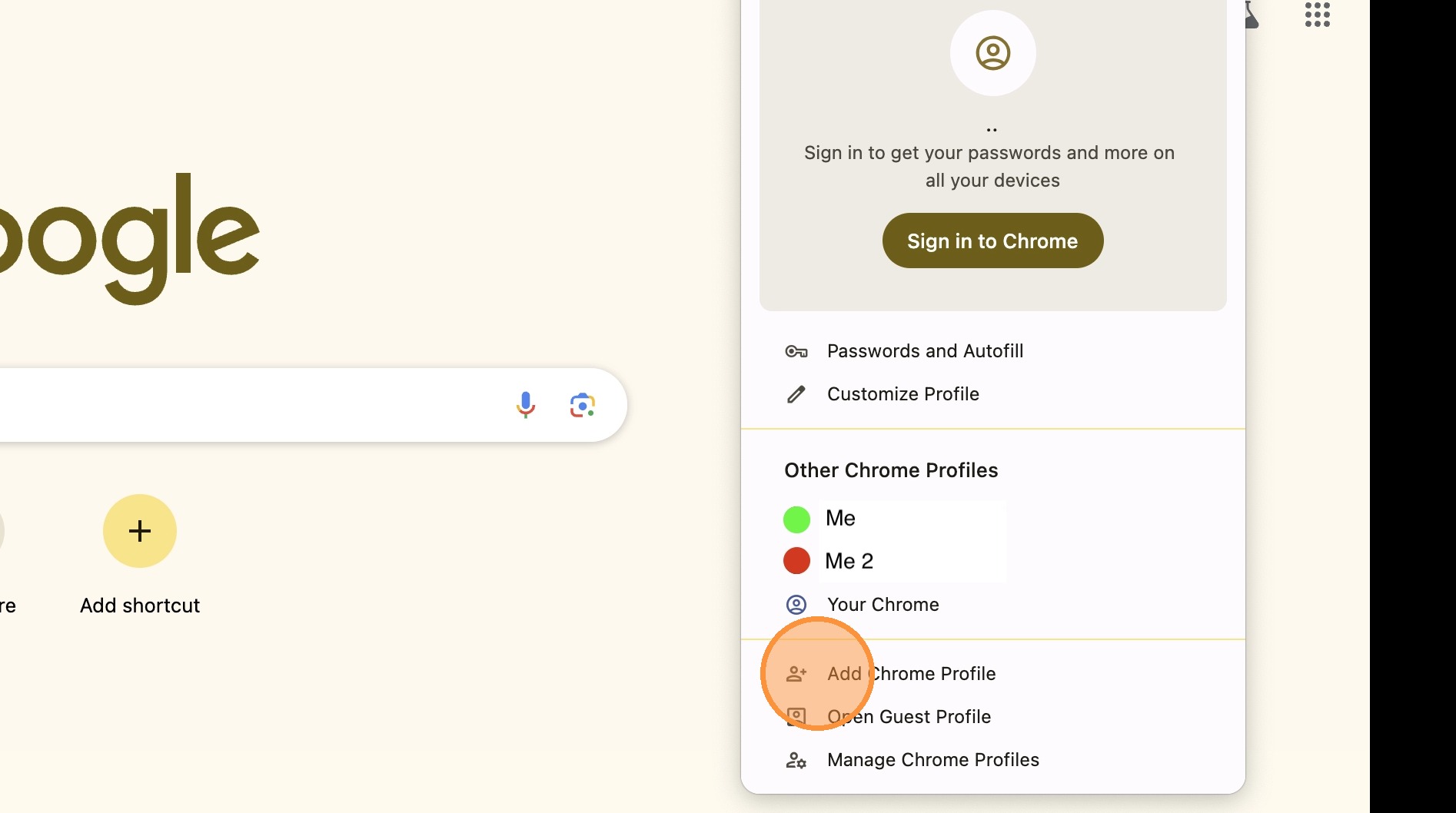
4Select Add Chrome Profile.
 📷 Screenshot unavailable
 -
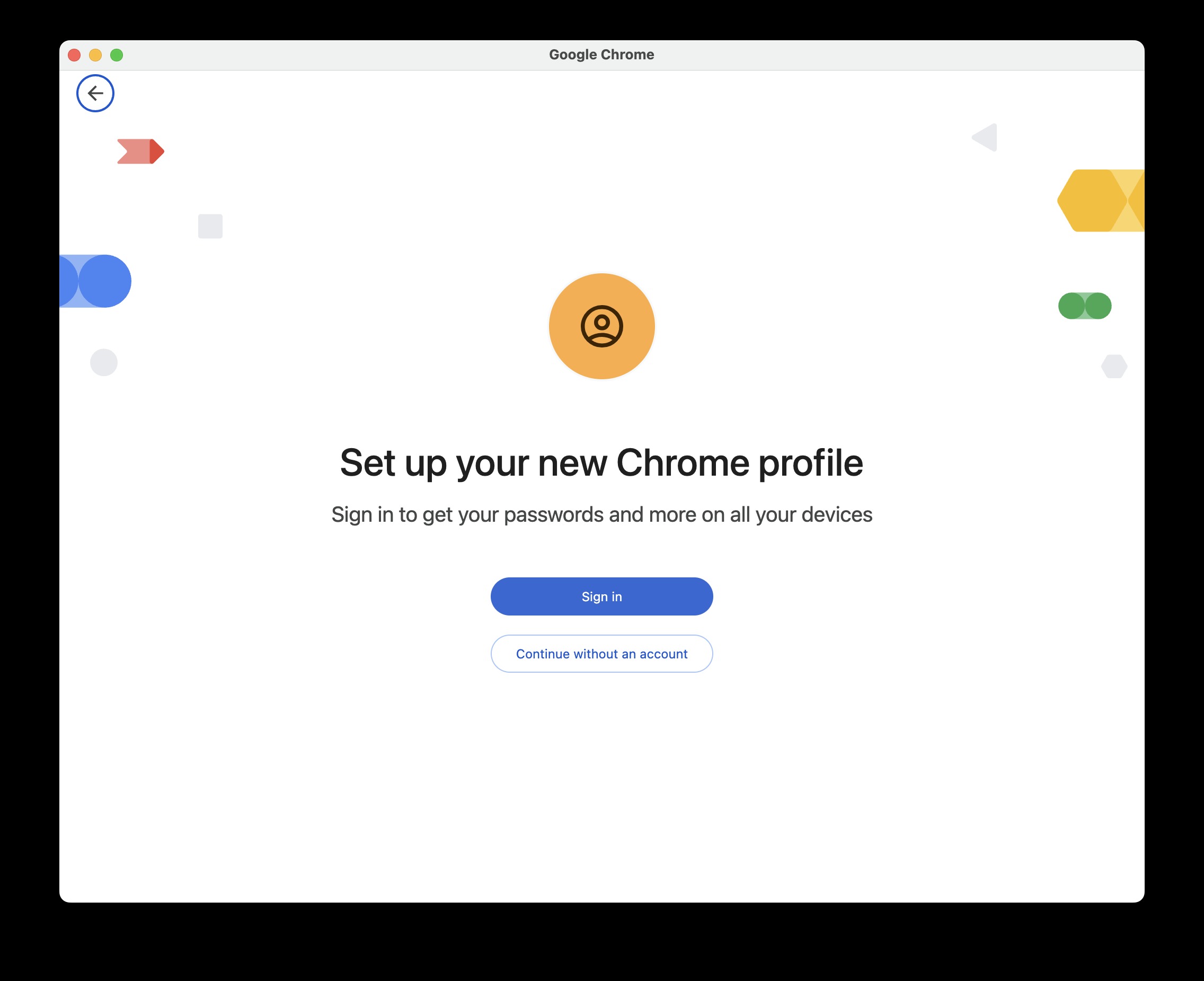
5Sign in with your work account to sync, or choose Continue without an account.
 📷 Screenshot unavailable
 -
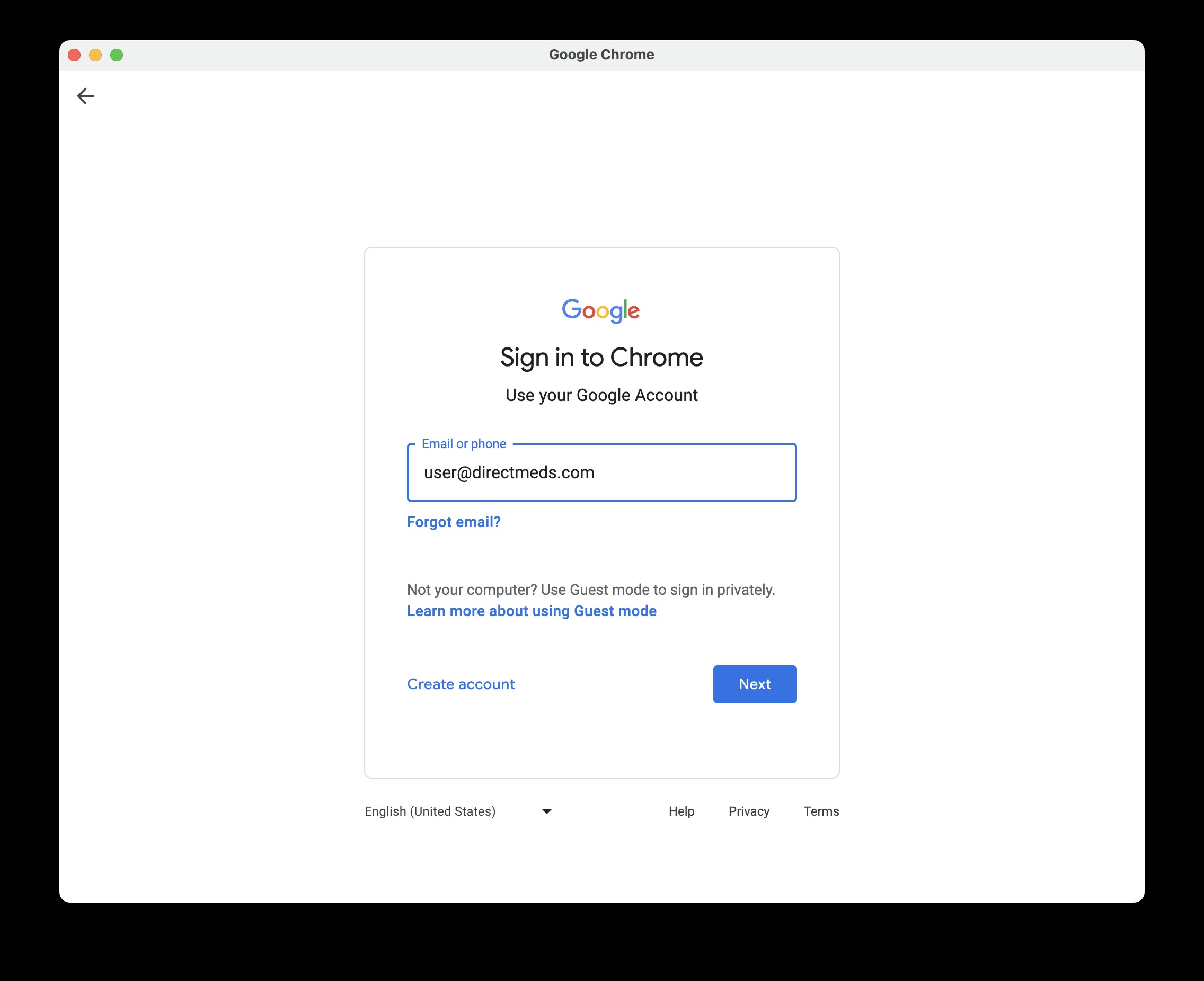
6If you sign in, use your work email.
 📷 Screenshot unavailable
 -
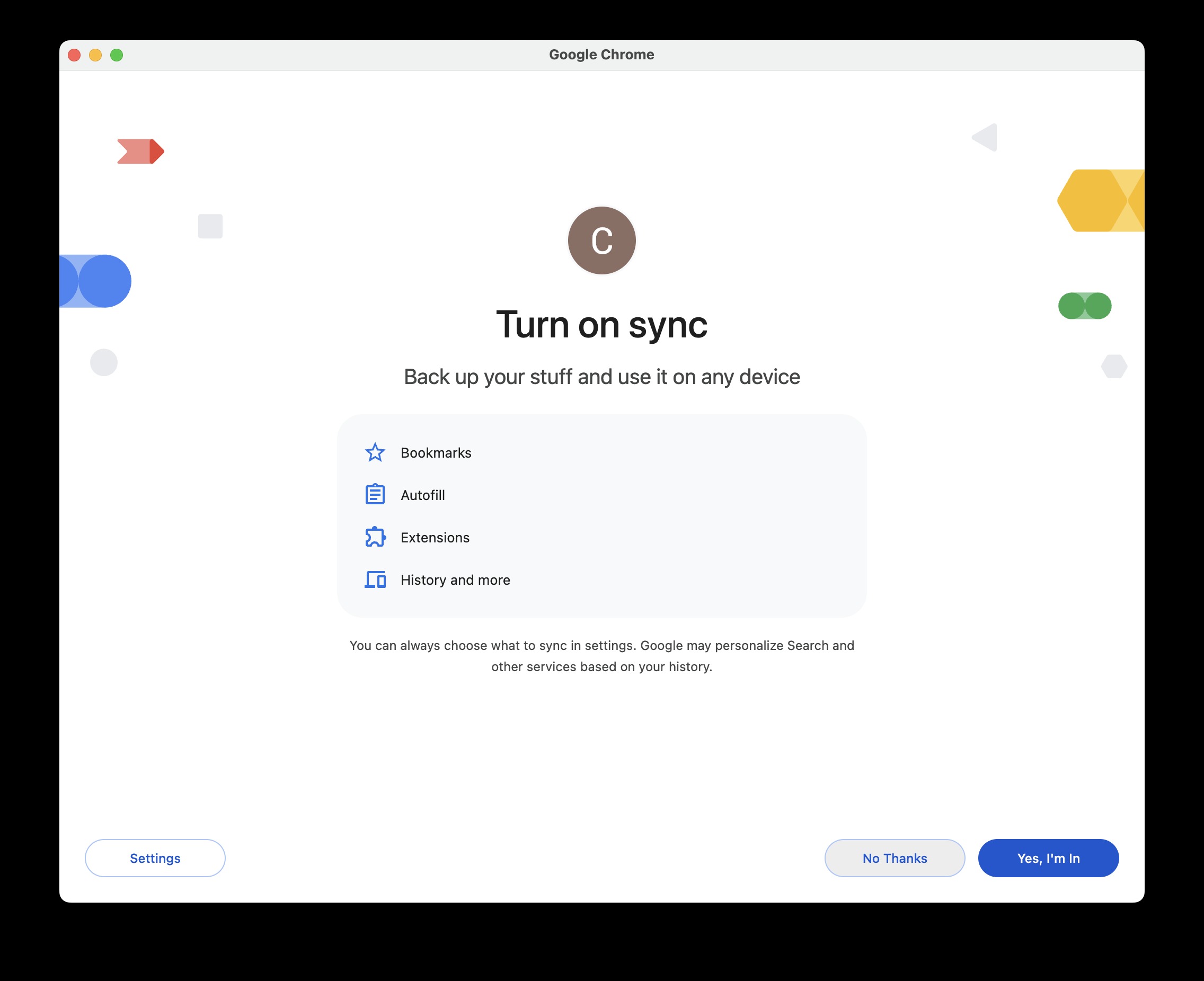
7Confirm your sync preferences if prompted.
 📷 Screenshot unavailable
 -
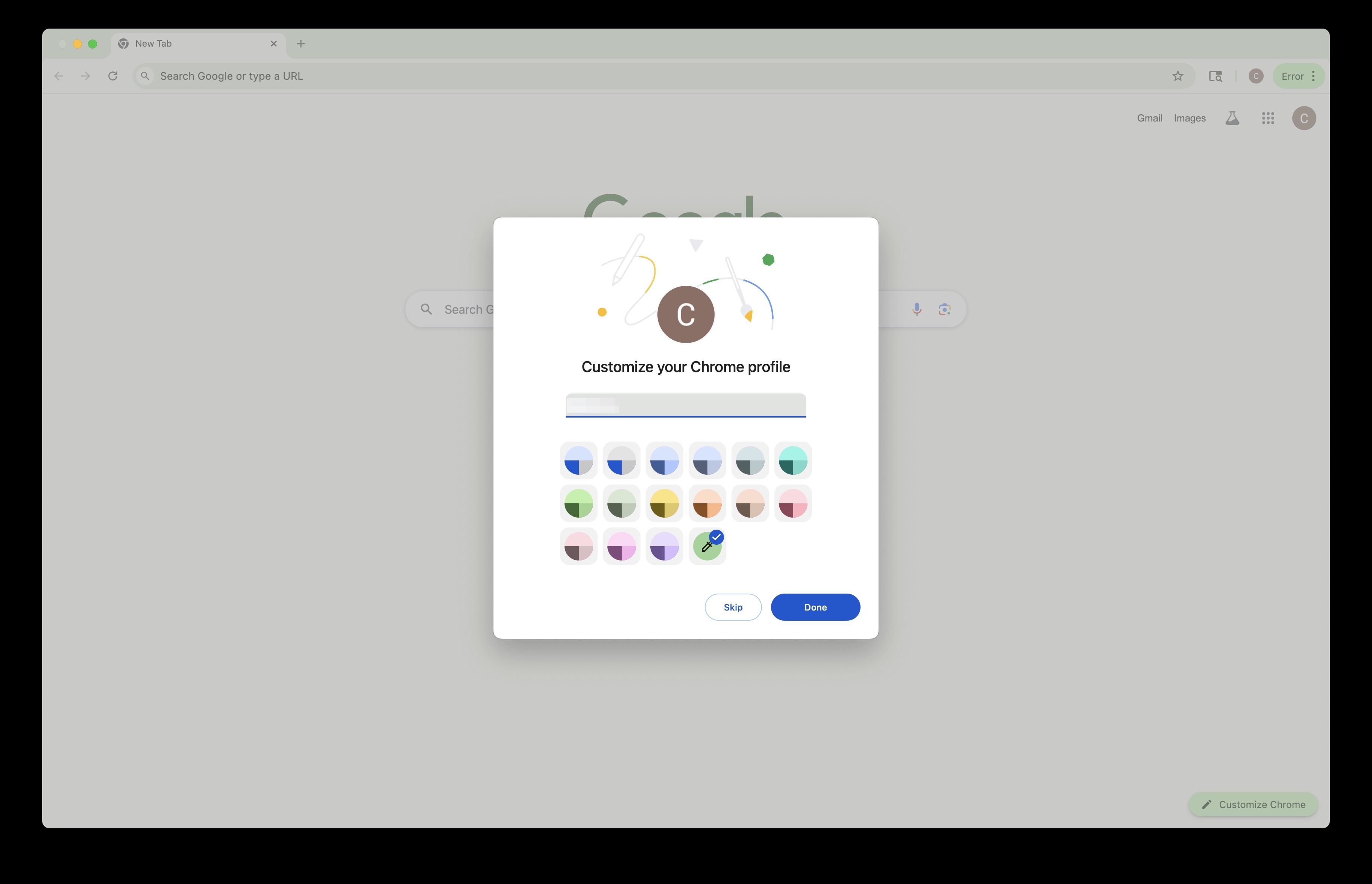
8Give the profile a clear name such as "Work" or "Direct Meds" and pick a color to tell it apart.
 📷 Screenshot unavailable
 -
9To switch profiles later, click the profile icon top-right and pick the profile you want. Note: history, extensions, saved passwords, and settings do not transfer between profiles.
 📷 Screenshot unavailable