🔑
Zoho One Password & MFA Reset
How to reset your Zoho password, use backup MFA codes, perform a self-service authenticator reset, and request a manual reset when necessary.
🎥 Prefer a video guide? Watch it here: https://docs.google.com/videos/d/1Sl63PwAJbBSeYwJpVYTmj5DvNBU5o4zk7GpY_PwqDYo/
1
Go to the Zoho sign-in page at one.zoho.com.
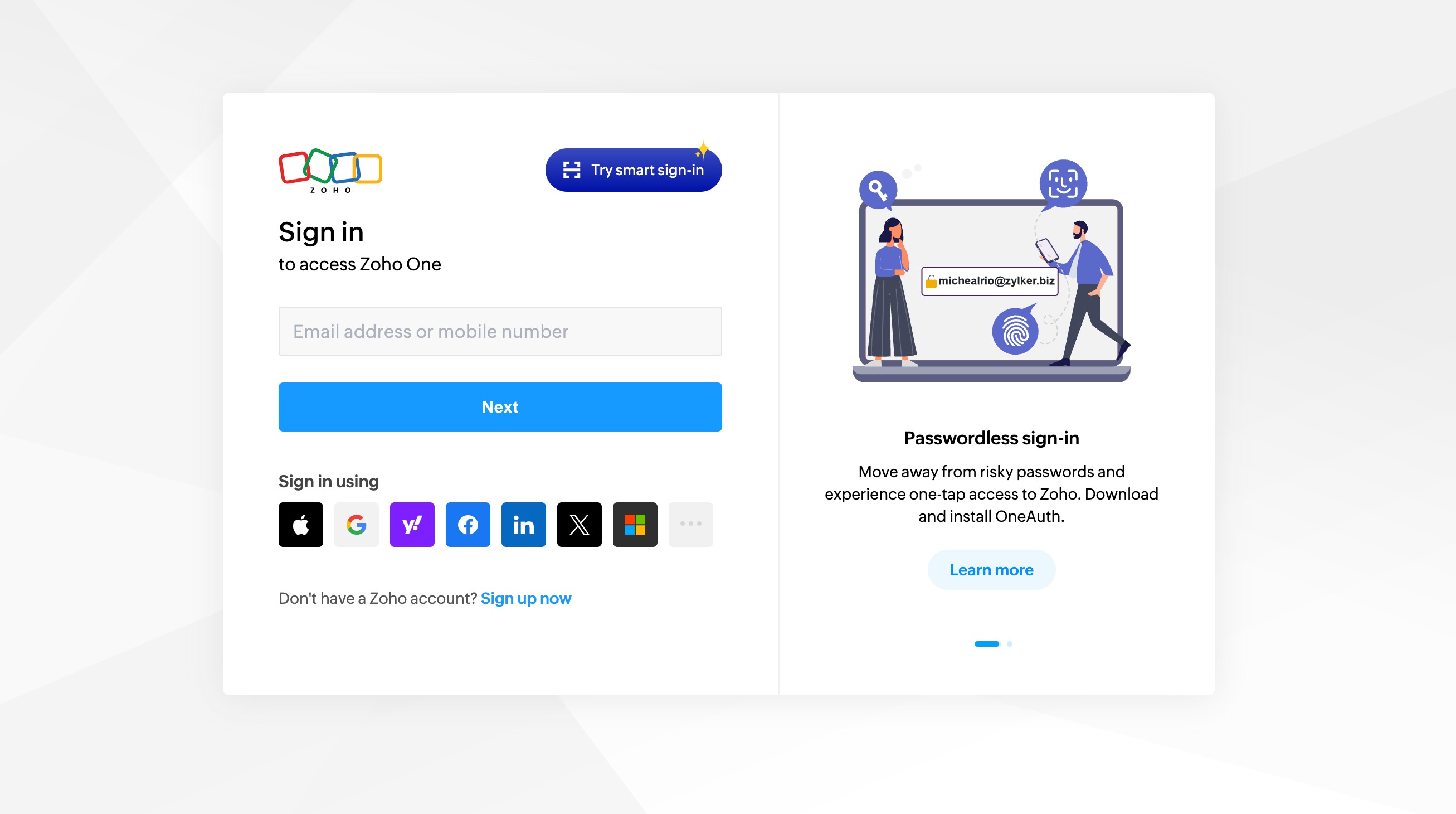
📷 Screenshot unavailable
2
Enter your account email as if you were signing on.
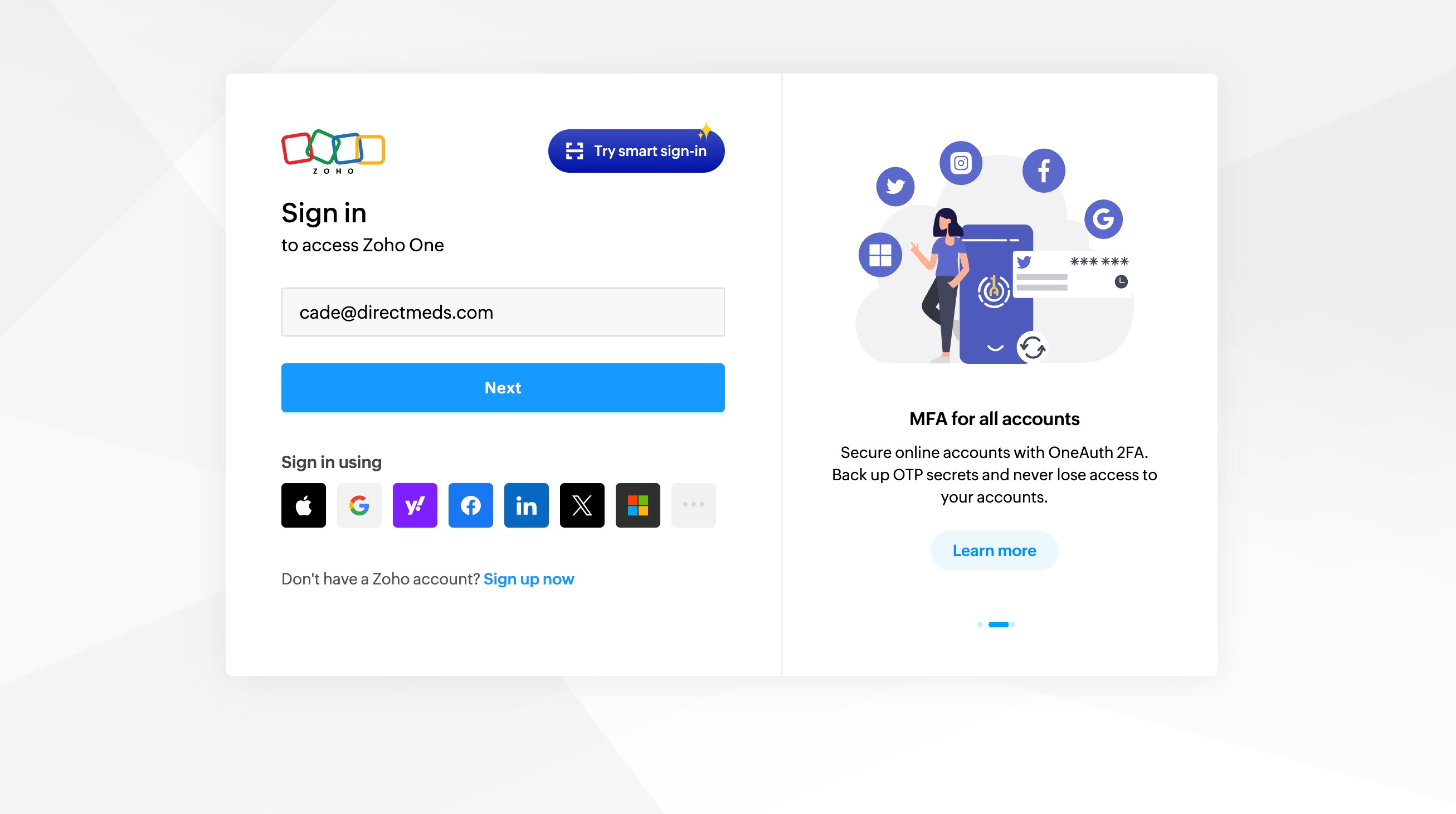
📷 Screenshot unavailable
3
When the password field appears, click the Forgot Password? link.
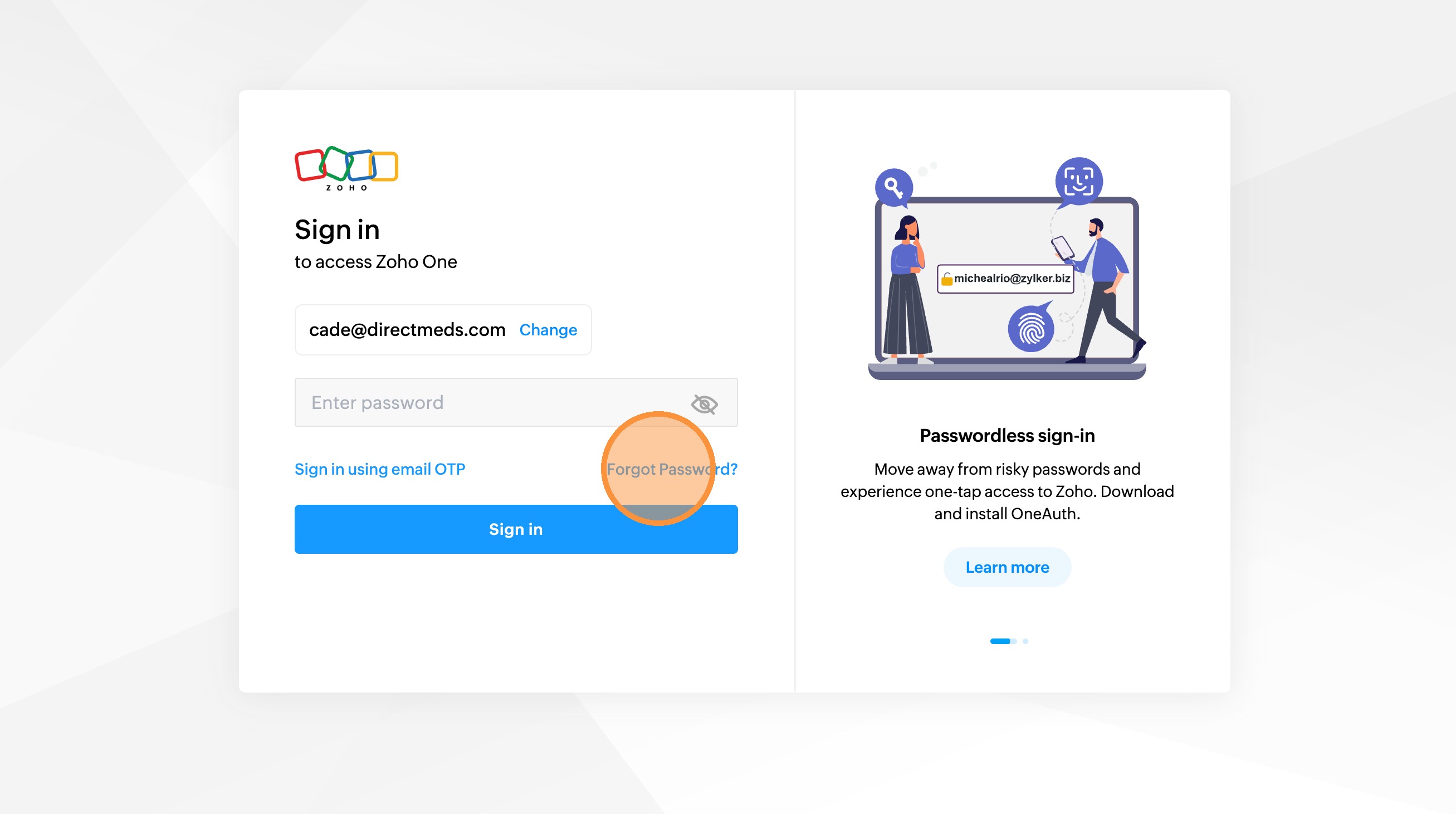
📷 Screenshot unavailable
4
Complete the CAPTCHA test when prompted.
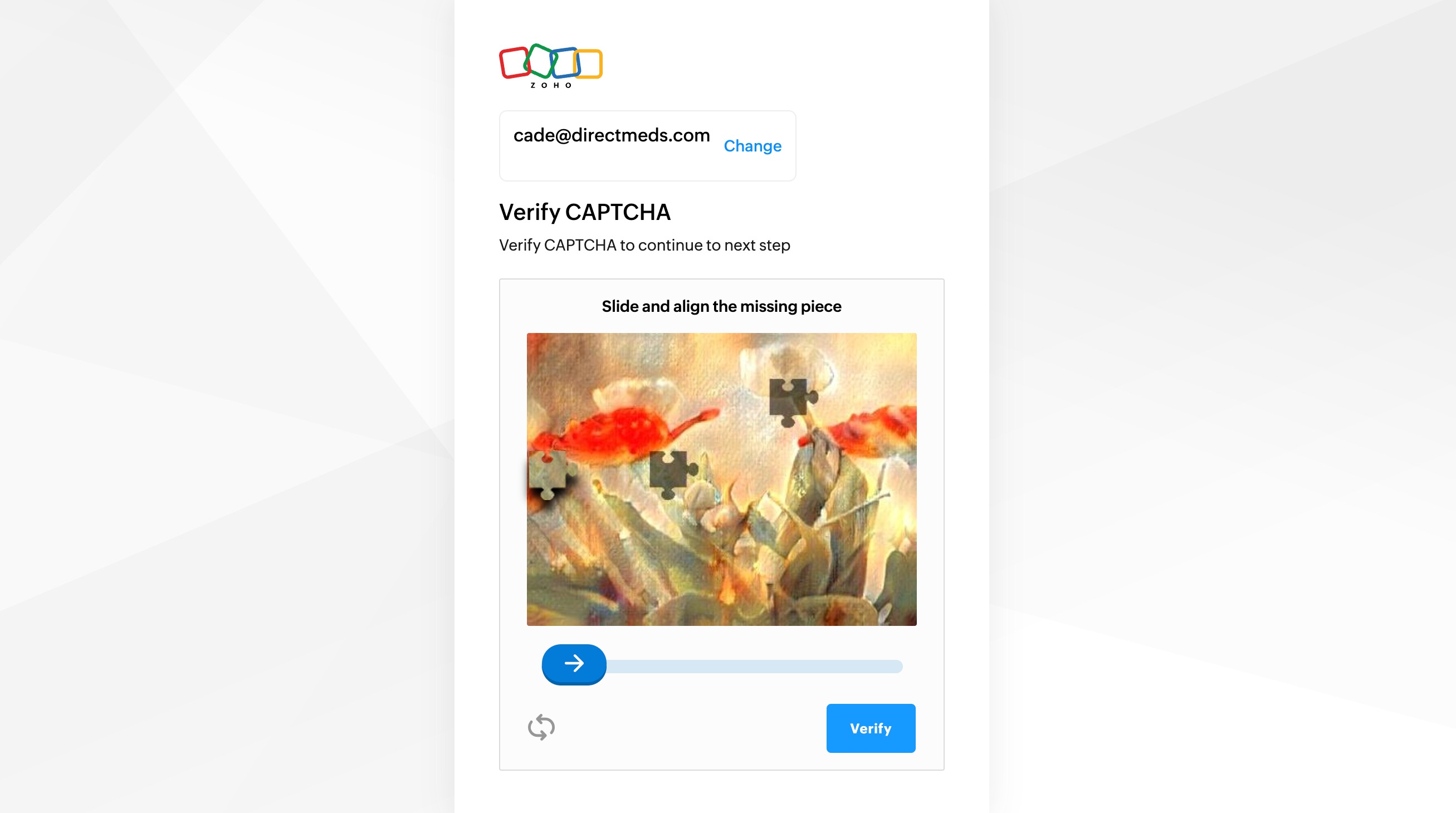
📷 Screenshot unavailable
5
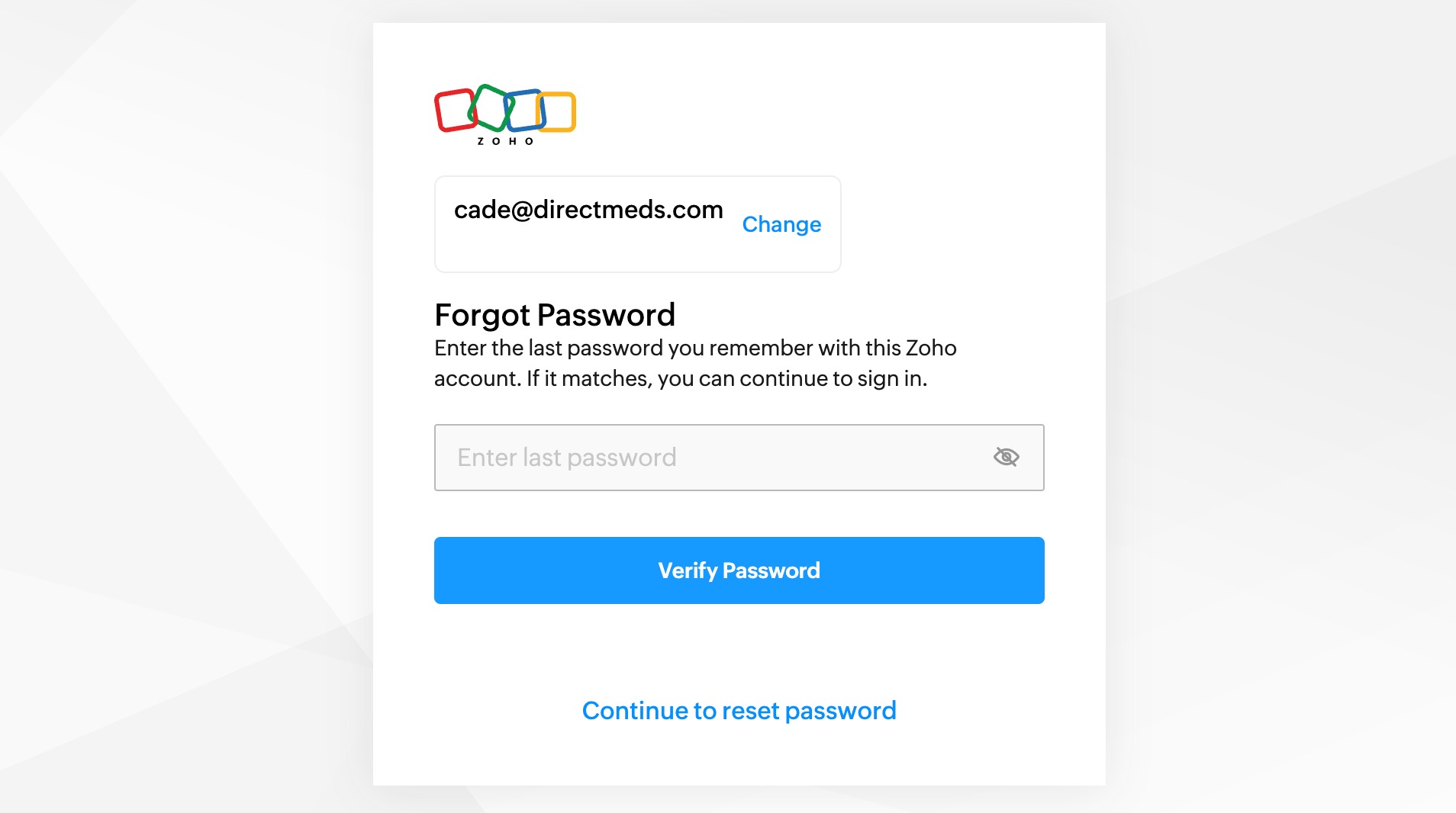
Enter the last password you remember using. If it matches, you will likely skip straight past the next few steps.
📷 Screenshot unavailable
6
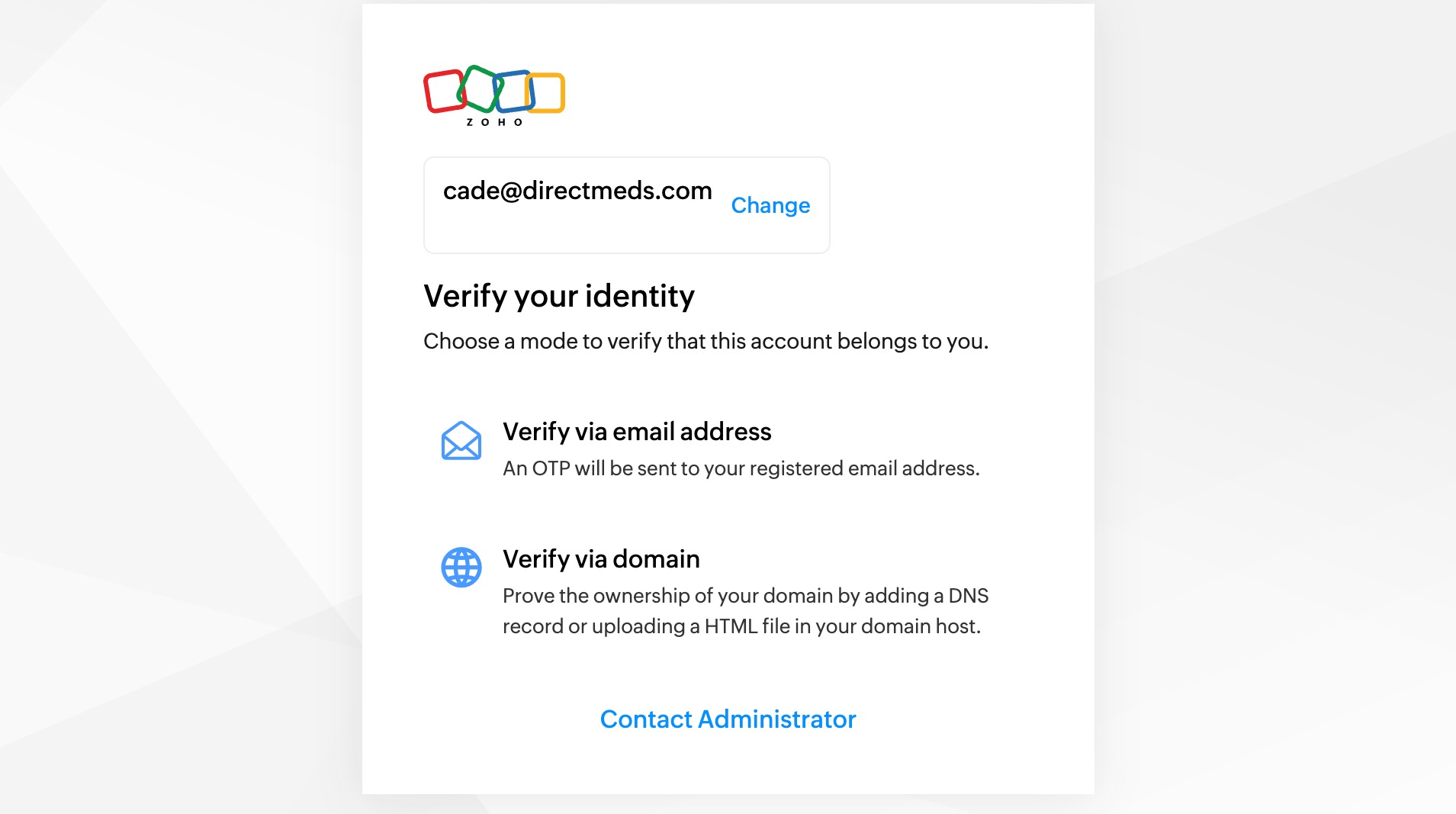
If your password entry is not a match, you will be asked to verify your identity another way. Choose Verify via email address.
📷 Screenshot unavailable
7
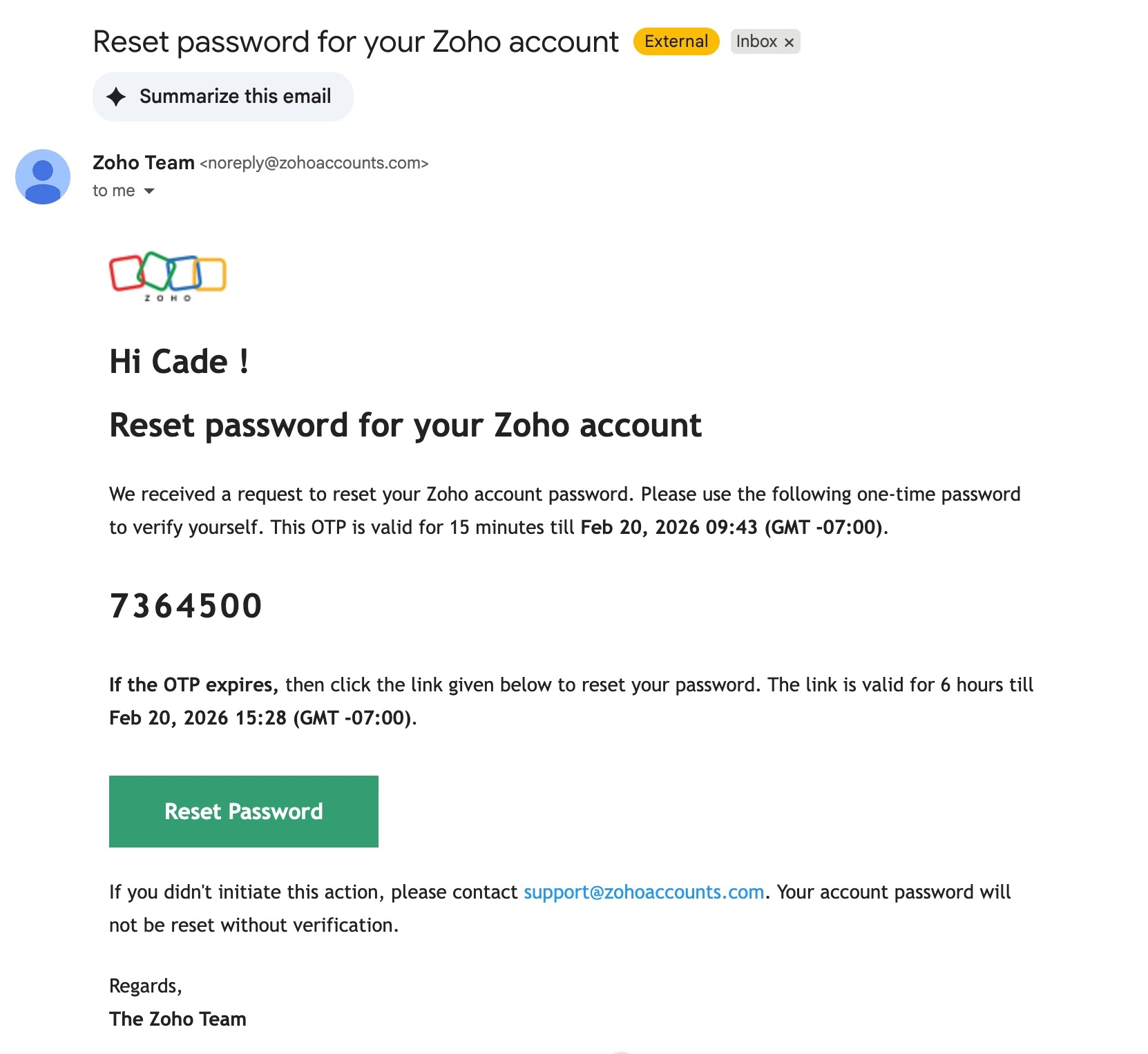
You will receive an email with the subject line "Reset password for your Zoho account". Copy the temporary password (typically a string of numbers).
📷 Screenshot unavailable
8
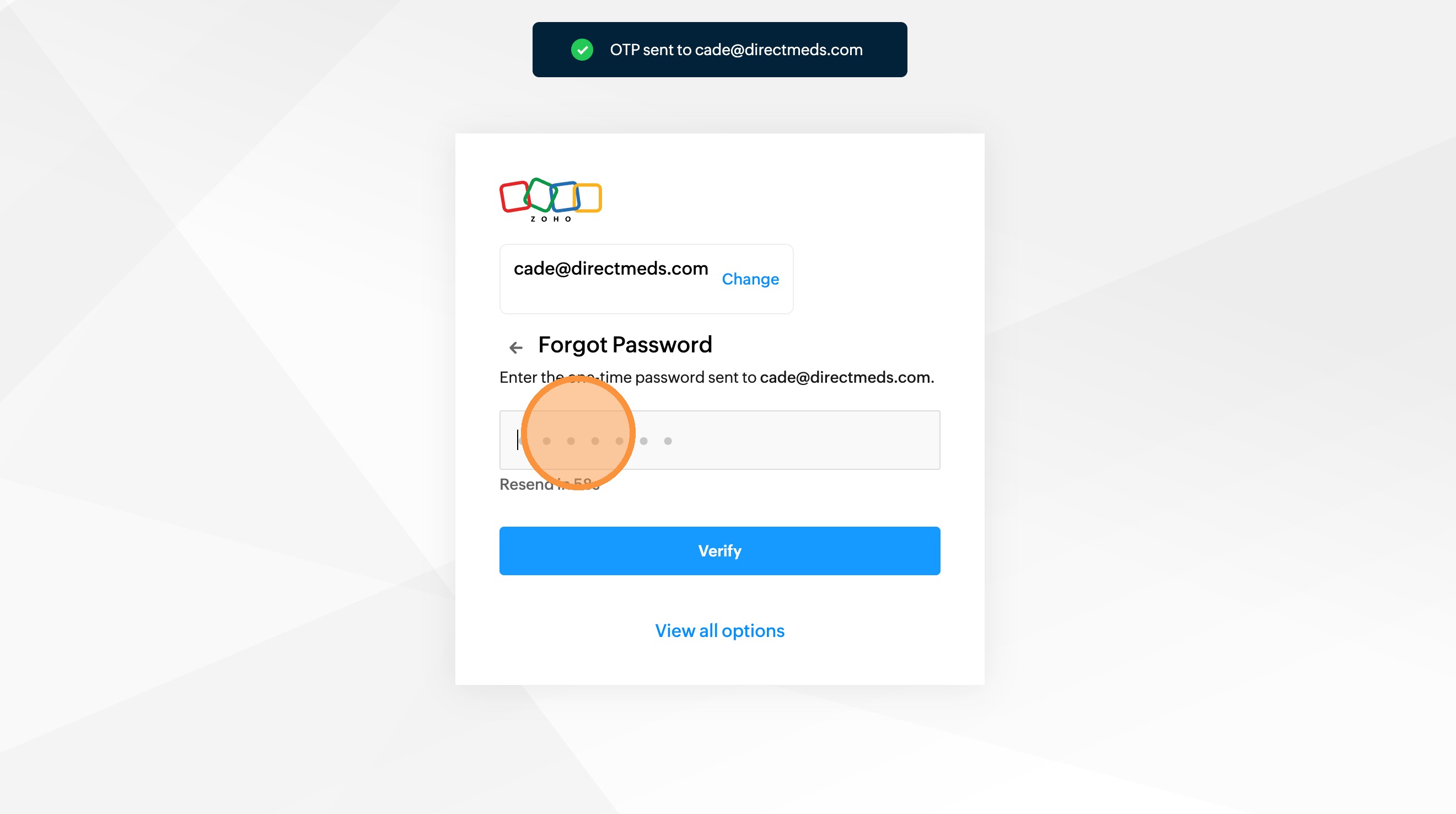
Enter the copied code in the field provided, then click Verify.
📷 Screenshot unavailable
9
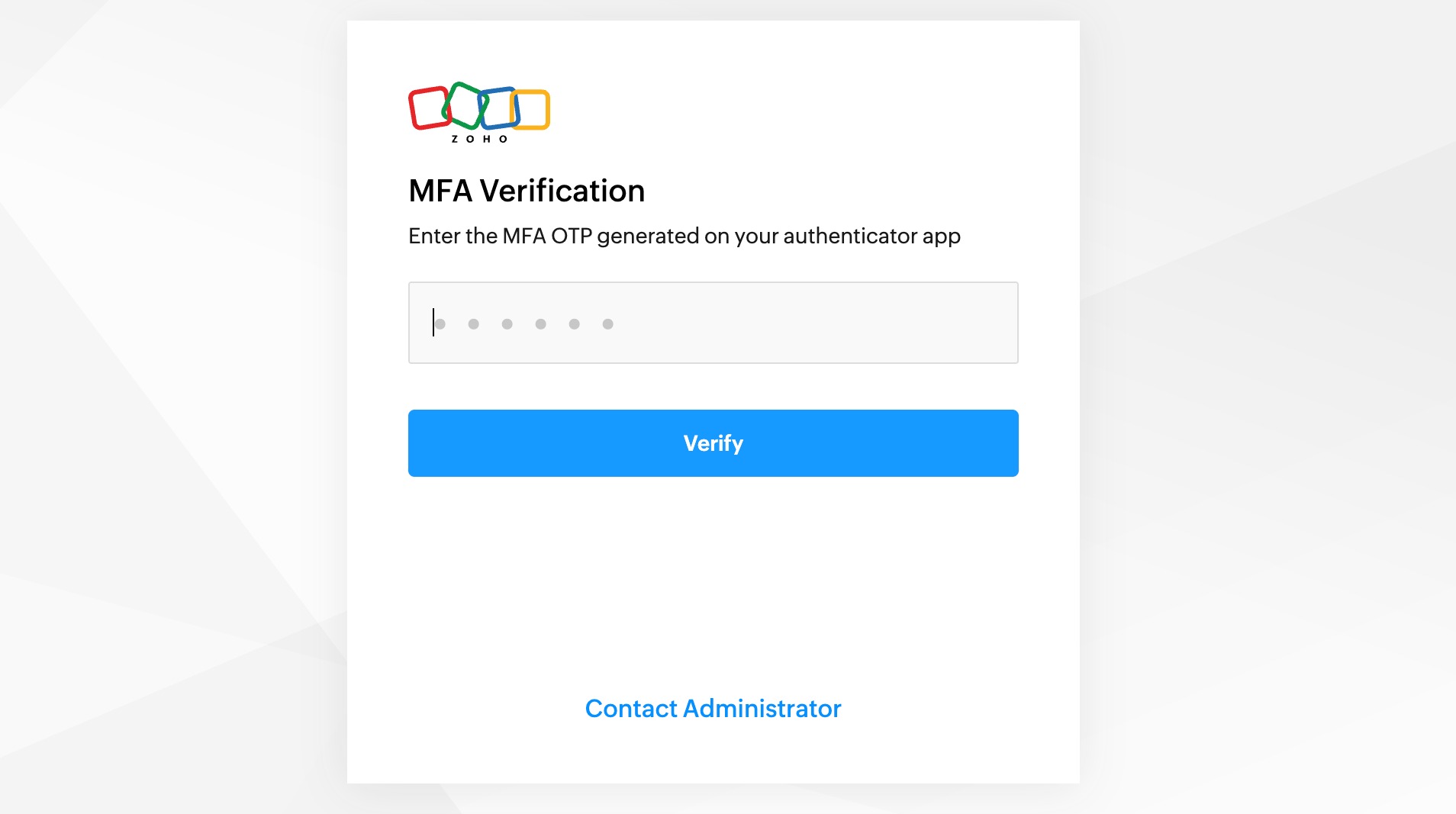
The last verification step is your 2FA code. Enter the 2FA code displayed for Zoho in your Authenticator app.
📷 Screenshot unavailable
10
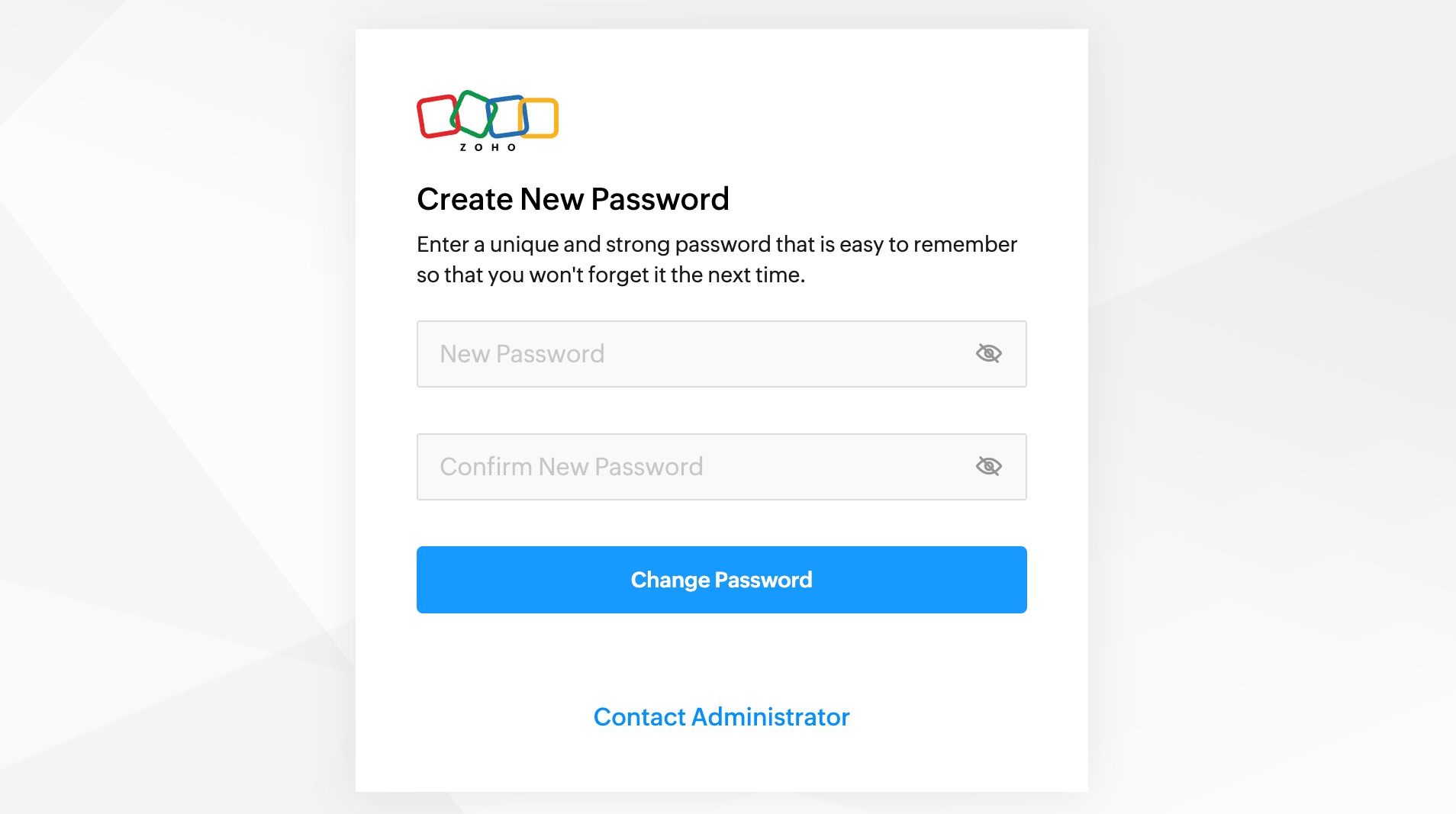
Create a new password. Zoho requires a strong password: at least 8 characters with a mix of uppercase and lowercase letters, numbers, and at least one special character. It cannot include your name or email, common sequences like 123, or passwords exposed in past data breaches.
📷 Screenshot unavailable
11
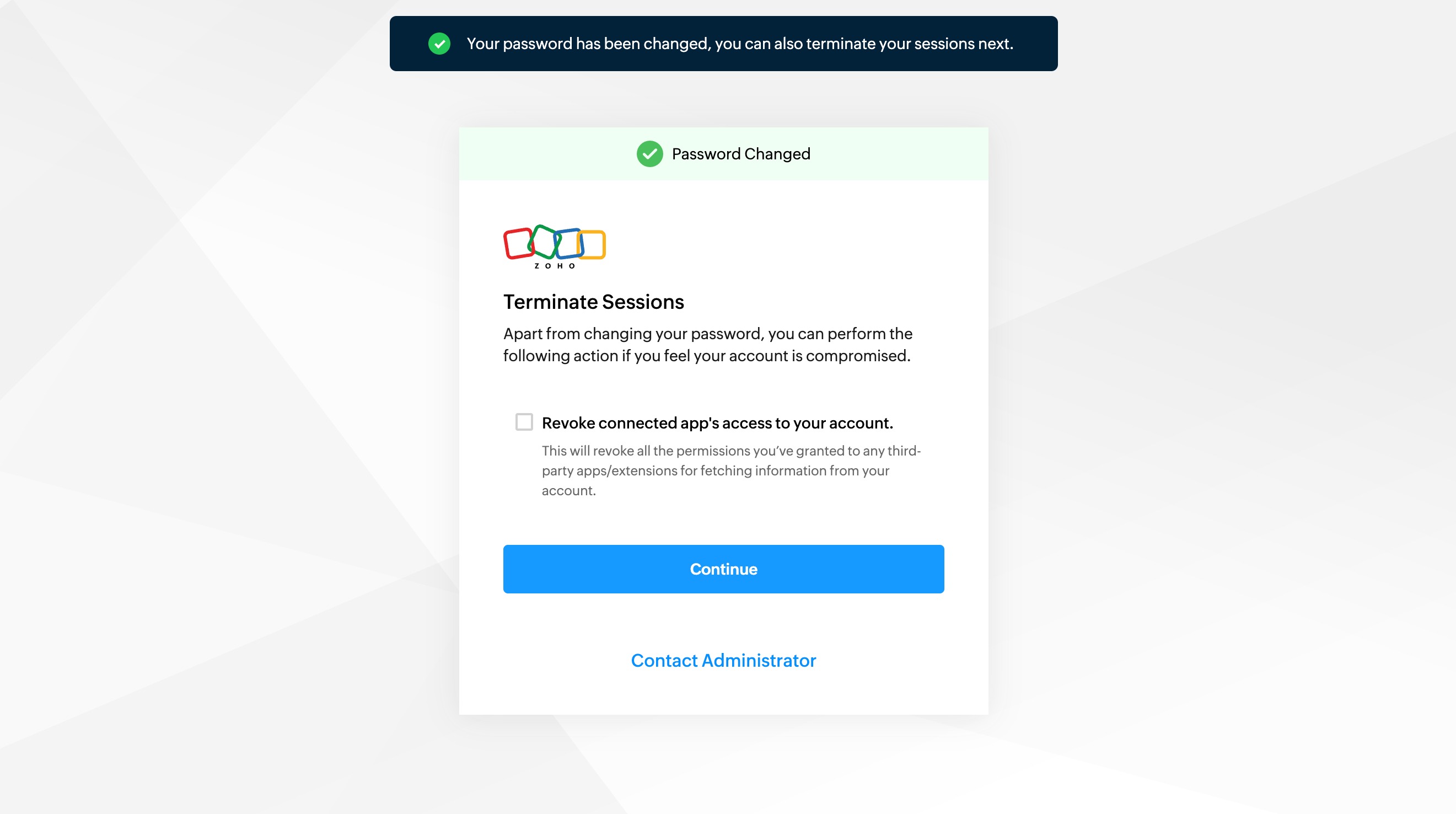
You will see a confirmation of the change and a prompt to terminate sessions. For most users this is not needed — click Continue.
📷 Screenshot unavailable
12
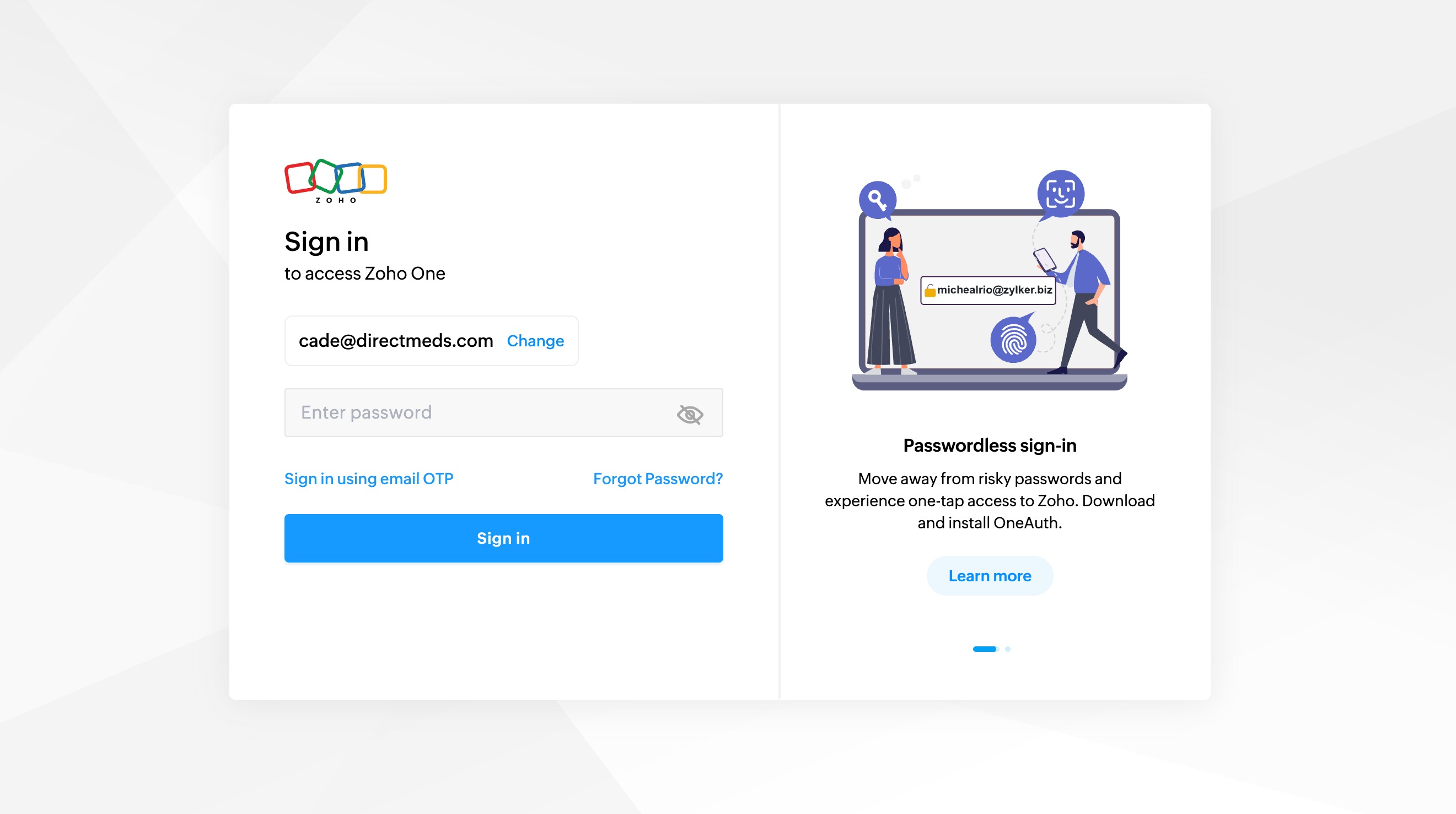
You will be redirected back to the sign-on page to log in with your new password.
📷 Screenshot unavailable
Important — password reset limit: Zoho only allows one self-service password reset every 24 hours. If you need another reset within that window, follow "Reset Not Successful?" below.
13
Internal users (directmeds.com email): If you use a @directmeds.com email address, Operations can manually reset your Zoho password for you. Contact Direct Meds Operations and specifically request a Zoho password reset:
- 📧 operations@directmeds.com
- 💬 Telegram: https://t.me/+RvZYXuscBFViNTcx
- Include your full name, the email associated with your Zoho account, and a brief description of the error (if applicable).
14
External users (BPO or SoniqCX): If you do NOT have a @directmeds.com email address, we cannot reset your Zoho password on your behalf. Contact Zoho Support directly:
- 📧 support@zohoaccounts.com (CC kohl@directmeds.com)
- Request a Zoho password reset and include your full name, the email associated with your Zoho account, and a screenshot of any error message (if available).
These steps only work if you have a copy of your backup Zoho codes. If you do not have them, request a manual authenticator reset (see below).
15
Navigate to https://accounts.zoho.com/ and enter your account email on the sign-in page.
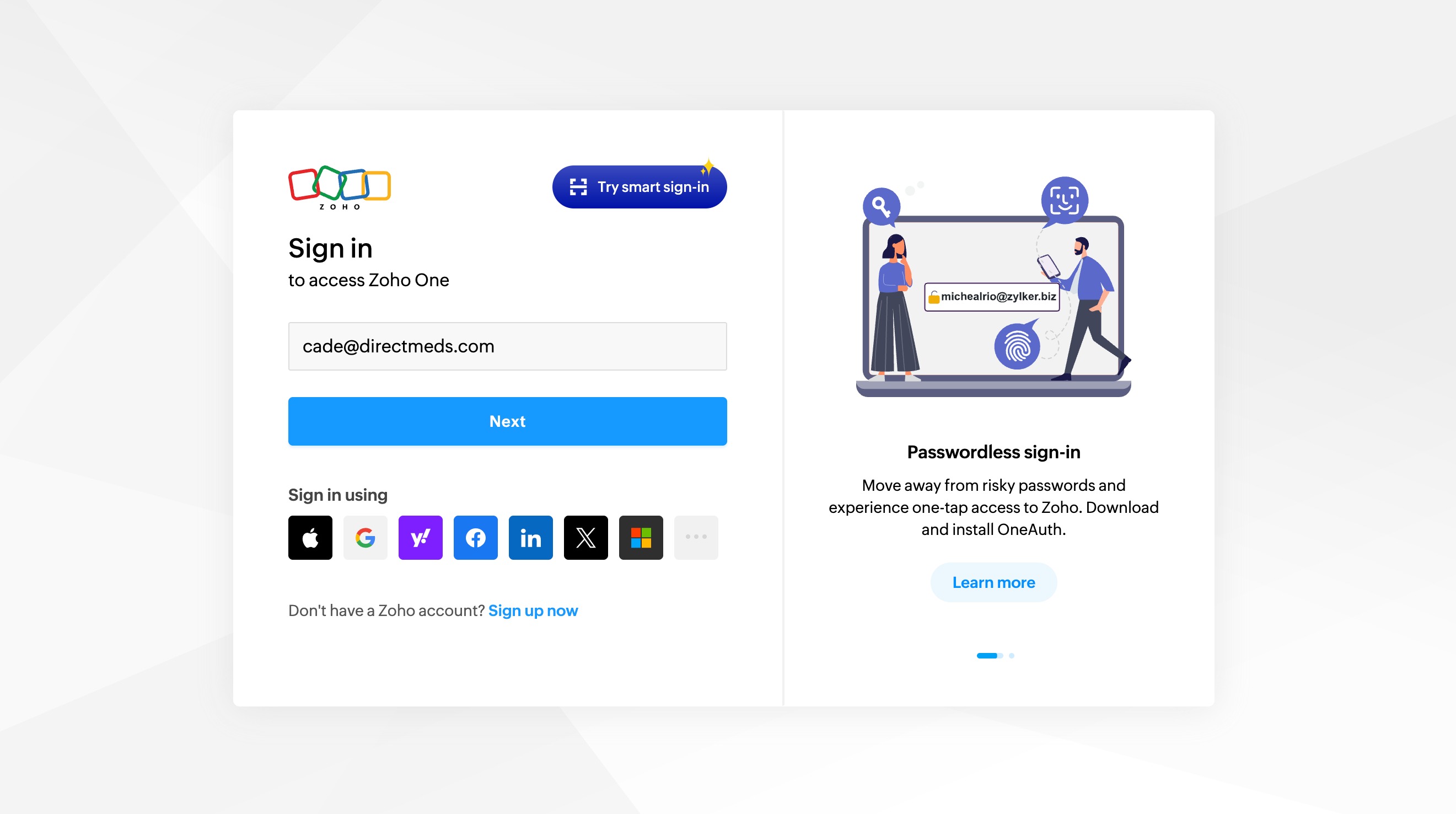
📷 Screenshot unavailable
16
Enter your password and proceed to sign on.
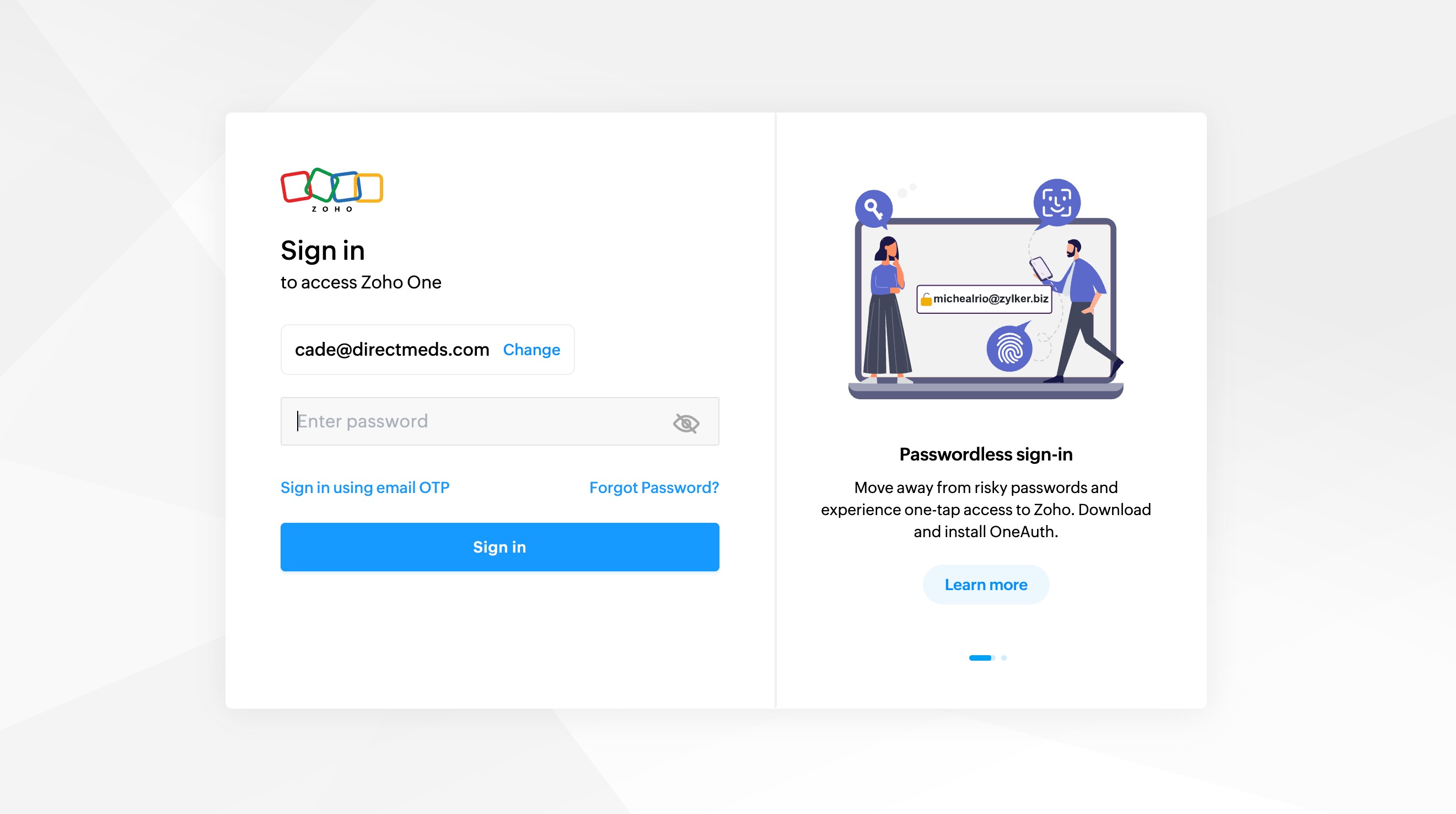
📷 Screenshot unavailable
17
When asked for your authenticator code, click Can't access your device?
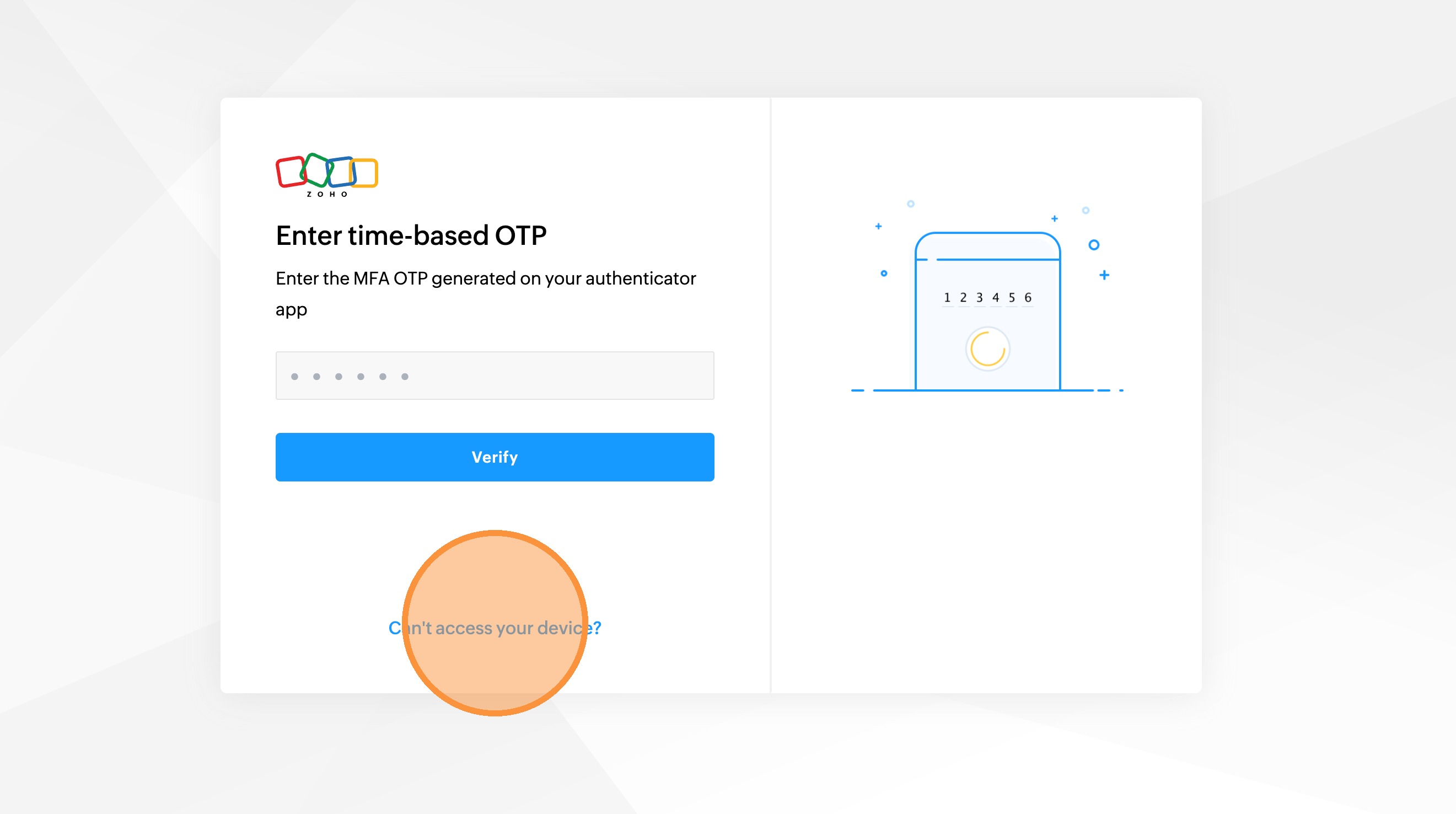
📷 Screenshot unavailable
18
Select the option to Use backup verification code.
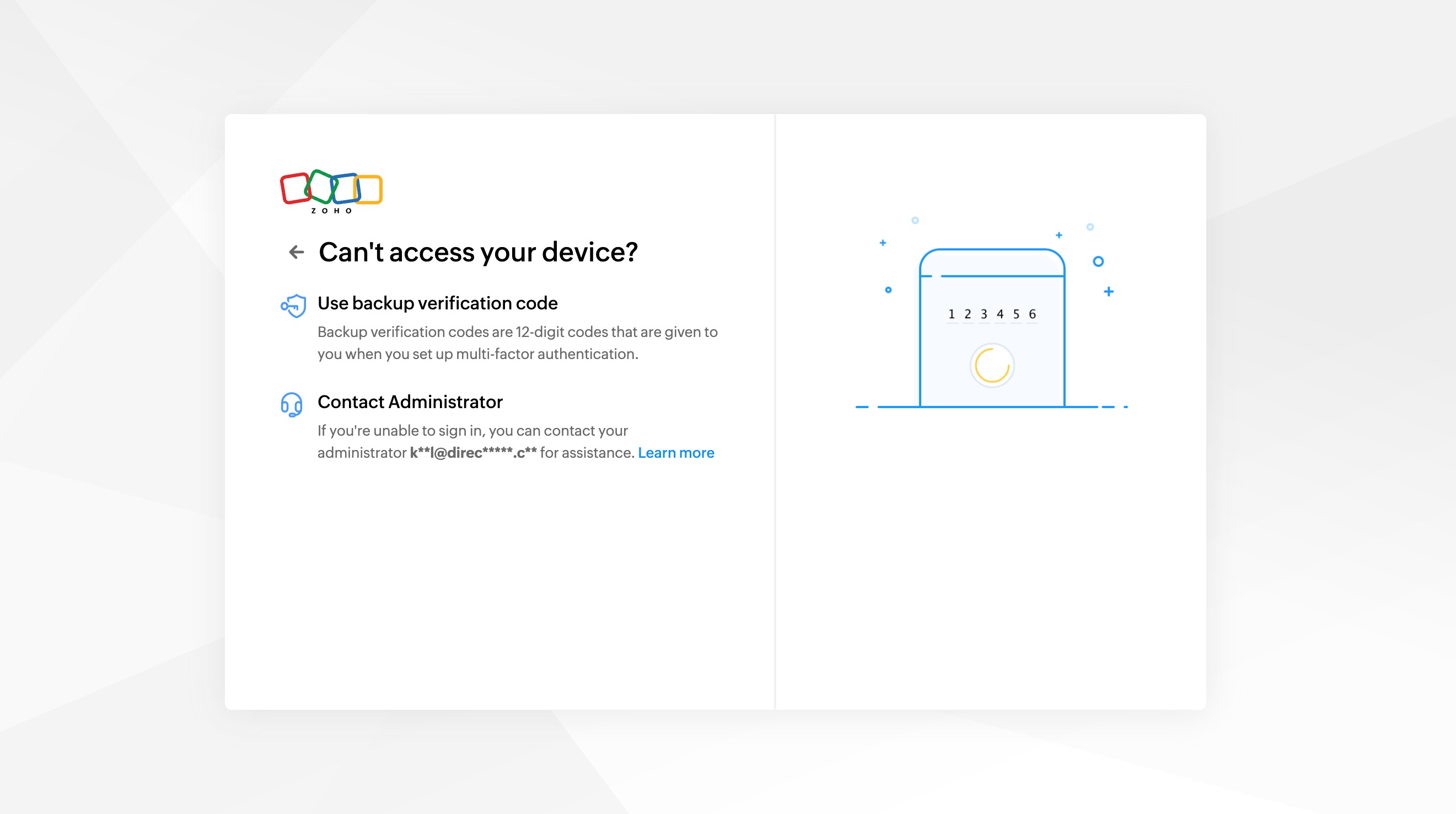
📷 Screenshot unavailable
19
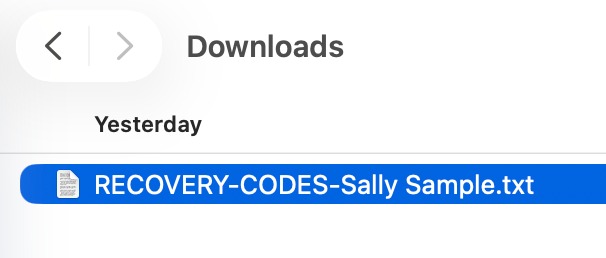
If you saved the text file directly from Zoho, it should be named RECOVERY-CODES-Firstname Lastname.txt.
📷 Screenshot unavailable
20
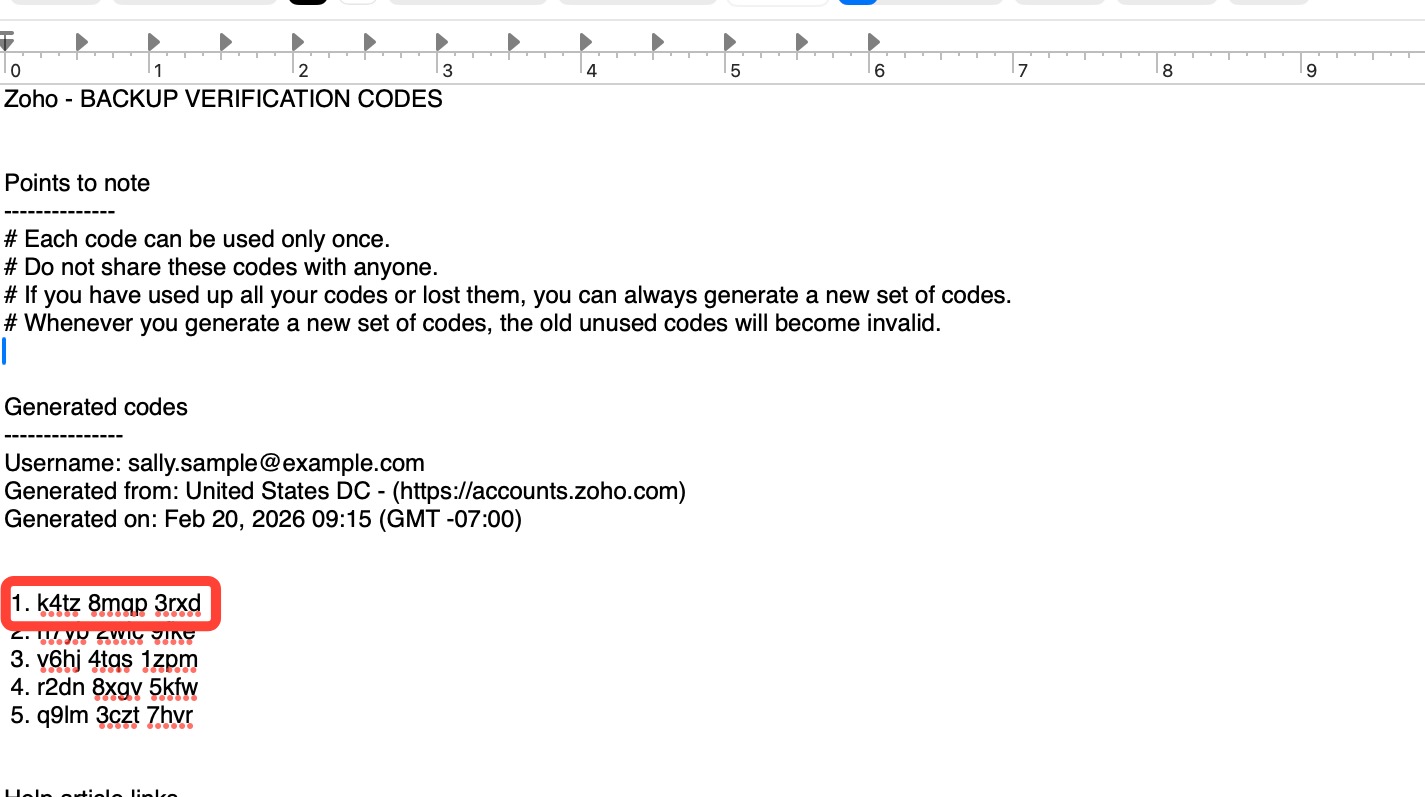
In the text file, copy one whole code, which is 12 characters long.
📷 Screenshot unavailable
21
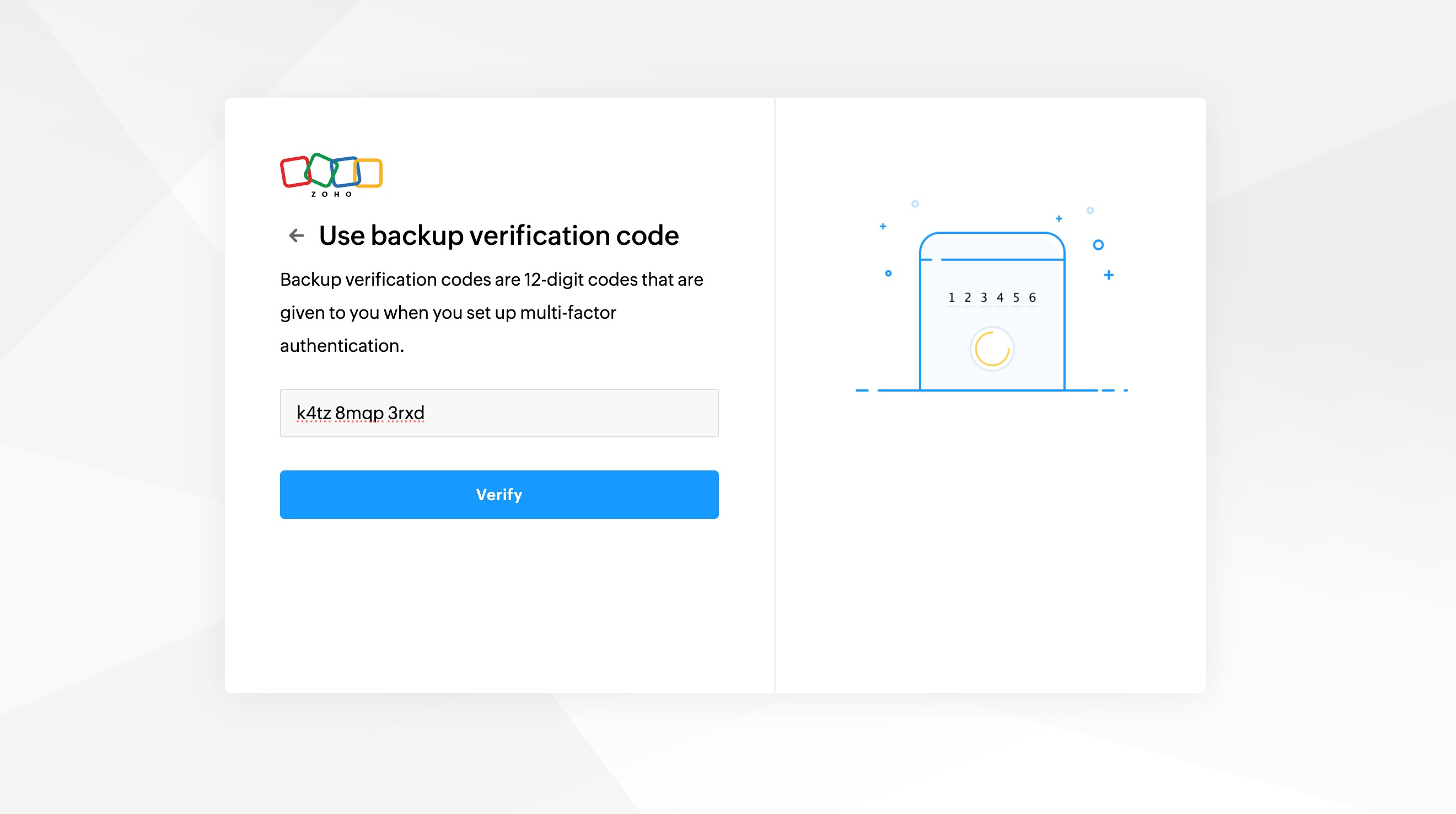
Enter the copied code into the field provided and click Verify.
📷 Screenshot unavailable
22
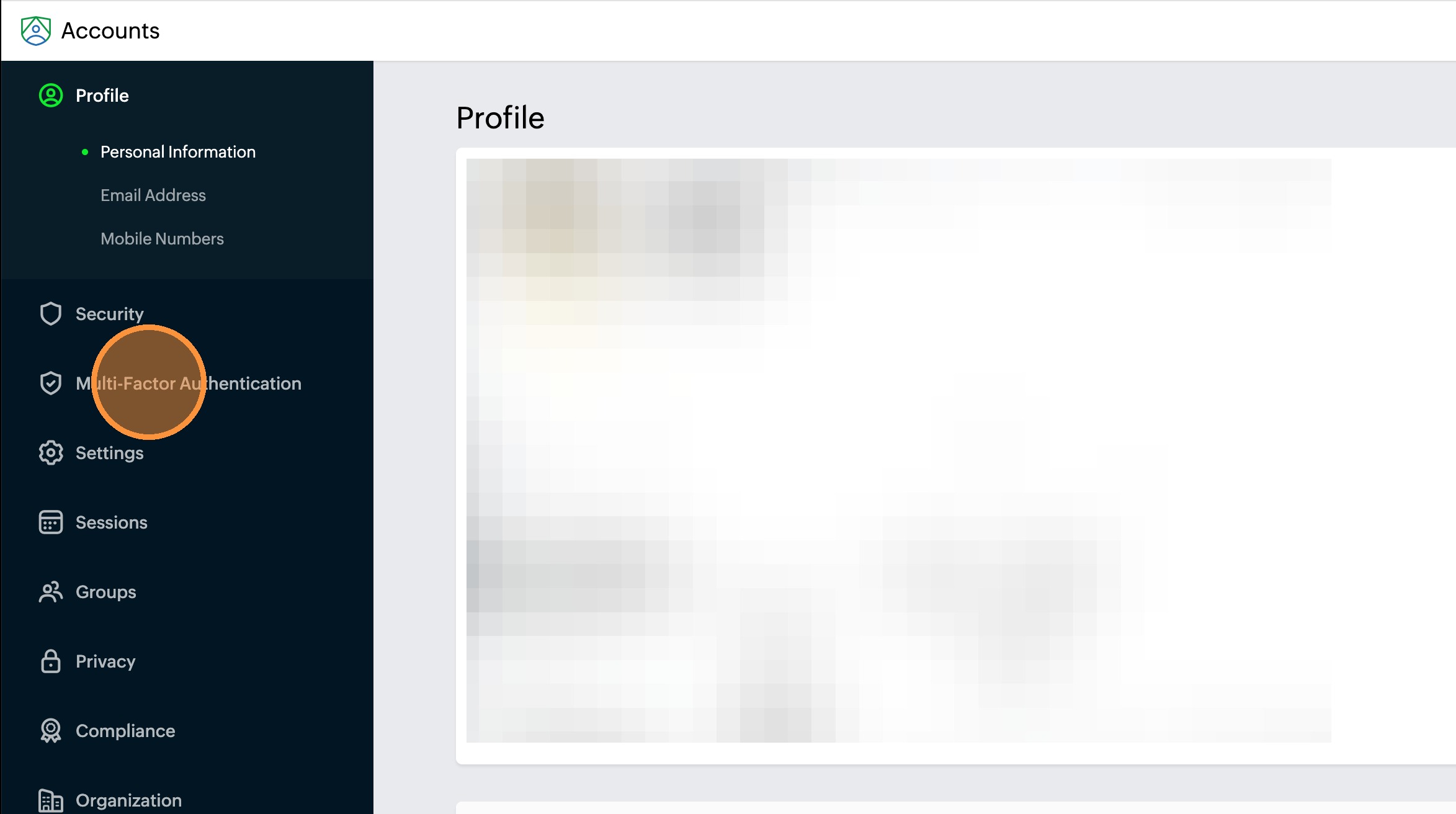
On the Zoho Accounts page, select Multi-Factor Authentication from the side bar.
📷 Screenshot unavailable
23
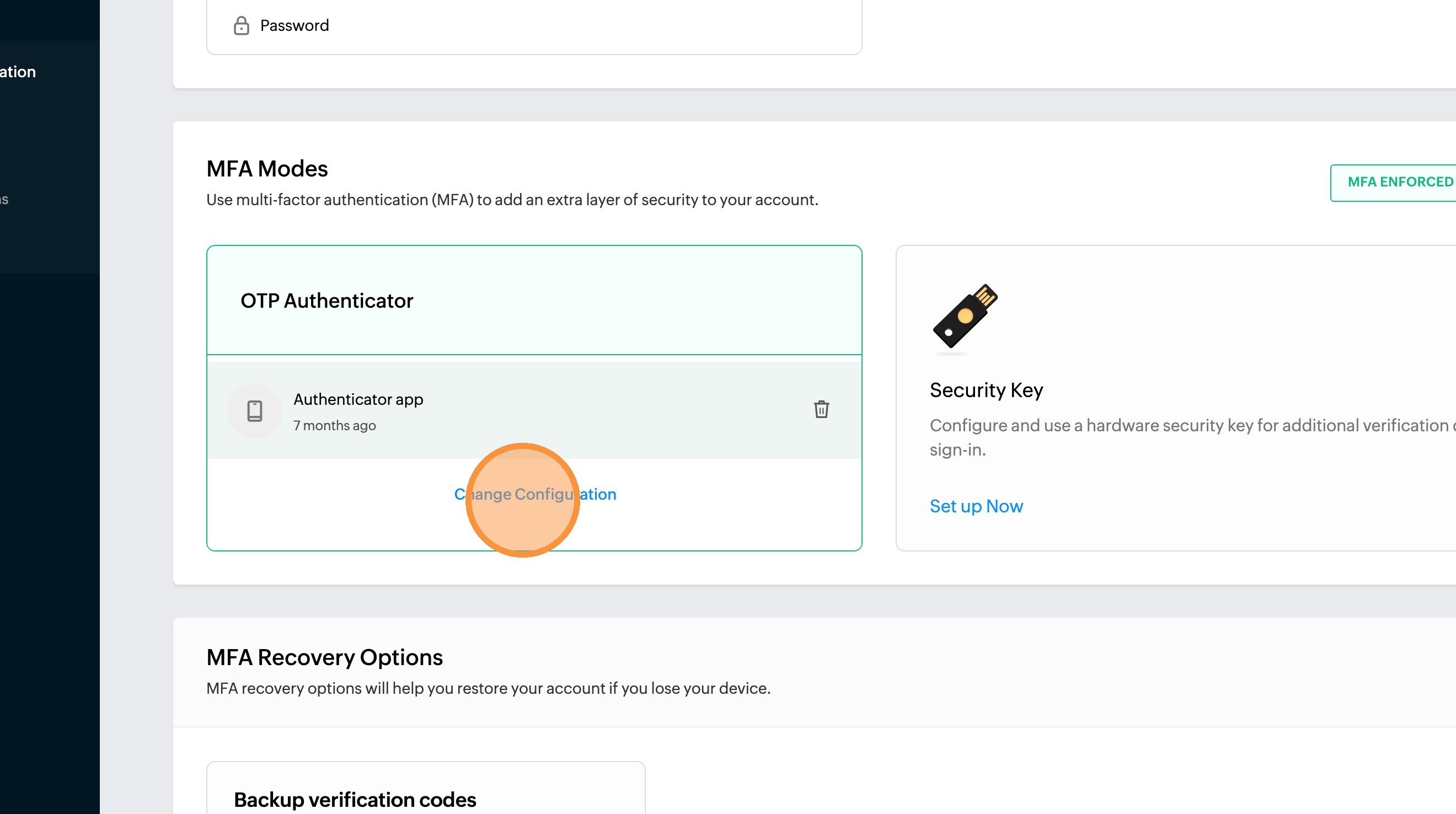
Scroll down to MFA Modes and select Change Configuration.
📷 Screenshot unavailable
24
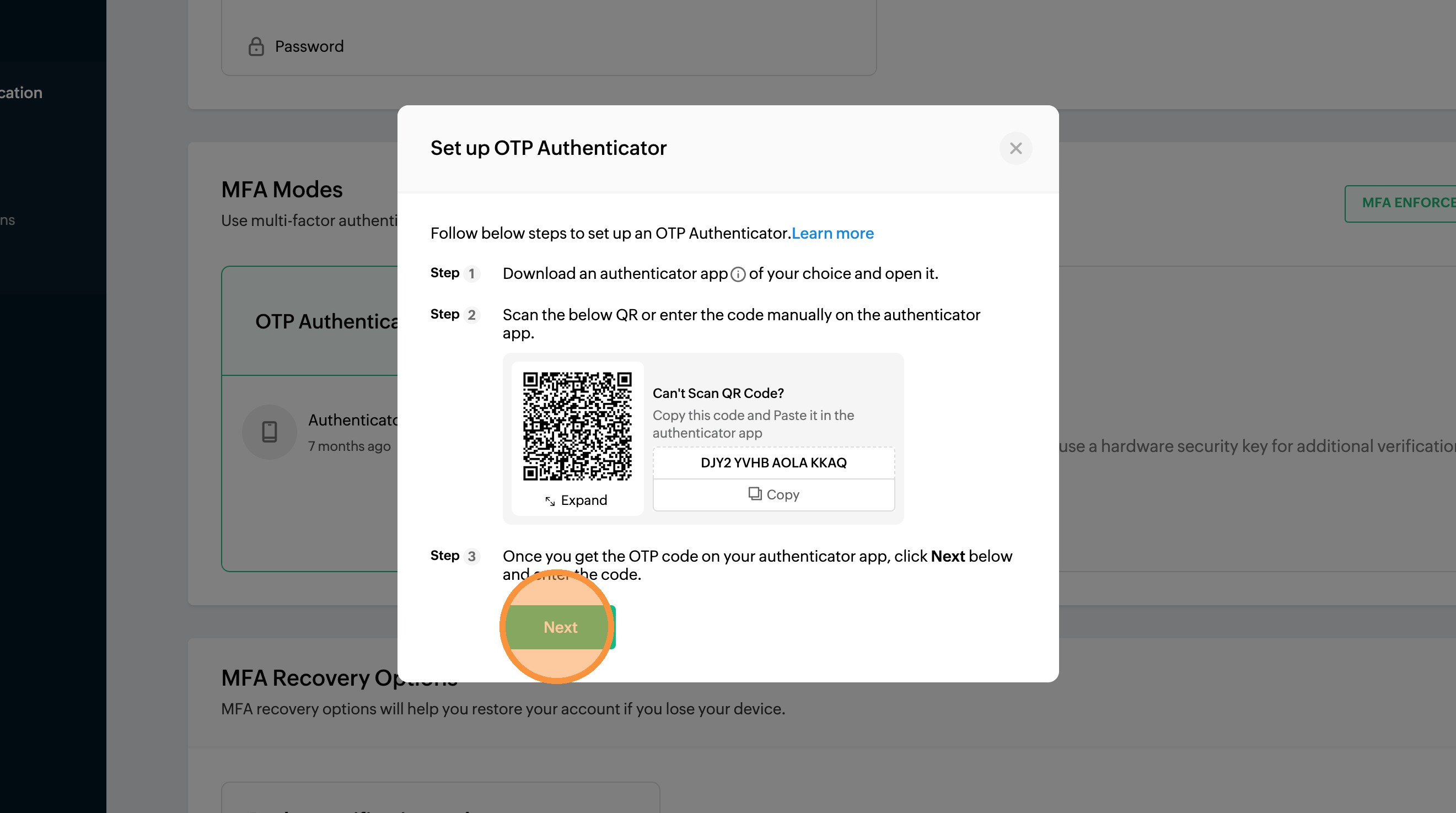
You will receive a QR code to scan. Before scanning, remove any existing Zoho codes from your Authenticator app to avoid conflicts. Then scan the new QR code and click Next.
📷 Screenshot unavailable
25
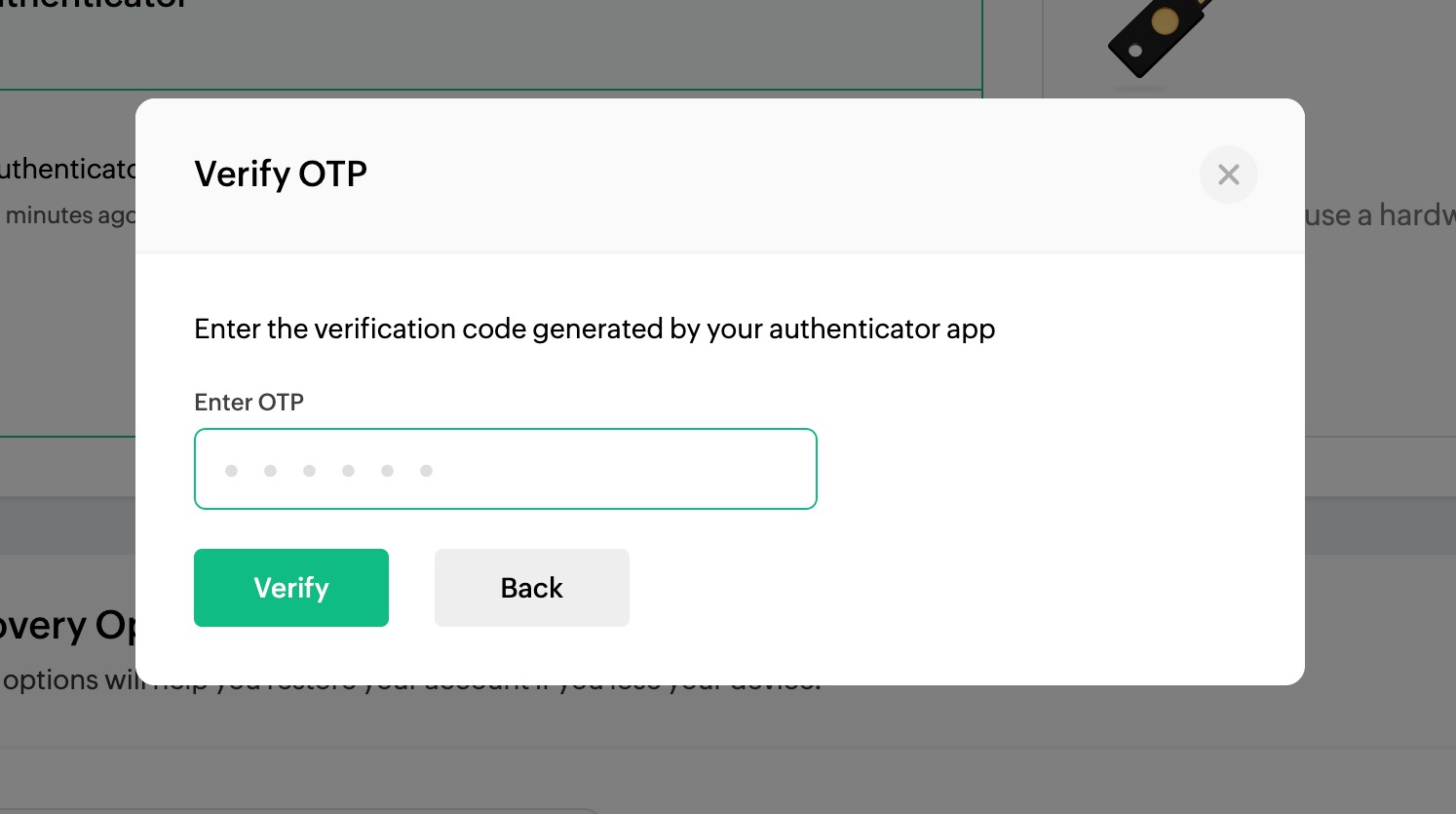
Enter the new MFA code displayed in your Authenticator app, then click Verify.
📷 Screenshot unavailable
26
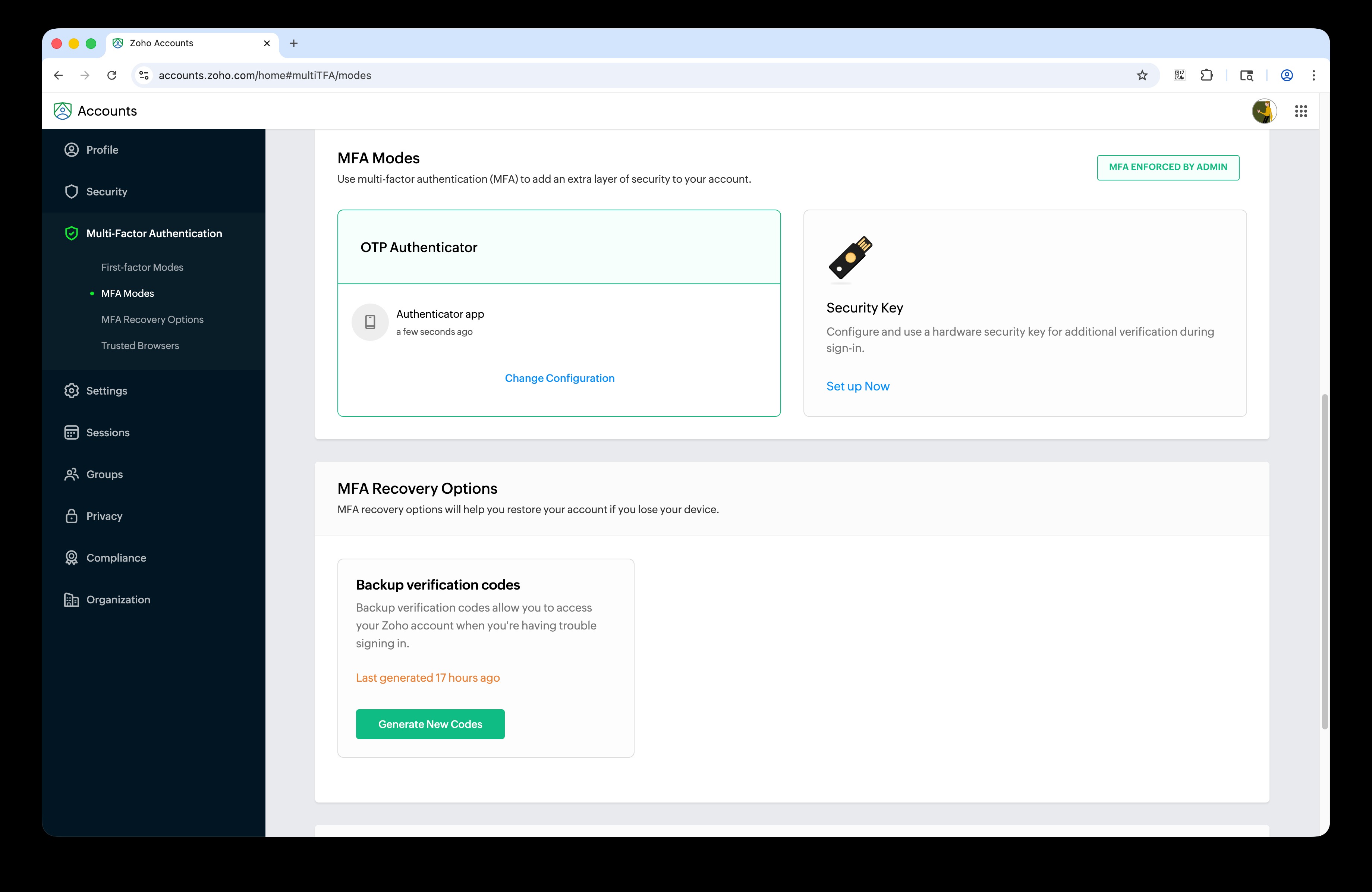
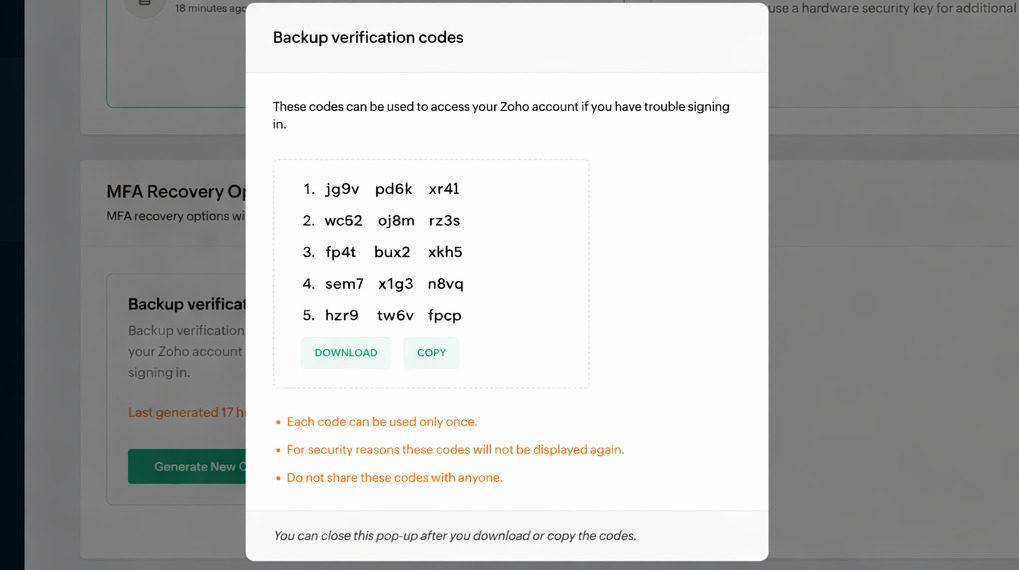
On the same Multi-Factor Authentication page (https://accounts.zoho.com/home#multiTFA/pfamodes), scroll down to MFA Recovery Options and click Generate New Codes to download additional backup verification codes.
📷 Screenshot unavailable
27
Your backup codes are presented for you to download or copy. Save them somewhere safe.
📷 Screenshot unavailable
28
If your MFA backup codes are not working, or you no longer have access to them, request a manual MFA reset. Direct Meds Operations can reset MFA for both internal and external users and provide new backup codes. Contact Operations and request an MFA reset:
- 📧 operations@directmeds.com
- 💬 Telegram: https://t.me/+RvZYXuscBFViNTcx
- Include your full name, the email associated with your Zoho account, and a brief description of the issue.
- After your MFA is reset, you will set up a new Authenticator app and generate new backup codes.
Having difficulty? Include a screenshot of the error and a brief description of what you were doing, then contact System Operations:
systemoperations@directmeds.com · Telegram
systemoperations@directmeds.com · Telegram