Set Up Zoho One
Zoho One is the business software suite (CRM, Desk, etc.). Two-factor is mandatory.
-
1In your work inbox, find the email "Welcome to Zoho One".
-
2Copy the provided password and click "Join Now".
-
3Proceed to sign in with your work email.
-
4If your account is eligible, you may be redirected to sign on with Google. Otherwise, enter the provided password directly.
-
5If prompted, accept the terms and conditions.
-
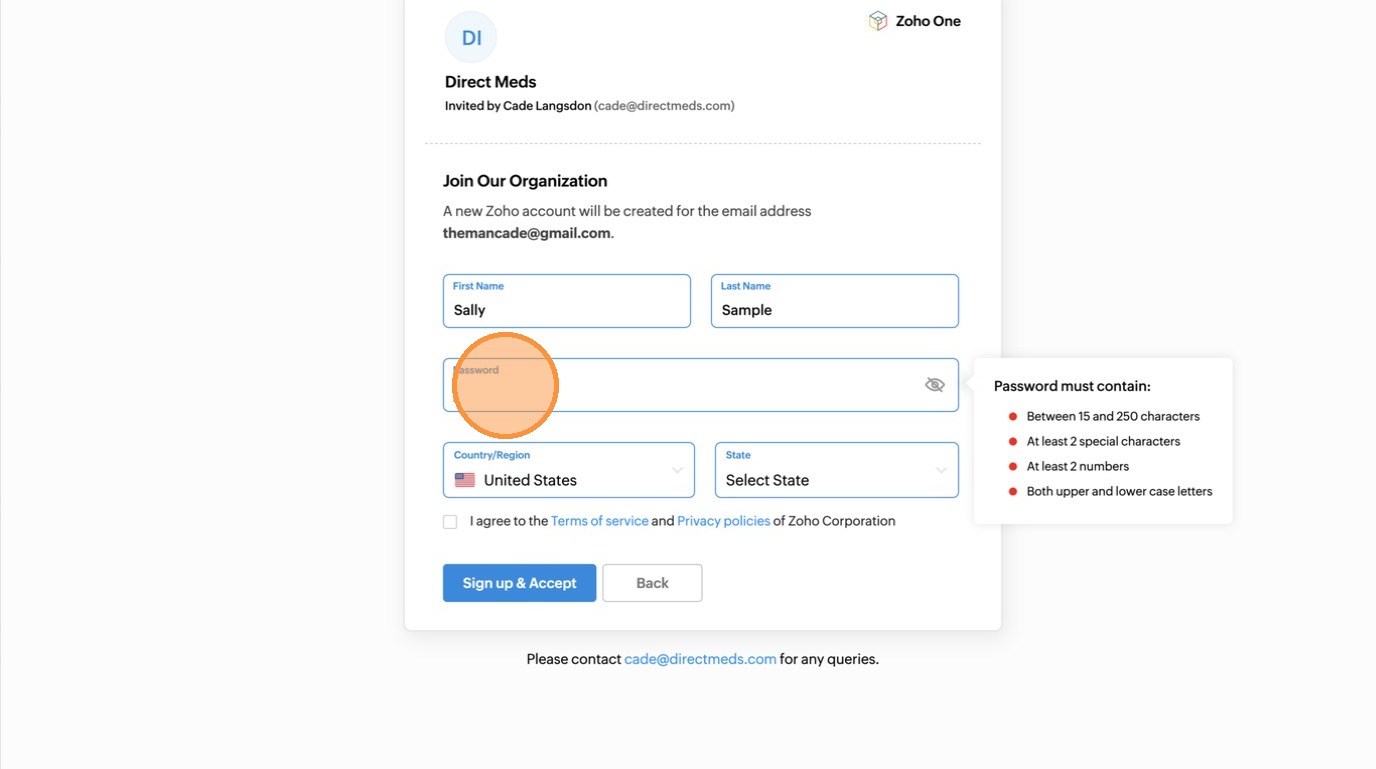
6Review your account details and create a secure password (not reused from personal accounts).
 📷 Screenshot unavailable
 -
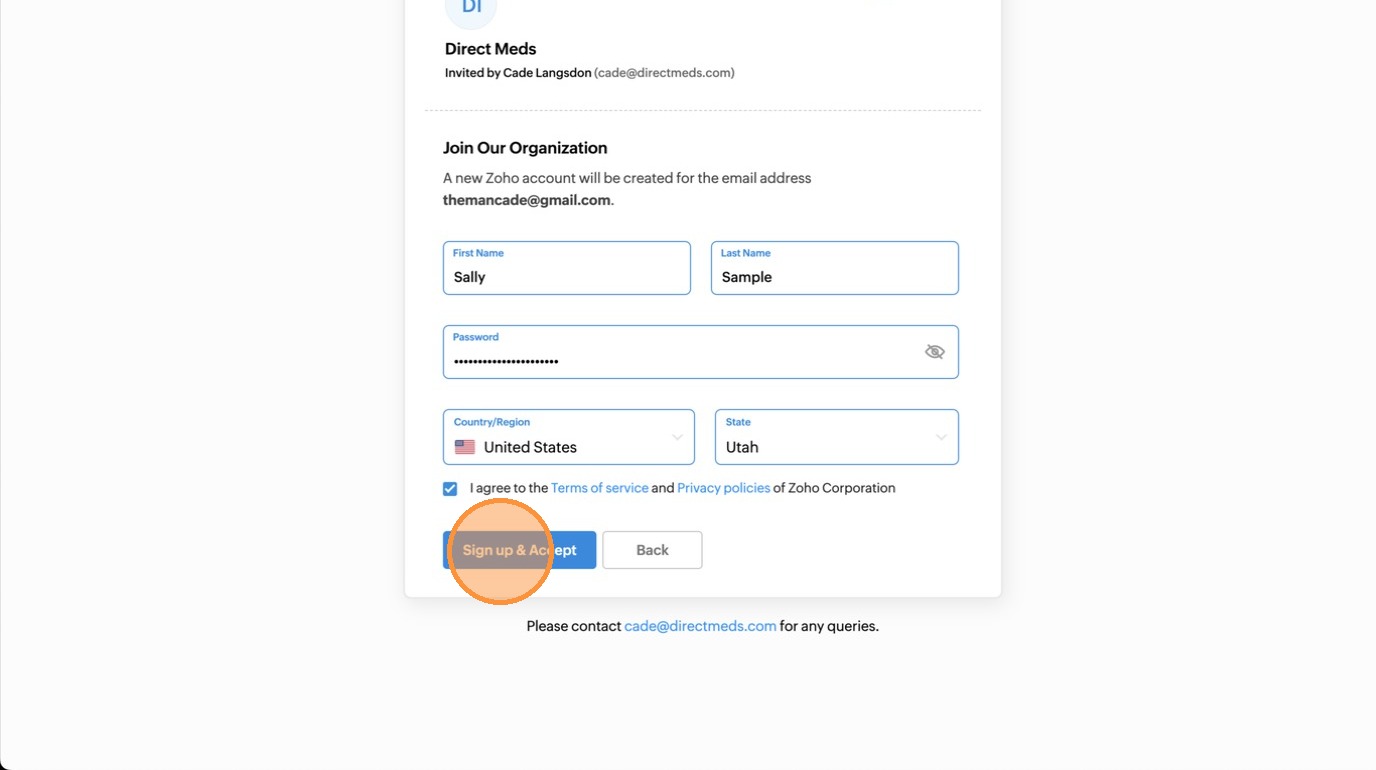
7Click Sign Up & Accept.
 📷 Screenshot unavailable
 -
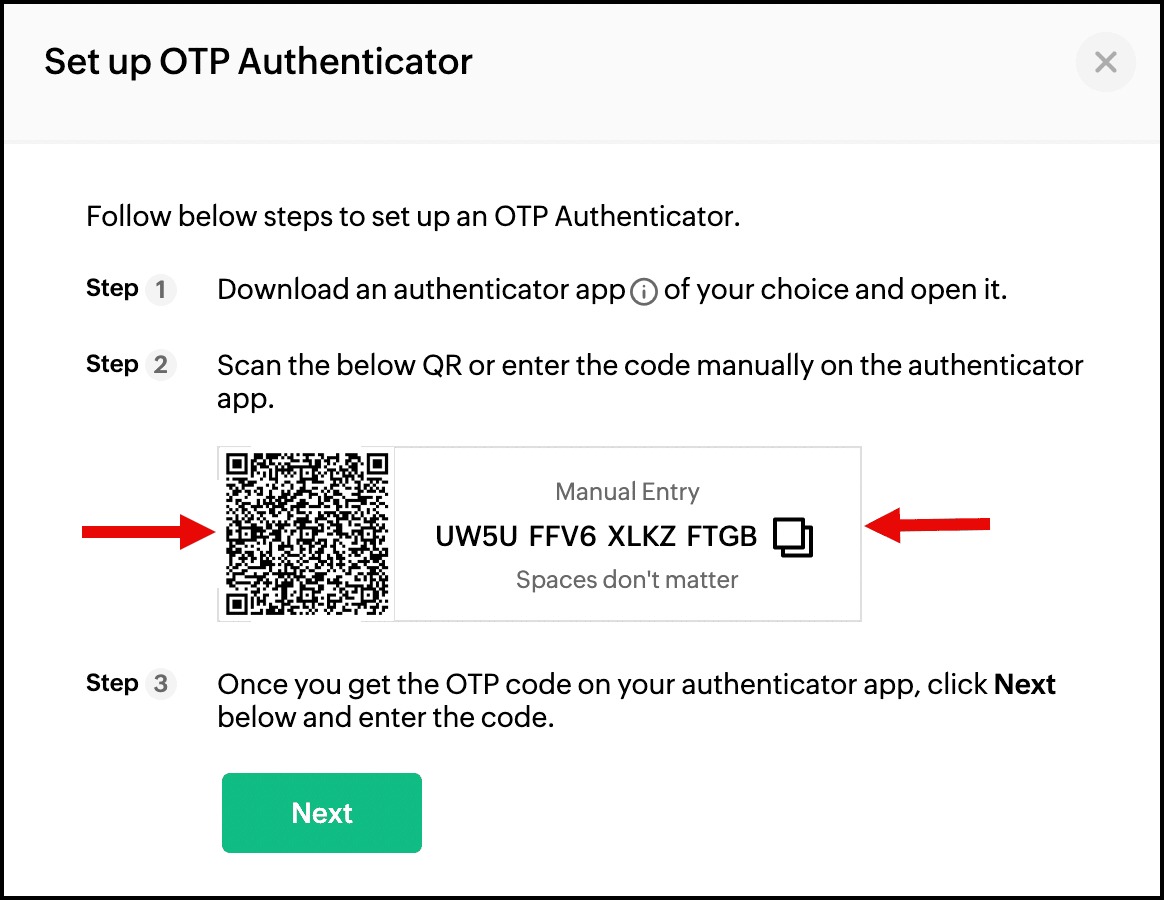
8On the authentication page, expand Set up OTP Authenticator.
 📷 Screenshot unavailable
 -
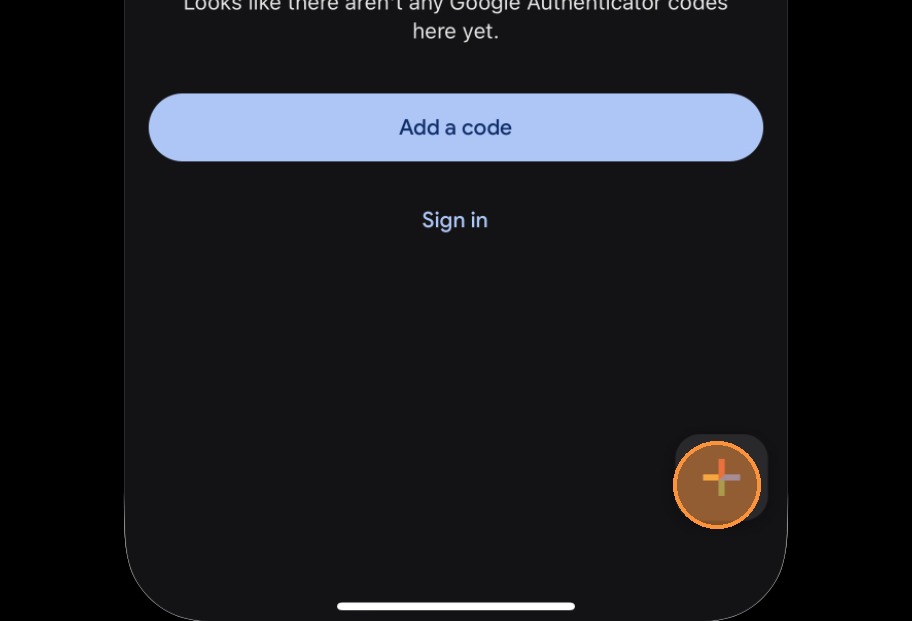
9Open Google Authenticator and tap the + icon in the bottom right.
 📷 Screenshot unavailable
 -
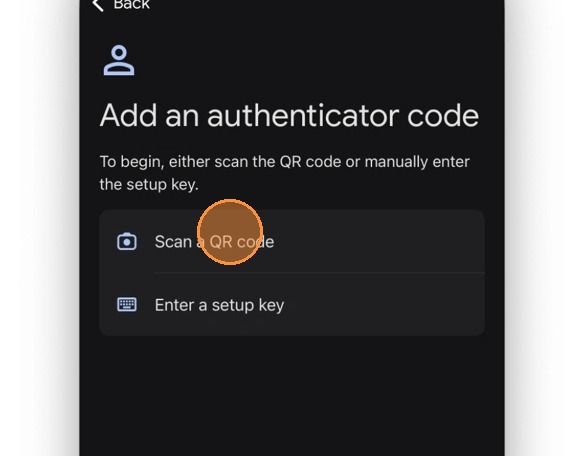
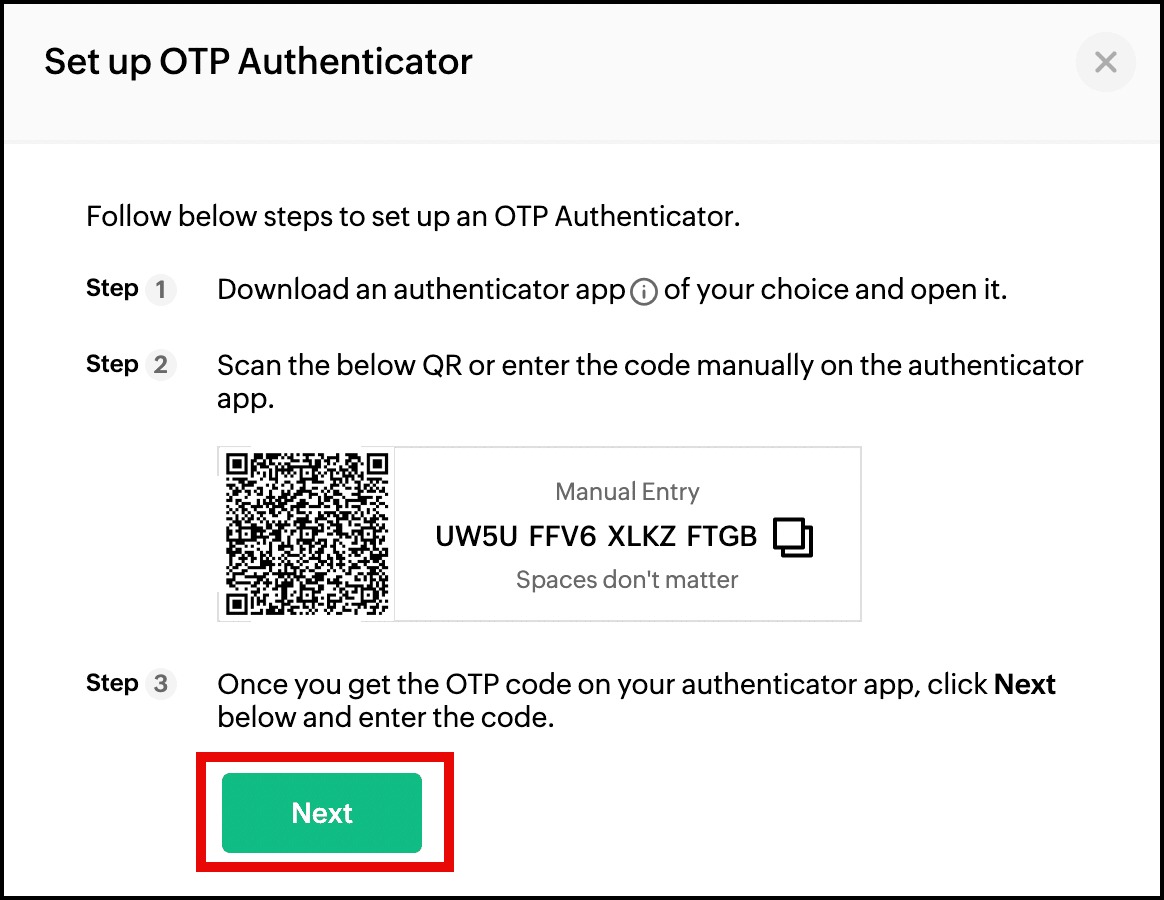
10Tap Scan a QR code. (If scanning fails, choose Enter a setup key and use the Manual Entry code next to the QR code.)
 📷 Screenshot unavailable
 -
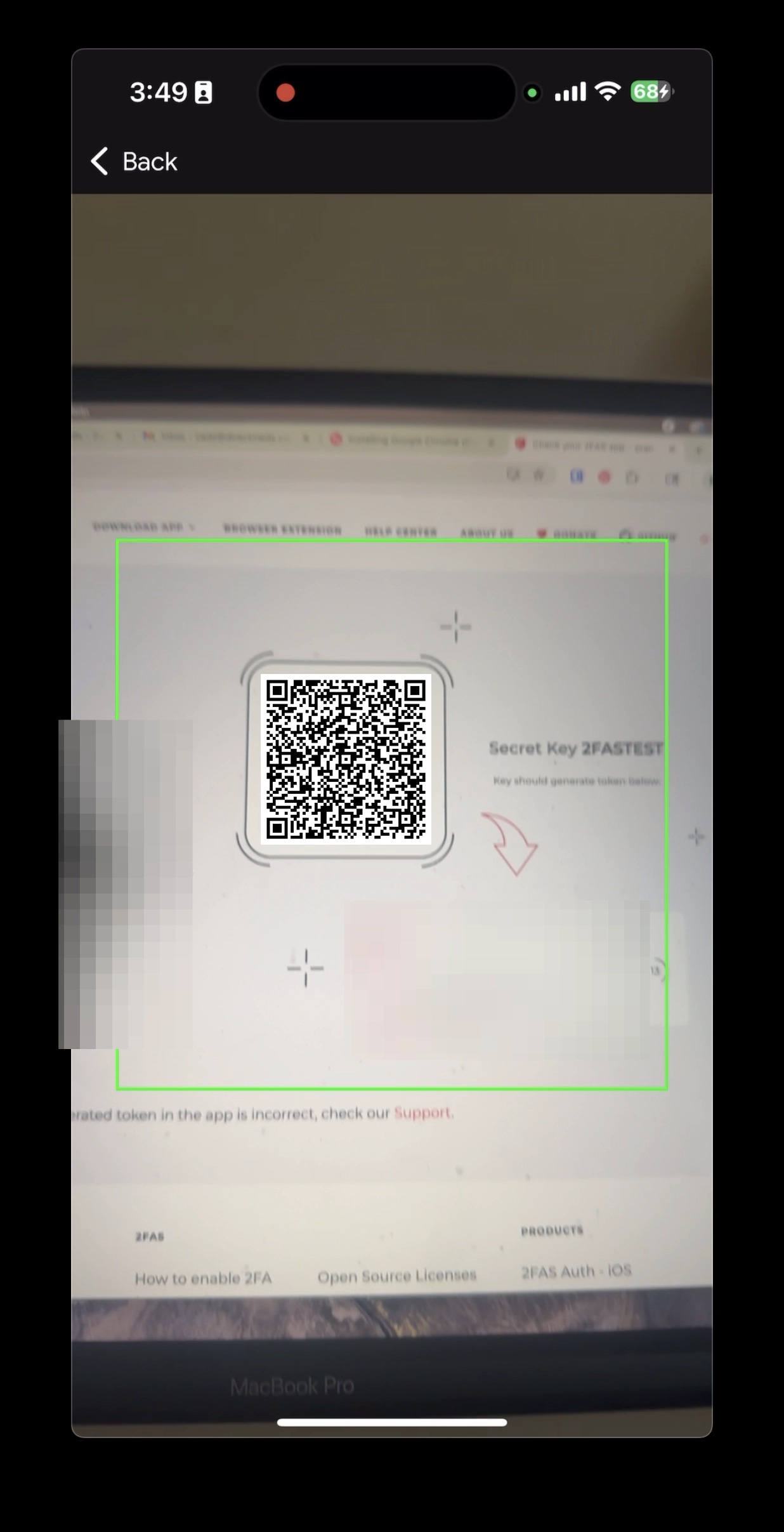
11Use your camera to capture the QR code.
 📷 Screenshot unavailable
 -
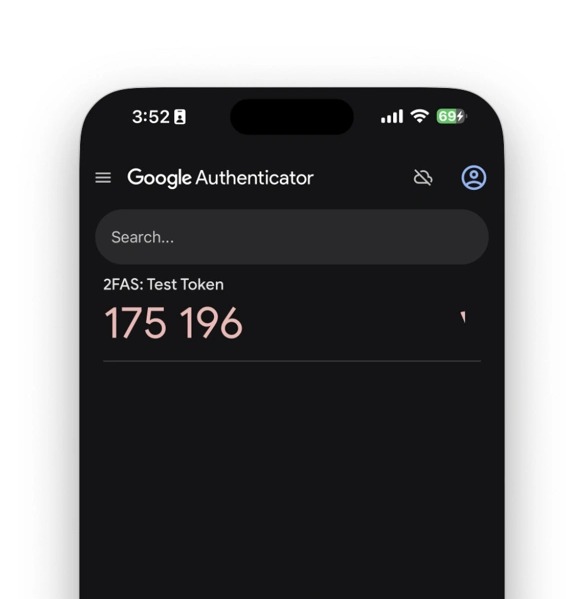
12A Zoho entry appears in your authenticator. The 6-digit codes refresh about every 30 seconds.
 📷 Screenshot unavailable
 -
13Click Next on Zoho and enter the current 6-digit code from your app.
 📷 Screenshot unavailable
 -
14Click Enable to finalize setup. You can now sign in to Zoho One normally.