When Five9 releases a new browser extension version for Chrome and Edge, you can update your browser to use the new extension. If you are unsure whether to update the browser extension, contact your administrator. To install a new version of the Five9 browser extension for Chrome or Edge, you must first remove the existing extension, and then log into Five9 to install the new extension (see Install the Five9 Softphone).
Removing the Five9 softphone browser extensions from Chrome or Edge
In Chrome, select the Extensions icon to manually remove the browser extension.

📷 Screenshot unavailable
In Edge, select Extensions from the Settings and more menu to manually remove the browser extension.
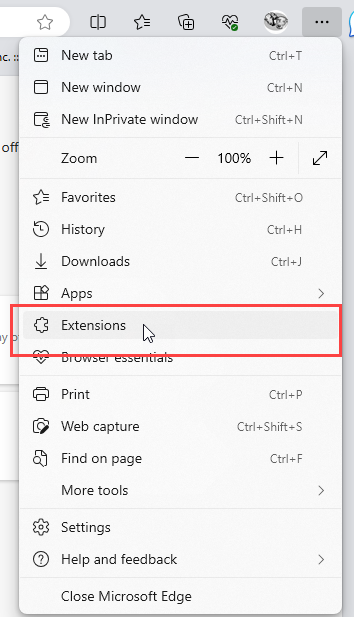
📷 Screenshot unavailable
After you remove the extension, log into Five9 to install the new browser extension (see Install the Five9 Softphone).
If your browser extension version is obsolete, you will be prompted to remove the obsolete version during station check.
1
Select the buttons that represent old softphone browser extensions to remove.
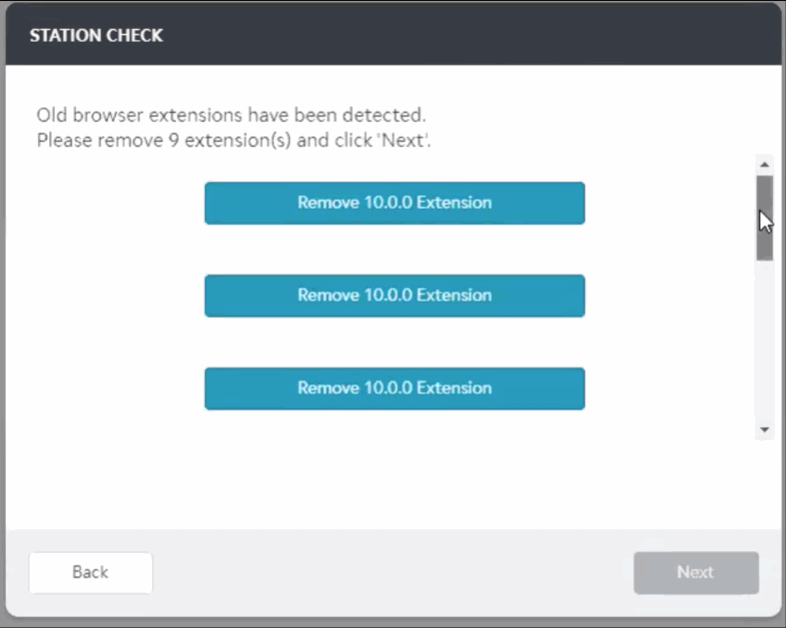
📷 Screenshot unavailable
2
Remove older softphone browser extensions.
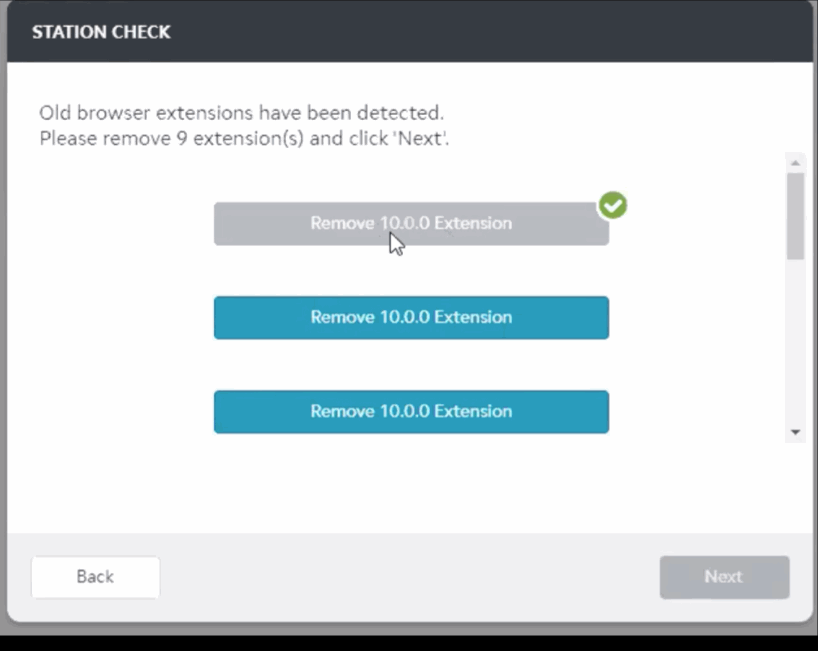
📷 Screenshot unavailable
Station setup continues once you remove all old browser extensions.
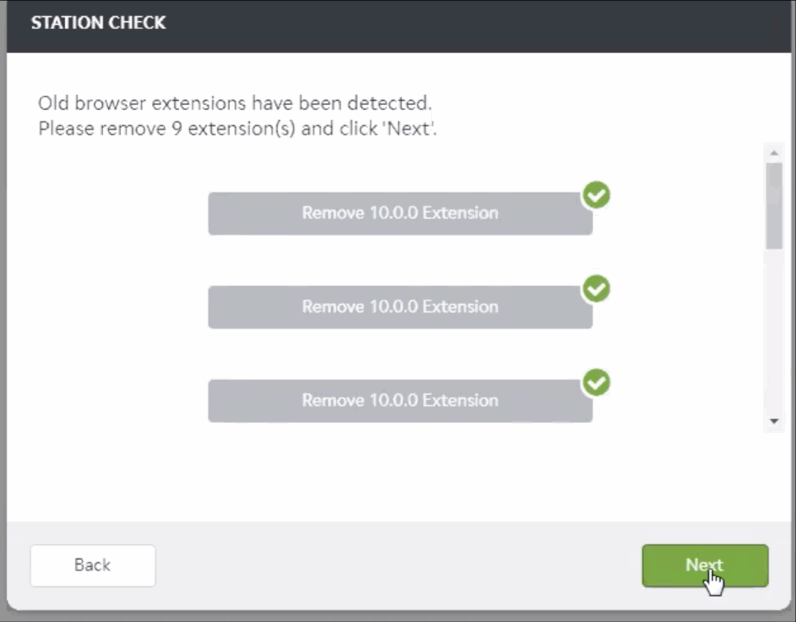
📷 Screenshot unavailable
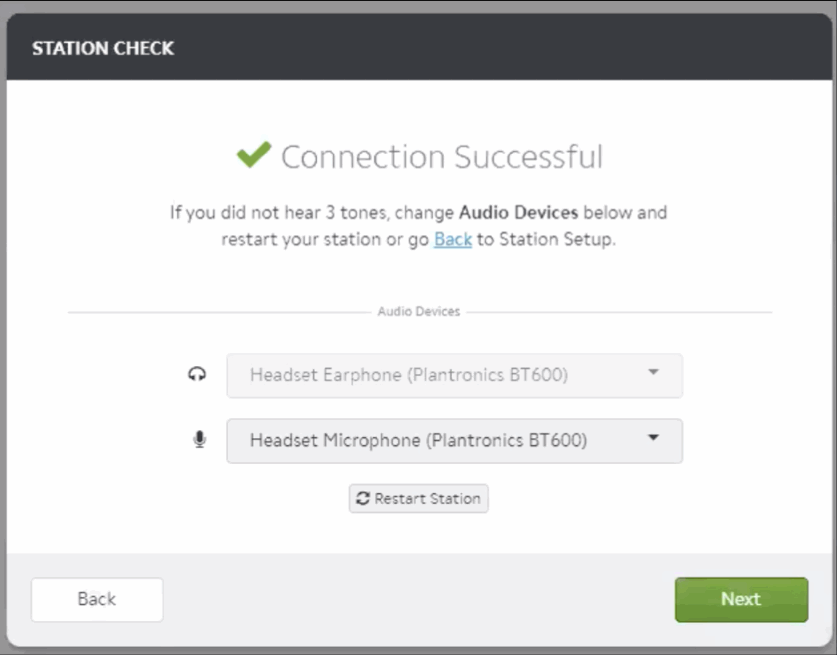
3
Click Next to complete the station check.
📷 Screenshot unavailable
After removing obsolete browser extensions, log out and log in again to install the browser extension update (see Install the Five9 Softphone).
When Five9 releases a new version of the softphone, the new version automatically installs the next time you log into the station.
If there is an issue with the updated softphone, update messages may display in your browser on log in.
Note: To manually install the update, Windows users must first uninstall the Five9 softphone through Settings > Apps.
Softphone updates happen in the background on the next log in. If any failure occurs during the download or unpacking of the softphone update, this process repeats at the next login attempt until installation is successful. The next login displays the new softphone version.
If the automatic updating encounters an issue, you may see the message Download and Install Five9 Softphone (see Install the Five9 Softphone). Note that before installing you must remove the currently installed softphone. You may also simply see a message to contact your administrator.